
You take a sharp, clear photo. You send it on WhatsApp. The person on the other end opens it and it looks like it’s been through a photocopier three times soft, blotchy, and noticeably worse than what you actually captured. If this has happened to you more than once, you’re not doing anything wrong with your camera. You’re making one specific mistake almost everyone makes, and it happens before the photo even reaches WhatsApp.
The Mistake: Letting WhatsApp Compress It For You
Here’s what actually happens behind the scenes. WhatsApp automatically compresses every photo you send, and it compresses aggressively, because its priority is fast delivery over a mobile network, not preserving maximum image quality. Most people never touch their photo before sending — they just tap the image, hit send, and let WhatsApp do whatever it’s going to do to it.
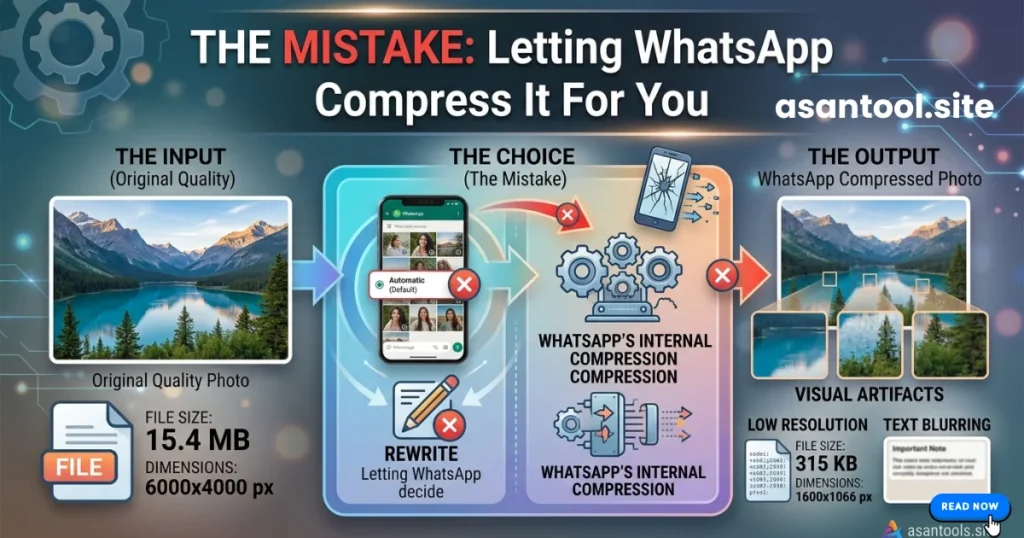
The mistake isn’t the photo itself. It’s handing WhatsApp a large, untouched file and trusting its algorithm to shrink it sensibly. WhatsApp’s compression isn’t built to protect quality — it’s built to guarantee the file gets through, even on a weak 3G connection. That means it will crush a large photo down hard, often much harder than necessary, resulting in visible blur, blotchy skin tones, and muddy colors, especially in photos with a lot of detail or low lighting.
Why This Keeps Happening to Everyone
- Phone cameras produce huge files. A single photo can be 3-8MB, sometimes more with newer phones far bigger than what a messaging app is designed to send quickly.
- WhatsApp doesn’t tell you how much it’s compressing. There’s no warning, no preview of the “before sending” quality drop the compression happens silently.
- “HD” quality toggle isn’t a real fix. Many people think turning on WhatsApp’s HD photo option solves this, but it still compresses the image, just slightly less aggressively it does not send the original file.
- Repeated forwarding makes it worse. Every time a photo gets forwarded through WhatsApp again, it gets compressed again, compounding the quality loss each time it changes hands.
Read More: How to Reduce a Photo’s Size for NADRA and CNIC Forms (Under 50KB)
The Actual Fix
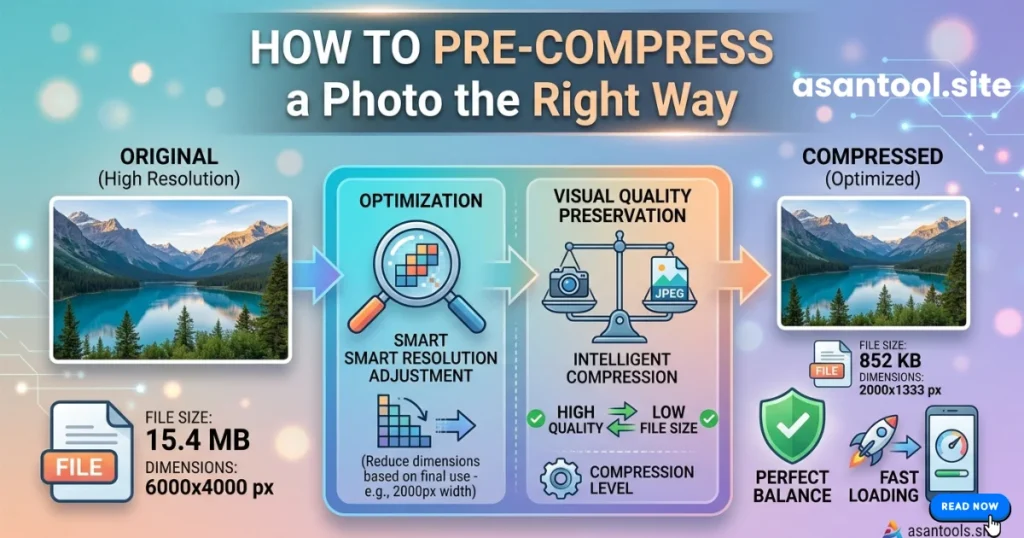
The fix is almost the opposite of what feels intuitive. Instead of sending your largest, highest-quality photo and hoping WhatsApp handles it well, you compress the photo yourself first, in a controlled way, before it ever reaches the app.
This works because:
- You control the compression, choosing a balance between file size and visual quality instead of leaving it to WhatsApp’s aggressive default
- A properly pre-compressed photo needs less additional compression from WhatsApp, since it’s already close to the size WhatsApp wants meaning WhatsApp’s own algorithm has less room to degrade it further
- The result looks noticeably sharper on the receiving end, especially for photos with text, fine detail, or skin tones, which are the areas WhatsApp’s compression damages most
How to Pre-Compress a Photo the Right Way
- Compress before opening WhatsApp, not after selecting the photo inside the app.
- Aim for a moderate target size extremely small files lose too much detail, while very large files still get hit hard by WhatsApp’s own compression. A properly compressed JPG in the 200KB-800KB range usually holds up well.
- Keep the format as JPG, since it’s what WhatsApp is optimized to handle, and avoid sending PNG for photos, since PNG files are unnecessarily large for photographic content.
- Check the compressed photo at full zoom before sending, to confirm faces and text are still sharp.
- Send it as a normal photo, not as a “file” or “document” attachment, unless you specifically need to preserve the exact original quality sending as a document skips WhatsApp’s compression entirely but is less convenient for casual sharing.
Compress Your Photo Properly, in Seconds
AsanTool’s Image Compressor lets you shrink a photo down to a controlled size right in your browser, before you ever open WhatsApp:
- Upload your photo
- The tool compresses it while keeping visual quality intact
- Download the result and send it directly through WhatsApp
- Your photo is never stored on our servers it’s deleted automatically within the hour
This one extra step, done before sending instead of trusting WhatsApp to handle it, is the difference between a photo that looks sharp on the other end and one that looks like it’s been sitting in a fax machine.
Conclusion
The real mistake was never how the photo was taken it’s handing over control of compression to an app whose main goal is fast delivery, not image quality. Pre-compressing a photo yourself, even briefly, gives you back that control and consistently produces sharper results than letting WhatsApp decide for you.
Want your WhatsApp photos to actually look sharp on the other end? Try the free Image Compressor — no account, no software, and your photo is never kept on our servers.