
A friend sends you a PDF, and all you actually need is one page of it — maybe a certificate, a screenshot-worthy chart, or a single ID page — to post on WhatsApp or paste into a presentation. Opening the whole PDF, screenshotting it, cropping it, and hoping the quality survives is a hassle nobody has time for.
There’s a faster way. Converting a PDF’s pages directly into JPG images skips all of that guesswork.
The Problem With Screenshotting a PDF
Most people default to screenshotting when they need an image out of a PDF, but it comes with hidden downsides:
- Screenshots capture your entire screen resolution, not the PDF’s actual print quality — so zoomed-out pages come out blurry
- You have to manually crop every single screenshot, which adds time and often clips content by accident
- Text inside the PDF can end up slightly warped or pixelated depending on your zoom level when you captured it
- If the PDF has multiple pages, you’re repeating this process over and over, one screenshot at a time
A proper PDF to JPG conversion sidesteps all of it — you get a clean, full-resolution image straight from the source file, no zoom guessing involved.
Who Actually Needs This
This isn’t just a random convenience — a few groups run into it constantly:
Students and teachers. Pulling a diagram or a single page from a lecture PDF to paste into notes or a presentation slide.
Job seekers. Extracting a certificate or ID page from a scanned PDF to attach as a standalone image for an online form.
Social media managers. Turning report pages or infographics from a PDF into shareable image posts for Instagram or Facebook.
Small business owners. Pulling an invoice or menu page from a PDF to send as a quick image over WhatsApp, since not everyone can open PDF attachments easily on older phones.
How the Conversion Actually Works
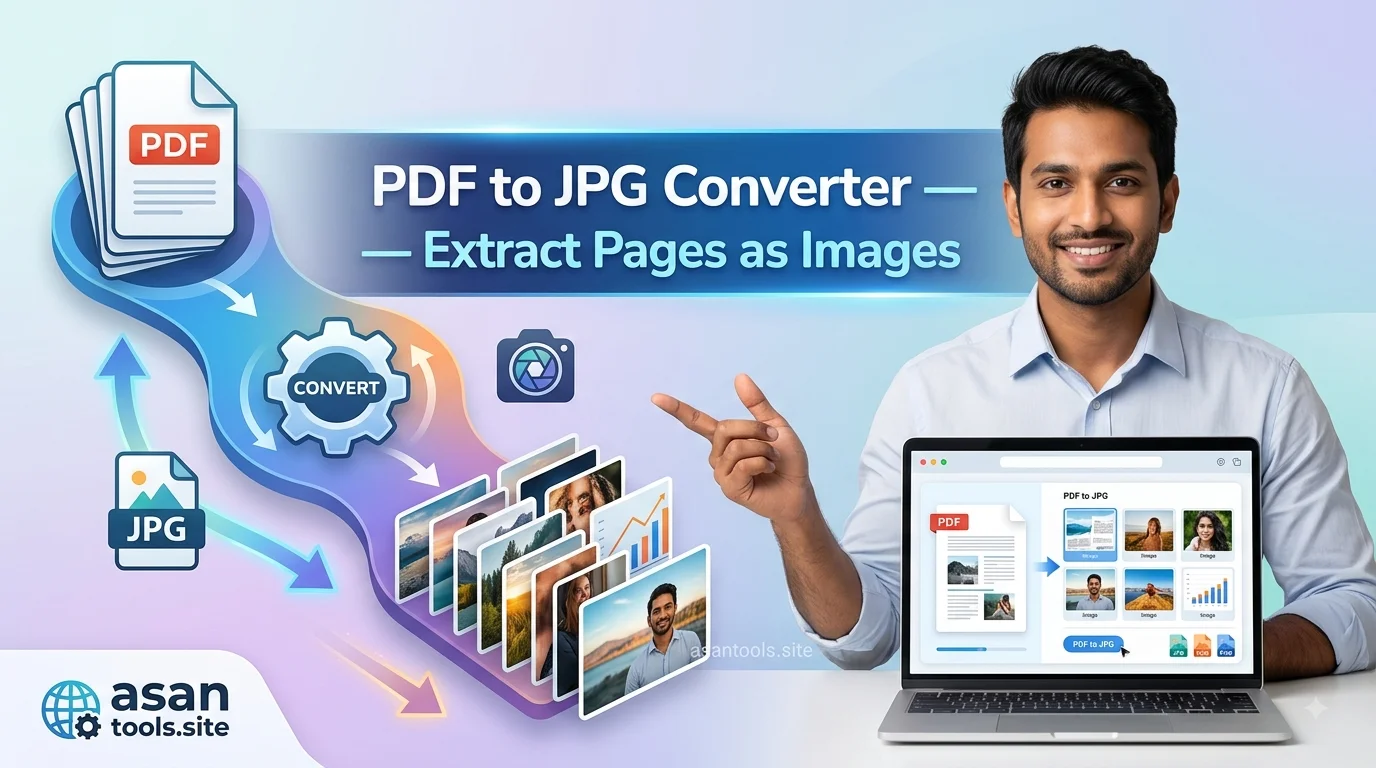
Each page inside a PDF becomes a separate JPG image. If your PDF has five pages, you’ll end up with five individual image files — one per page, in order. This matters because it means you’re not stuck extracting the whole document just to get the one page you actually wanted; you can pick and download exactly the page you need.
The image quality comes directly from how the PDF was originally created. A PDF built from a high-resolution scan or a properly formatted document will produce sharp, clear JPGs. A PDF that was already low-quality to begin with won’t magically improve during conversion — the output can only be as good as the source.
Steps to Convert PDF to JPG Properly
- Open your PDF first and confirm which page (or pages) you actually need, so you’re not converting more than necessary
- Use a dedicated PDF to JPG tool instead of the screenshot method, especially if the page has small text or fine details
- Download each converted image and rename it clearly if you’re pulling multiple pages, so you don’t mix them up later
- Preview the JPG at full size before using it anywhere, to confirm nothing got cut off or blurred in the process
Read More: PNG to JPG: Shrink Your Photos in Seconds Before You Send Them
Do It Instantly With AsanTool
AsanTool’s PDF to JPG converter handles this entirely in your browser — no downloads, no waiting around:
- Upload your PDF file
- Every page is automatically converted into a separate, high-quality JPG
- Download the pages you need individually or all at once
- Your file is never stored on our servers — it’s deleted automatically within the hour
Works exactly the same on a phone during a quick task or on a laptop for something more involved.
A Few Things Worth Knowing
Not every PDF converts perfectly. Password-protected PDFs need to be unlocked first, since the content inside is encrypted and inaccessible until then. And if your original PDF was scanned at a low resolution, the resulting JPG will carry that same limitation — conversion can’t add detail that was never captured in the first place.
Conclusion
Getting an image out of a PDF shouldn’t require a screenshot, a crop tool, and a bit of luck. A direct PDF to JPG conversion gives you the exact page you need, at full quality, in a fraction of the time — and for anyone dealing with certificates, reports, or scanned documents regularly, it’s one of those small tools that quietly saves a lot of repeated hassle.
Need to pull an image from a PDF right now? Try the free PDF to JPG converter — no account, no software, and your file is never kept on our servers.