
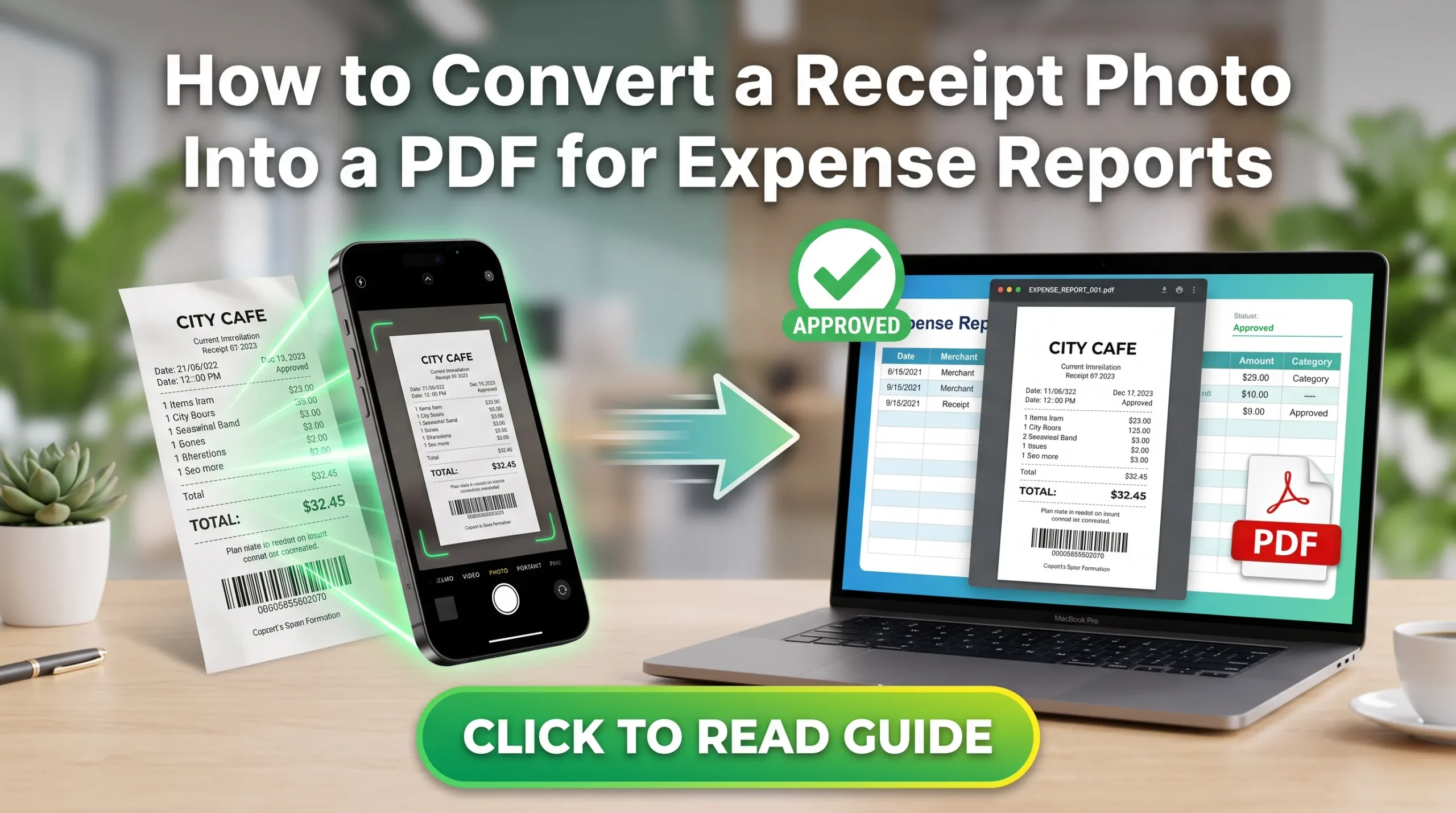
There’s a particular kind of dread that comes with opening your wallet at the end of the month and finding a fistful of crumpled receipts, half of them already fading into blank strips of paper. Thermal receipt paper, the shiny stuff almost every store and restaurant prints on, starts losing its text within weeks if it sits in a pocket or gets any warmth or sunlight. If you’re planning to submit an expense report next month using this month’s receipts, some of them may already be unreadable by the time you get around to it.
Photographing them and turning that into a proper PDF solves two problems at once: it preserves the record before it fades completely, and it gives you something an expense system will actually accept.
Why Expense Systems Want a PDF, Not Just Photos
Most expense platforms, whether it’s a company’s internal finance tool or something like Concur or Expensify, are built around processing one document per expense line or one document per report. Uploading ten separate photos for ten receipts on a single trip often creates ten separate line items to review individually, which is exactly the kind of tedious back-and-forth that gets an expense report bounced back for “needs more detail” or takes your finance team twice as long to approve.
A single, well-organized PDF containing every receipt from that trip, in order, reads as one complete submission instead of a scattered pile. It’s also just easier to archive: a PDF sits in a folder as one file for however many years your company requires you to keep expense records, while a folder of loose JPGs is easy to accidentally lose track of.
What Makes a Receipt Photo Actually Usable
A receipt is mostly small text, often printed with low contrast to begin with, so the margin for error is smaller than with a regular photo. A few things matter more here than they would for, say, a landscape shot:
Lay the receipt flat, ideally on a dark, non-reflective surface so the edges are easy to distinguish from the background. Thermal paper especially tends to curl at the edges, so pressing it flat with your hand or a book for a second before photographing helps avoid a blurry curve at the corners.
Light matters more than you’d expect. Overhead fluorescent lighting, the kind in most offices, can create a slight yellow or green cast that makes already-faint thermal print even harder to read once compressed. Natural window light or a simple desk lamp pointed at an angle (not directly overhead, which causes glare on the glossy paper) tends to give the clearest result.
Get close enough that the text fills a good portion of the frame, rather than photographing the receipt small in the middle of a large empty background. More pixels dedicated to the actual text means better legibility after any compression the expense system applies.
Read More: Why Every JPEG You Share Reveals Your Location (EXIF Data Explained)
Turning Multiple Receipts Into One Organized PDF
Once you’ve got clear photos of each receipt, the actual conversion is the easy part, and the ordering matters more than people think. If your company’s finance team reviews reports chronologically, arranging the receipts by date before combining them into a PDF saves them time and makes your submission look more put-together than a random jumble that happens to include everything.
AsanTool’s Image to PDF tool takes multiple receipt photos and combines them into a single PDF directly in your browser, letting you arrange the order before finalizing:
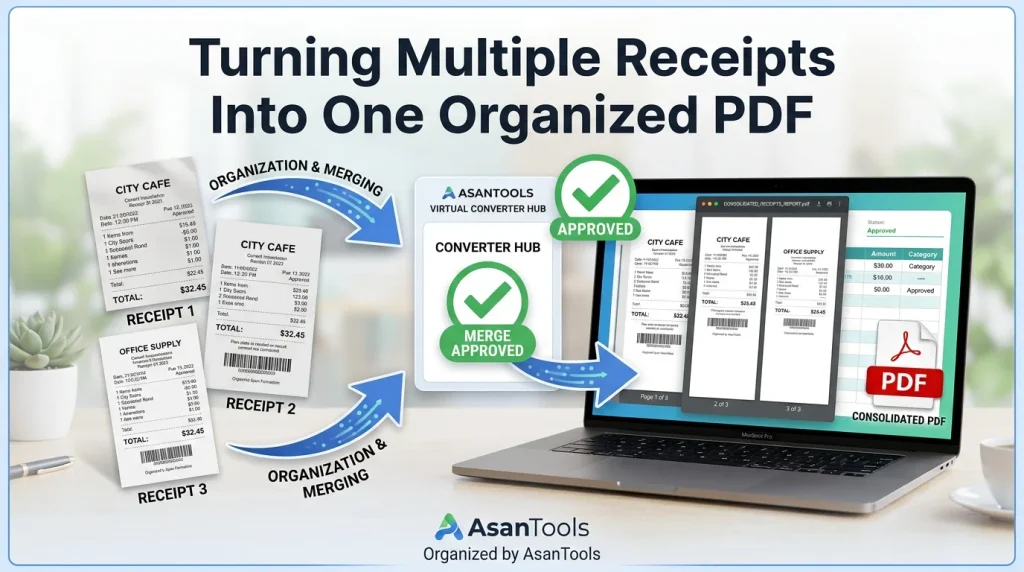
Upload each receipt photo. Drag them into the order you want, typically by date or by category if your expense report groups things that way. The tool combines everything into one clean PDF. Download it, ready to attach to your expense report as a single file.
If the resulting file is too large for your company’s upload limit, running it through the Image Compressor first (before combining) brings each receipt’s file size down without making the printed amounts or vendor names unreadable, which is really the only detail that actually matters on a receipt.
A Habit Worth Building
The real fix here isn’t a one-time conversion; it’s photographing receipts the same day you get them, before thermal paper has any chance to fade and before the pile builds up into an overwhelming end-of-month task. A receipt photographed the day of purchase, while it’s still crisp and legible, converts into a far more usable PDF than one photographed three weeks later when the print has already started to disappear.
Need to combine your receipts into one PDF right now? Try AsanTool’s free Image to PDF tool. No account, no software, and your files are never kept on our servers.
1 thought on “How to Convert a Receipt Photo Into a PDF for Expense Reports”