
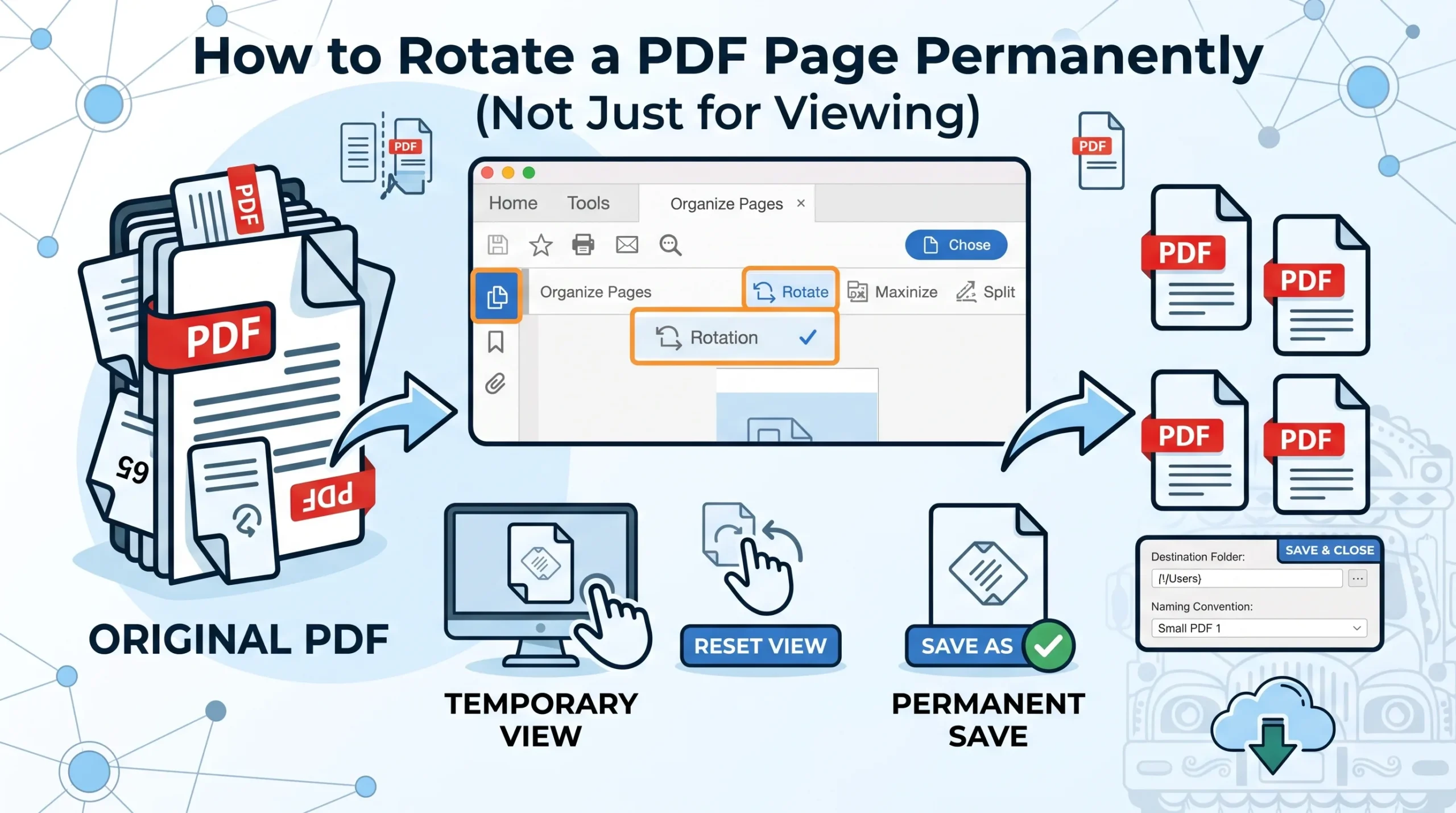
How to Rotate a PDF Page Permanently (Not Just for Viewing): Have you ever opened a PDF and found that one page is sideways or upside down? You rotate it on your screen, everything looks fine, and then you close the file. When you open it again, the page is back to its original position.
That can be frustrating, especially when you need to send the corrected PDF to someone else.
The reason is simple: rotating a PDF while viewing it does not always mean that the rotation has been saved to the PDF file itself. Some PDF viewers only change the way the document appears on your screen. To make the change permanent, you need to rotate the page and then save or download the updated PDF.
In this guide, we will explain how to rotate a PDF permanently, how to rotate one page or multiple pages, how to do it online and offline, and how to make sure the new orientation stays correct when the PDF is opened on another device.
What Does “Rotate PDF Permanently” Mean?
When you rotate a PDF permanently, the new page orientation is saved in the PDF file.
For example, imagine a 10-page document where page 6 is sideways.
You rotate page 6 to the correct position and save the PDF.
When you open the newly saved file in another PDF reader, email it to someone, or upload it to a website, page 6 should remain in the corrected orientation.
This is different from simply using a viewer’s temporary rotation button.
Some PDF readers allow you to rotate a page for comfortable viewing without changing the original document. Microsoft Edge, for example, provides keyboard shortcuts for rotating a PDF view clockwise or counterclockwise.
That can be useful when reading, but if you need the change to stay with the file, you need to save an edited version of the PDF.
Why Would You Need to Rotate a PDF Permanently?
There are many situations where permanent PDF rotation is useful.
Scanned Documents
A scanner may save one or more pages sideways because the original paper was placed in the wrong orientation.
Phone-Scanned PDFs
Documents created using a phone camera can sometimes contain pages with different orientations.
Mixed-Orientation Documents
A report may contain mostly portrait pages but include a landscape chart, spreadsheet, or presentation slide.
Business Documents
Invoices, contracts, reports, and forms may contain individual pages that need to be corrected before sending them to a client.
Uploading Documents
If you are submitting a PDF to a school, employer, government website, or business portal, you may want every page to have the correct orientation before uploading it.
Sharing With Other People
A permanently corrected PDF saves the recipient from having to rotate pages manually.
How to Rotate a PDF Permanently Online
The easiest method for many users is an online PDF rotation tool.
The general process is:
- Open a trusted PDF rotation tool.
- Upload your PDF.
- Select the page or pages you want to rotate.
- Choose clockwise or counterclockwise rotation.
- Apply the changes.
- Download the new PDF.
- Open the downloaded file to confirm the rotation was saved.
Tools such as Adobe Acrobat, Sejda, Smallpdf, Xodo, and PDF24 provide PDF rotation features. Their interfaces, privacy policies, limits, and processing methods differ, so check the current details before using a particular service.
The important part is downloading or saving the newly generated PDF, rather than relying only on the temporary rotation in your PDF viewer.
How to Rotate One PDF Page Permanently
You do not have to rotate the entire document if only one page is wrong.
For example, suppose you have a 25-page PDF and page 14 is upside down.
You can:
- Open the PDF in a PDF editor or online rotation tool.
- Find page 14 in the page thumbnails.
- Select page 14.
- Rotate it 90° clockwise or counterclockwise.
- Check the preview.
- Apply the change.
- Save or download the new PDF.
Many modern PDF tools allow individual pages to be rotated without affecting the remaining pages. Xodo, for example, supports rotating specific pages as well as the entire document.
This is especially useful for scanned documents where only a few pages have orientation problems.
How to Rotate Multiple PDF Pages Permanently
If several pages are sideways, you can usually select them together rather than rotating every page one by one.
For example, if pages 3, 5, 8, and 10 need to be rotated:
- Select those pages.
- Choose the rotation direction.
- Apply the rotation.
- Save the PDF.
Some tools also let you rotate a continuous range of pages.
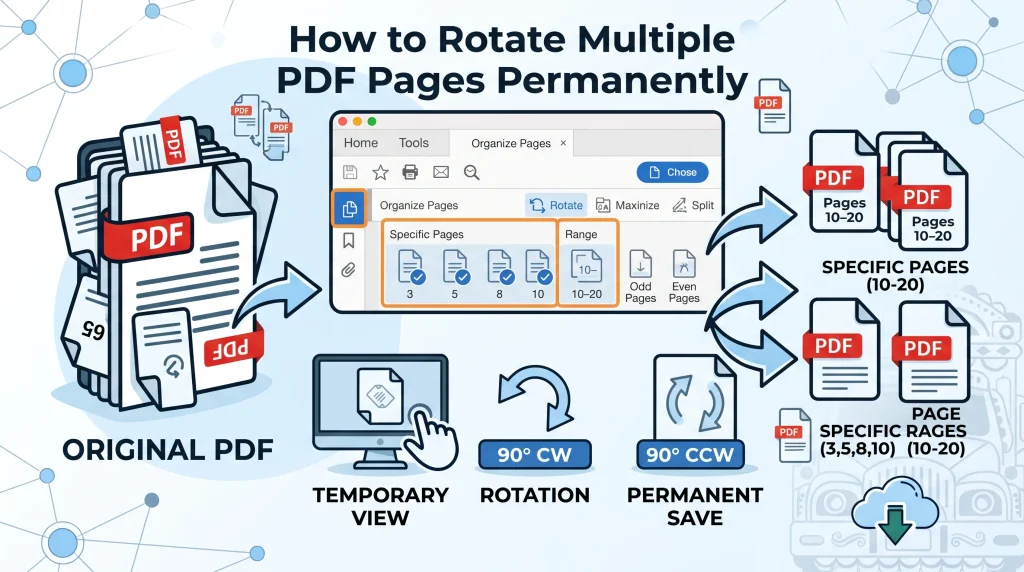
For example:
Pages 10–20 → Rotate 90° clockwise
This can save a lot of time when working with large documents.
Xodo supports selecting multiple pages, while Sejda provides options for rotating all pages, specific pages, and odd or even pages.
How to Rotate All PDF Pages Permanently
If every page in the document is sideways, rotating individual pages would be unnecessary.
Instead:
- Open your PDF in a rotation tool.
- Choose All Pages.
- Select the desired rotation direction.
- Apply the change.
- Save or download the new PDF.
Sejda’s PDF rotation tool, for example, provides an option to rotate all pages and lets users apply 90° or 180° rotations.
Always check the result before replacing your original file.
How to Rotate a PDF Permanently With Adobe Acrobat
Adobe Acrobat provides a dedicated way to rotate PDF pages and save the result.
According to Adobe’s current instructions, you can open the PDF in Acrobat and use the Organize Pages tool. From there, you can select individual pages or a range of pages and rotate them clockwise or counterclockwise in 90-degree increments. You then save the PDF.
A basic workflow is:
Step 1: Open the PDF
Launch Adobe Acrobat and open the document you want to correct.
Step 2: Open Organize Pages
Select the Organize Pages tool.
You will see thumbnails representing the pages in your PDF.
Step 3: Select the Page
Click the page you want to rotate.
You can select multiple pages if necessary.
Step 4: Rotate the Page
Use the rotate-left or rotate-right controls.
Acrobat works with 90-degree rotation increments.
Step 5: Save the PDF
Save the updated document as a new file.
This final step is what matters if your goal is to rotate the PDF permanently.
Adobe also provides PDF organization features through Acrobat on the web, where pages can be rotated from their thumbnails and the organized PDF can then be saved.
How to Rotate a PDF Permanently for Free
You do not necessarily need expensive PDF editing software for a simple rotation task.
Several online PDF tools offer free rotation features.
For example, PDF24 provides a free online PDF page rotation tool and explains that users can select pages, rotate them, and save the new PDF.
Sejda also offers a PDF rotation tool that lets users rotate individual pages, all pages, or odd/even pages and save the result.
Xodo provides another browser-based option for rotating individual pages or the whole document.
Free tools can be convenient when you only need to fix a document occasionally.
However, always check the current usage limits and privacy policy before uploading an important document.
Read More: How to Split a Large PDF Into Smaller Files
How to Rotate a PDF Without Adobe Acrobat
Adobe Acrobat is not the only option.
If you do not have Acrobat, you can use:
- Online PDF rotation tools
- Desktop PDF editors
- Browser-based PDF tools
- PDF management applications
For example, Xodo allows users to rotate PDF pages online without requiring Adobe Acrobat. Its tool supports individual pages and entire documents.
Sejda also offers online and desktop PDF tools. Its desktop version is useful when you prefer to process documents locally instead of uploading them to a server.
How to Rotate a PDF on Windows
Windows users have several choices.
If you only need to view a rotated page temporarily, a browser such as Microsoft Edge can rotate the PDF display using its built-in controls or keyboard shortcuts. Microsoft’s documentation lists Ctrl + [ for counterclockwise rotation and Ctrl + ] for clockwise rotation in a PDF.
But remember:
Viewing rotation is not the same as permanently editing the PDF.
If you want the page orientation to remain corrected when someone else opens the file, use a PDF editor or PDF rotation tool that saves the modified document.
A simple workflow is:
Open → Rotate → Save as a new PDF → Reopen and check
How to Rotate a PDF on Mac
Mac users can use Preview for basic PDF page management.
A common method is:
- Open the PDF in Preview.
- Display the page thumbnails.
- Select the page you want to rotate.
- Use the rotation option.
- Save the document.
Xodo also provides a browser-based PDF rotation option that works on Mac. Its documentation explains that users can rotate selected pages or the entire PDF and then download the result.
If the PDF is important, always reopen the saved copy to make sure the orientation is correct.
Can You Rotate a PDF on a Phone?
Yes.
You can rotate a PDF using a mobile PDF application or a browser-based PDF tool.
This can be particularly useful if you scanned a document using your phone and one or more pages are sideways.
The basic process is similar:
- Open a PDF rotation tool.
- Select the PDF from your phone.
- Select the page.
- Rotate it.
- Apply the change.
- Save or download the corrected PDF.
Xodo states that its PDF rotation tools work across Windows, Mac, Linux, Android, and iOS.
90°, 180°, or 270°: Which Rotation Should You Use?
The correct rotation depends on how your page is currently positioned.
Rotate 90° Clockwise
Use this when the page is sideways and needs to turn to the right.
Rotate 90° Counterclockwise
Use this when the page is sideways in the opposite direction.
Rotate 180°
Use this when the entire page is upside down.
Rotate 270°
A 270° clockwise rotation is effectively the same orientation change as 90° counterclockwise.
Many PDF tools provide 90°, 180°, and 270° options.
Does Rotating a PDF Reduce Quality?
Normally, simply rotating a PDF page does not require you to reduce the quality of the document.
PDF24 states that rotating pages does not affect PDF quality.
The reason is that a proper PDF rotation operation can change the page orientation without converting the page into a lower-quality image.
This is different from a workflow where you:
PDF → JPG → rotate image → JPG → PDF
That process may involve image compression and can potentially affect quality.
If preserving the original document is important, use a PDF-native rotation feature rather than converting every page into images.
Will the Rotation Stay When I Open the PDF Somewhere Else?
If you have correctly rotated and saved the modified PDF, the new file should retain the page orientation.
For example:
Before:
Page 5 is sideways.
After permanent rotation:
Page 5 is saved in the correct orientation.
You can then open the saved PDF in another compatible PDF reader and the page should remain in its new orientation.
This is why it is important to distinguish between a temporary viewer rotation and an actual PDF editing operation.
How to Check if Your PDF Rotation Is Permanent
After rotating the PDF, do not assume everything worked.
Use this simple test:
1. Save the New File
Give the corrected PDF a different name.
For example:
Original-Document.pdf
becomes:
Corrected-Document.pdf
2. Close the PDF
Completely close the document and, if possible, the PDF application.
3. Reopen the New File
Open the newly saved PDF.
4. Check the Corrected Pages
Make sure the pages are still in the desired orientation.
5. Test Another PDF Viewer
For important documents, open the file in another PDF reader or browser.
If the page remains correctly oriented, you can be more confident that the change was saved into the file rather than being a temporary viewing preference.
Can You Rotate Only Odd or Even PDF Pages?
Yes, some PDF tools support this.
This can be useful with scanned documents.
For example, if a double-sided scanning process caused every other page to have the wrong orientation, you may be able to select only the odd or even pages and rotate them together.
Sejda specifically provides options for rotating odd or even pages.
This is much faster than manually correcting every page.
How to Rotate a PDF Without Uploading It
If your PDF contains sensitive information, you may not want to upload it to an online service.
In that case, use a desktop PDF application that processes the document locally.
Some services also provide offline versions. Sejda, for example, offers a desktop application and states that files processed through its desktop version do not leave the computer.
Xodo also provides desktop PDF software for offline editing.
This approach can be preferable for:
- Contracts
- Financial documents
- Personal records
- Legal documents
- Business files
- Confidential reports
Always choose software from a reputable source and keep it updated.
Is It Safe to Rotate a PDF Online?
For ordinary documents, online PDF tools can be convenient.
But uploading a file means you should think about privacy.
Before using an online PDF service, check:
- How files are transferred
- Whether files are stored
- When files are deleted
- Whether your document is used for another purpose
- Whether the service has appropriate security measures
Different services handle files differently. For example, PDF24 says files are transferred using SSL and automatically deleted from its servers after one hour, while Sejda says processed files are permanently deleted after processing.
Policies can change, so check the provider’s current privacy information before uploading sensitive documents.
What If Only One Page Is Rotated?
You do not need to rotate the entire PDF.
Select the incorrect page and rotate only that page.
This is one of the main advantages of using a PDF page organizer rather than simply rotating the whole document.
For example:
Pages 1–9: Correct
Page 10: Sideways
Pages 11–20: Correct
In this situation, only page 10 should be rotated.
Rotating every page would create a new problem.
What If the PDF Has Portrait and Landscape Pages?
Not every PDF needs every page to have the same orientation.
A report might contain portrait text pages and landscape tables.
In that situation, do not automatically rotate all pages to the same direction.
Instead, rotate only the genuinely incorrect pages.
The goal is not to make every page identical. The goal is to make every page easy to read and correctly oriented.
Common Mistakes When Rotating PDFs
Mistake 1: Rotating Only the Viewer
You rotate the page, close the document, and assume it has been changed permanently.
It may only have changed the viewing angle.
Mistake 2: Rotating the Entire PDF
If only one page is wrong, rotating every page will make the rest of the document incorrect.
Mistake 3: Forgetting to Save
You correct but close the program without saving the updated file.
Mistake 4: Overwriting the Original Immediately
If something goes wrong, you may want the original document back.
Keep a backup until you have checked the new file.
Mistake 5: Converting the PDF to Images
Converting pages to images just to rotate them can introduce unnecessary quality loss and increase your workload.
Mistake 6: Ignoring Privacy
Do not automatically upload confidential documents to an online tool without checking its privacy practices.
Best Way to Rotate a PDF Permanently
The best method depends on what you need.
For one quick document:
Use a reputable online PDF rotation tool.
For confidential documents:
Use desktop software that processes files locally.
For many pages:
Choose a tool that supports bulk page selection.
For one incorrect page:
Rotate only that page.
For a complete document that is upside down:
Select all pages and rotate them together.
For repeated PDF work:
A dedicated desktop PDF editor may be more convenient.
Frequently Asked Questions
How do I rotate a PDF permanently?
Open the PDF in a PDF editor or rotation tool, select the page or pages, apply the required rotation, and then save or download the updated PDF. Reopen the saved file to confirm that the orientation remains changed.
Why does my PDF rotate back after I close it?
You may have rotated the PDF only for viewing. Some PDF viewers change the display temporarily without modifying the document. To make the rotation permanent, use a PDF editing tool and save the modified file.
Can I permanently rotate just one page?
Yes. Most dedicated PDF page-rotation tools allow you to select and rotate individual pages without changing the orientation of the rest of the document.
Can I rotate an entire PDF at once?
Yes. Select all pages and apply the desired 90°, 180°, or 270° rotation. Many PDF tools support bulk rotation.
Can I rotate a PDF without Adobe Acrobat?
Yes. You can use other desktop PDF applications or browser-based PDF tools such as Xodo, Sejda, Smallpdf, or PDF24.
Does rotating a PDF affect its quality?
A proper PDF rotation operation generally does not require recompressing the document. PDF24 specifically states that rotating PDF pages does not affect quality.
Can I rotate a PDF for free?
Yes. Several services offer free PDF rotation features, although their limits and terms can vary.
Can I rotate a PDF on my phone?
Yes. Browser-based PDF tools and mobile PDF applications can be used to rotate PDF pages on smartphones and tablets. Xodo, for example, supports PDF rotation across mobile and desktop platforms.
How do I know if the PDF rotation was saved permanently?
Close the PDF and reopen the newly saved file. For extra confidence, open it in another PDF reader and check the corrected page again.
Final Thoughts
Learning how to rotate PDF permanently is simple once you understand the difference between changing the view and changing the actual document.
If you only rotate a PDF inside a viewer, the change may be temporary. If you need the corrected orientation to remain when the document is reopened or shared, you should use a PDF editing or rotation tool that applies the change and saves a new PDF.
For a single sideways page, rotate only that page. For a document where every page is incorrectly oriented, rotate the entire file. If you are dealing with odd or even pages from a scan, use a tool that supports bulk or selective page rotation.
Online tools are convenient for ordinary documents, while offline PDF software can be a better choice for confidential files.
Most importantly, always reopen the saved PDF after making the change. That quick check can prevent you from sending a document that still contains sideways or upside-down pages.
The goal is not simply to rotate what you see on the screen. The goal is to save a corrected PDF that stays correctly oriented wherever you open it.