
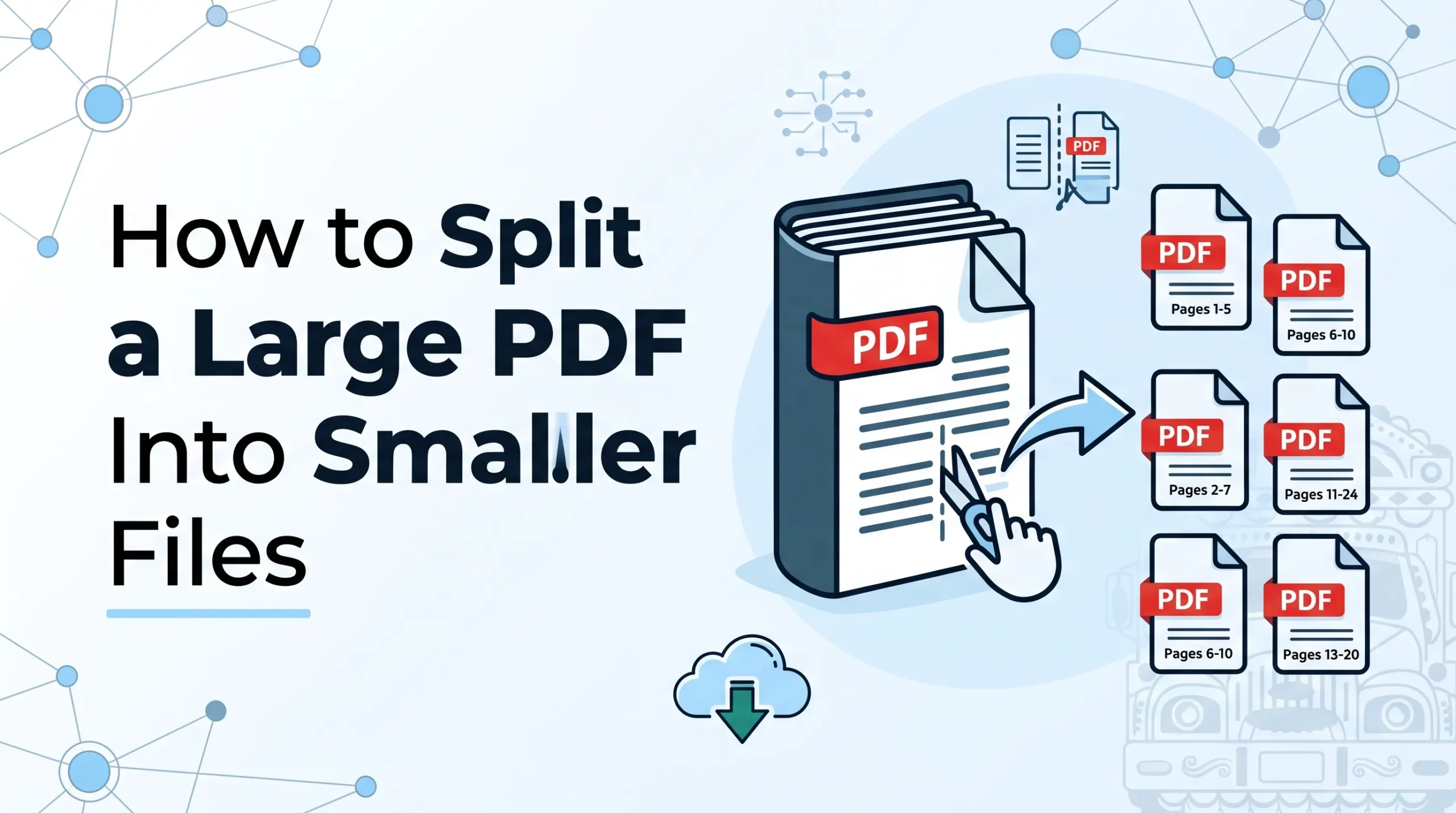
Large PDF files can become difficult to manage, especially when you only need a few pages from a long document. A large file may also be harder to email, upload to a website, share with someone, or store on your device.
The good news is that you do not always need to keep an entire PDF as one file. You can split a large PDF into smaller files by separating specific pages, creating page ranges, or dividing the document into several smaller PDFs.
For example, imagine you have a 200-page business report, but you only need to send pages 1–20 to one person and pages 21–40 to another. Instead of sending the complete 200-page document, you can split it into smaller PDF files and share only the pages each person needs.
In this guide, you will learn how to split a large PDF into smaller files, how to split PDFs online and offline, how to separate individual pages, how to divide a PDF by page ranges, and what you should know about privacy and file quality.
What Does It Mean to Split a PDF?
Splitting a PDF means taking one PDF document and dividing it into two or more separate PDF files.
The original document might contain dozens or hundreds of pages. After splitting it, each new file contains only the pages or sections you selected.
For example:
Original PDF:
100 pages
After splitting:
- File 1: Pages 1–25
- File 2: Pages 26–50
- File 3: Pages 51–75
- File 4: Pages 76–100
You can also extract only certain pages instead of dividing the entire document.
PDF splitting is different from compressing a PDF. Compression reduces the file size, while splitting separates the document into multiple files. In some situations, you may want to do both.
Why Split a Large PDF Into Smaller Files?
There are several practical reasons to split a PDF.
Easier Email Sharing
Some email services and business systems place limits on attachment sizes. If your PDF is too large, splitting it into smaller documents can make sharing easier.
For example, instead of attaching a single large 50 MB PDF, you could split the document into smaller sections.
Uploading to Websites
Government websites, job portals, school systems, insurance portals, and other online services may have file-size restrictions.
If a website does not accept your complete PDF, splitting it into smaller files may solve the problem.
However, always check the website’s instructions before splitting a document. Some websites require that specific pages be combined into a single file.
Sending Only Relevant Pages
You may have a document containing information that another person does not need to see.
For example, a contract may contain several sections, but a client only needs the signed agreement page. You can extract the required page and create a separate PDF.
Organizing Large Documents
A large document can be easier to manage when it is divided into logical sections.
A 300-page training manual, for example, could be separated into different chapters or modules.
Saving Storage and Managing Files
Splitting does not automatically mean that the total amount of data will become much smaller. However, smaller individual files can be easier to organize, upload, transfer, and work with.
How to Split a Large PDF Online
One of the easiest methods is to use an online PDF splitter.
Online PDF tools generally work through a web browser, so you do not need to install a desktop PDF editor.
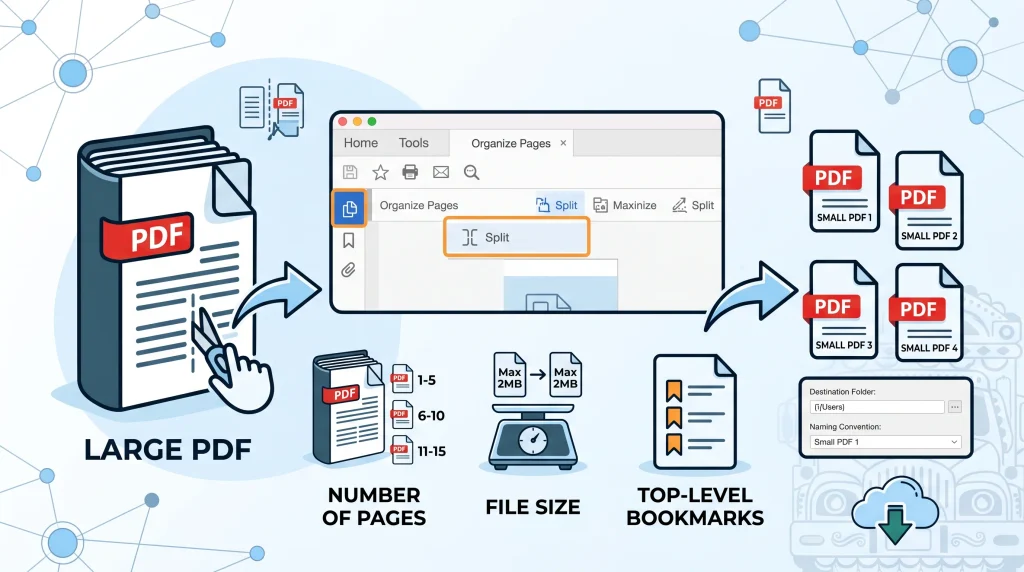
The basic process is similar across many services:
- Open a PDF splitting tool.
- Upload your large PDF.
- Select the pages or ranges you want.
- Choose the splitting method.
- Start the process.
- Download the smaller PDF files.
Tools such as Smallpdf, PDF24, Sejda, Xodo, and Adobe Acrobat provide online PDF splitting features, although their limits and available options can differ.
Step 1: Choose a PDF Splitter
Open a trusted PDF splitting service in your browser.
Before uploading a document, especially if it contains private information, review the service’s privacy and file-retention information.
Step 2: Upload Your PDF
Select the large PDF from your computer or drag it into the upload area if the service supports drag and drop.
Wait for the document to load.
For very large files, uploading may take some time depending on your internet connection and the service’s file-size limits.
Read More:
Step 3: Select How You Want to Split It
Most PDF splitters give you options such as:
- Extract selected pages
- Split by page ranges
- Split every page
- Split after a certain number of pages
Choose the method that matches your needs.
Step 4: Split the PDF
After selecting your pages or split points, click the button to split the document.
The tool will create the new PDF files.
Step 5: Download and Check the Files
Download the resulting files and open them before deleting the original PDF.
Check that the correct pages are included and that the document looks normal.
This final check is particularly important when the PDF contains contracts, forms, invoices, applications, or other important information.
How to Split a PDF by Page Range
Splitting by page range is useful when you want to create several organized sections from one large document.
Suppose your PDF contains 90 pages.
You could create:
- Pages 1–30 → Part 1
- Pages 31–60 → Part 2
- Pages 61–90 → Part 3
Many PDF tools allow you to enter these ranges directly or mark the locations where you want the document divided.
This method works particularly well for books, reports, manuals, research documents, and course materials.
How to Split Every Page Into a Separate PDF
Sometimes you need every page to become its own PDF.
For example, you may have a 20-page document containing 20 individual forms. Instead of keeping them together, you can create 20 separate PDF files.
The exact process depends on the software you use, but many PDF splitters provide an option such as “Extract every page into a PDF” or a similar setting. Sejda, for example, provides an option to extract every page into a separate document.
This can save considerable time compared with manually opening and saving each page.
Read More: How to Password Protect a PDF Before Sending It
How to Split a Large PDF Using Adobe Acrobat
Adobe Acrobat provides several ways to divide PDF documents.
In the desktop version, open your PDF and go to All tools > Organize pages > Split.
Adobe allows you to split a PDF based on:
- Number of pages
- File size
- Top-level bookmarks
You can also choose output options, including the destination folder and naming convention for the new files.
Split by Number of Pages
This option creates new PDFs after a specific number of pages.
For example, if you have a 100-page document and choose 20 pages, Acrobat can create several files containing 20 pages each.
Split by File Size
If your main goal is to create smaller files for uploading or sharing, splitting by file size can be useful.
For example, you may want each resulting PDF to stay below a certain size.
Keep in mind that file size and page count are not the same thing. A PDF containing many pages of simple text may be smaller than a short PDF containing high-resolution images.
Split by Bookmarks
If your PDF contains properly structured top-level bookmarks, Acrobat can use them as natural division points.
This can be particularly useful for books, reports, manuals, and other structured documents.
Adobe’s current documentation confirms that its desktop Acrobat split feature supports page count, file size, and top-level bookmark methods.
How to Split a PDF Online With Adobe Acrobat
Adobe also provides an online PDF splitting tool.
The basic process is to select or upload your PDF, choose divider points between pages, and save the resulting files. Adobe’s current online documentation says users can select divider lines between page thumbnails to define where the PDF should be separated.
This can be useful when you do not have the desktop version of Acrobat installed.
However, remember that online tools require you to upload the document to a server. For sensitive documents, always consider whether an online service is appropriate.
How to Split a PDF on Windows Without Complicated Software
Windows users have several options for splitting PDFs.
A dedicated PDF application can provide more control, especially when working with large documents or performing the same task regularly.
Another option is an online PDF splitter, which can be convenient when you only need to split a file occasionally.
If you work with confidential business documents, financial records, legal documents, personal information, or other sensitive material, an offline application may be preferable because the file can remain on your computer.
How to Split a PDF on Mac
Mac users can use several PDF applications to separate pages.
Adobe Acrobat provides dedicated PDF splitting features, while other PDF applications can also extract pages.
For simple tasks, Apple’s Preview application can be useful for working with PDF pages. One common approach is to open the PDF, display the page thumbnails, select the required pages, and save or export the selected pages as a separate PDF.
The best method depends on whether you need to extract a few pages or automatically divide a very large document into multiple files.
How to Split a PDF Without Losing Quality
A common concern is whether splitting a PDF will make the document blurry or reduce its quality.
Normally, splitting the pages themselves does not require the PDF to be compressed or converted into another format.
Adobe explains that its PDF splitting process can preserve the document’s content, while its extraction feature can retain elements such as form fields, comments, and links.
The key is to avoid unnecessary conversions.
For example, if you have a high-quality PDF, do not convert every page into JPG images and then create a new PDF unless you have a specific reason to do so.
That extra conversion can affect text quality, image quality, file size, or document functionality.
A direct PDF splitting or page-extraction method is usually the better approach.
Split PDF vs. Extract PDF Pages
These terms are sometimes used interchangeably, but they can describe slightly different tasks.
Splitting a PDF
Splitting usually means dividing one document into multiple PDF files.
For example:
Pages 1–10 → File A
Pages 11–20 → File B
Pages 21–30 → File C
Extracting PDF Pages
Extraction means selecting specific pages and creating a new PDF from them.
For example, you could extract:
Pages 2, 7, 15, and 21 → New PDF
This is useful when the pages you need are not next to each other.
Adobe’s extraction tools specifically allow users to select pages and create a new document, including an option to create individual PDFs from extracted pages.
How to Split a PDF Into Smaller Files by Size
Sometimes you are not concerned about the number of pages. You simply need the resulting files to be smaller.
This is common when an upload system has a maximum file-size requirement.
For example, suppose your PDF is 80 MB, and the website accepts files up to 10 MB.
Simply dividing the document into equal page counts may not produce files under 10 MB because some pages can contain much larger images than others.
In this situation, a tool that supports splitting by file size can be more useful.
Adobe Acrobat supports splitting by maximum file size in its desktop application.
Another option is to compress the PDF before or after splitting it.
Should You Split or Compress a Large PDF?
It depends on the problem.
If your PDF is too large because it contains hundreds of pages, splitting it may be the simplest solution.
If the document has only a few pages but contains very large images, compression may be more appropriate.
For example:
300-page report:
Splitting may help.
5-page PDF with huge photographs:
Compression may help.
Large report that is also too big to upload:
Splitting and compression may both help.
Compression and splitting solve different problems, so choose the method based on what you actually need.
Is It Safe to Split a PDF Online?
Online PDF tools can be convenient, but privacy should always be considered.
When you use an online PDF splitter, your file normally needs to be uploaded for processing. Different services have different policies about how files are transferred, stored, and deleted.
For example, PDF24 states that its online tools use SSL-secured file transfers and that uploaded files are automatically deleted from its servers after a period of time.
Smallpdf also describes security measures and automatic deletion for files processed through its online PDF tools.
Sejda says files are transferred over an encrypted connection and deleted after processing, while also offering a desktop option for users who prefer to keep files offline.
Still, you should not upload confidential information to an online service without first checking its current privacy terms.
For sensitive documents, an offline PDF application is often the safer choice.
What Types of PDFs Can You Split?
You can generally split many different types of PDF documents, including:
- Business reports
- E-books
- Research papers
- School assignments
- Invoices
- Receipts
- Manuals
- Contracts
- Application forms
- Scanned documents
- Presentations saved as PDFs
- Government forms
However, some PDFs may have restrictions.
A document can have security settings that limit editing, copying, or page manipulation. If a PDF is password-protected or has editing restrictions, the software may require authorization before certain operations can be performed.
Adobe recommends checking a PDF’s security settings when working with restricted documents.
What If the PDF Is Password Protected?
If you know the password and have permission to modify the document, enter the password when requested and use the available PDF tools.
If you do not have permission to modify a protected document, you should not try to bypass its security controls.
For work documents, ask the owner or administrator for an editable or unrestricted copy when necessary.
Common Problems When Splitting PDF Files
Although splitting a PDF is usually straightforward, you may encounter a few problems.
The File Is Too Large to Upload
If the online tool does not accept your file, check its file-size limit.
You can either use a desktop PDF application, compress the file first, or find a service that supports your file size.
The New PDF Has the Wrong Pages
Always check your selected page ranges before clicking the final split button.
For example, make sure that page 20 has not accidentally been included in the wrong section.
The PDF Looks Different
If you use a conversion-based workflow rather than a direct PDF splitting method, some formatting or interactive elements may change.
For important documents, use a dedicated PDF split or extraction feature whenever possible.
The Output File Names Are Confusing
If you create many files, rename them clearly.
Instead of:
Document1.pdf
Document2.pdf
Document3.pdf
consider:
Report-Part-1.pdf
Report-Part-2.pdf
Report-Part-3.pdf
Clear names make files easier to find later.
Best Practices for Splitting Large PDF Files
A few simple habits can make the process much easier.
Keep the Original PDF
Do not immediately delete your original document.
Keep a backup until you have checked all the new files.
Use Logical Page Ranges
If you are splitting a report, try to keep related sections together.
For example, separate chapters rather than randomly dividing the document.
Name Files Clearly
Use names that tell you what each file contains.
This is especially useful when sending multiple PDFs to clients or coworkers.
Check the Output
Open every important split file before sharing it.
Make sure the pages are correct and that important links, forms, images, or other content still work.
Be Careful With Confidential Documents
If a document contains sensitive information, think carefully before using an online PDF splitter.
An offline tool may be a better choice.
Can You Split a PDF for Free?
Yes. Several PDF services provide free splitting options, although the exact limits vary.
PDF24 advertises free online PDF splitting without registration, while Smallpdf and Sejda also provide PDF splitting tools with different free-use limits.
Adobe also provides an online PDF splitting tool, although some features may require signing in or using a paid Acrobat plan.
Before choosing a tool, check:
- Maximum file size
- Number of pages
- Daily usage limits
- Whether registration is required
- Privacy policy
- Available output options
Frequently Asked Questions
How do I split a large PDF into smaller files?
Upload the PDF to a PDF splitter, choose the pages or ranges where you want to divide the document, and start the split process. You can also use desktop applications such as Adobe Acrobat for more advanced splitting options.
Can I split a PDF into multiple files for free?
Yes. Several online PDF tools offer free splitting features, although limits can vary by service.
Can I split a PDF by page number?
Yes. Many PDF splitters allow you to divide a document after a specific number of pages or select individual page ranges.
How can I split every page of a PDF into separate files?
Use a PDF splitter that provides an option to extract every page as an individual PDF. Sejda, for example, provides this type of option.
Does splitting a PDF reduce its quality?
Normally, directly splitting or extracting PDF pages does not require reducing the document’s quality. Avoid unnecessary image conversion or compression if preserving the original quality is important.
Can I split a PDF that is hundreds of pages long?
Yes, provided the software or online service supports the document size and page count. Very large files may be easier to process with desktop software.
Can I split a PDF on my phone?
Yes. Many online PDF tools work through mobile browsers, and some PDF applications provide mobile PDF management features. Adobe and Smallpdf both offer browser-based or mobile-compatible PDF workflows.
What is the difference between splitting and compressing a PDF?
Splitting divides one PDF into multiple files. Compression reduces the size of a PDF, usually by optimizing its content. You can use either method depending on the problem.
Final Thoughts
Knowing how to split a large PDF into smaller files can save time when you need to share, upload, organize, or manage a long document.
For a quick job, an online PDF splitter can be convenient. You upload the document, select the required pages or ranges, split the file, and download the results. Services such as Adobe Acrobat, Smallpdf, PDF24, Sejda, and Xodo provide different PDF splitting options.
For confidential documents or frequent PDF work, desktop software can provide greater control because you can process the file without uploading it to an online service.
The most important thing is to choose the right splitting method. Use page ranges when you want to divide a document into sections, extract specific pages when you only need selected content, and consider splitting by file size when an upload service has strict size requirements.
Before sharing the final files, open them and make sure the correct pages are included. Keep your original PDF as a backup, use clear file names, and pay attention to privacy when working with sensitive information.
With the right PDF tool and a few simple steps, even a very large document can be turned into smaller, organized files that are much easier to use.
1 thought on “How to Split a Large PDF Into Smaller Files”