
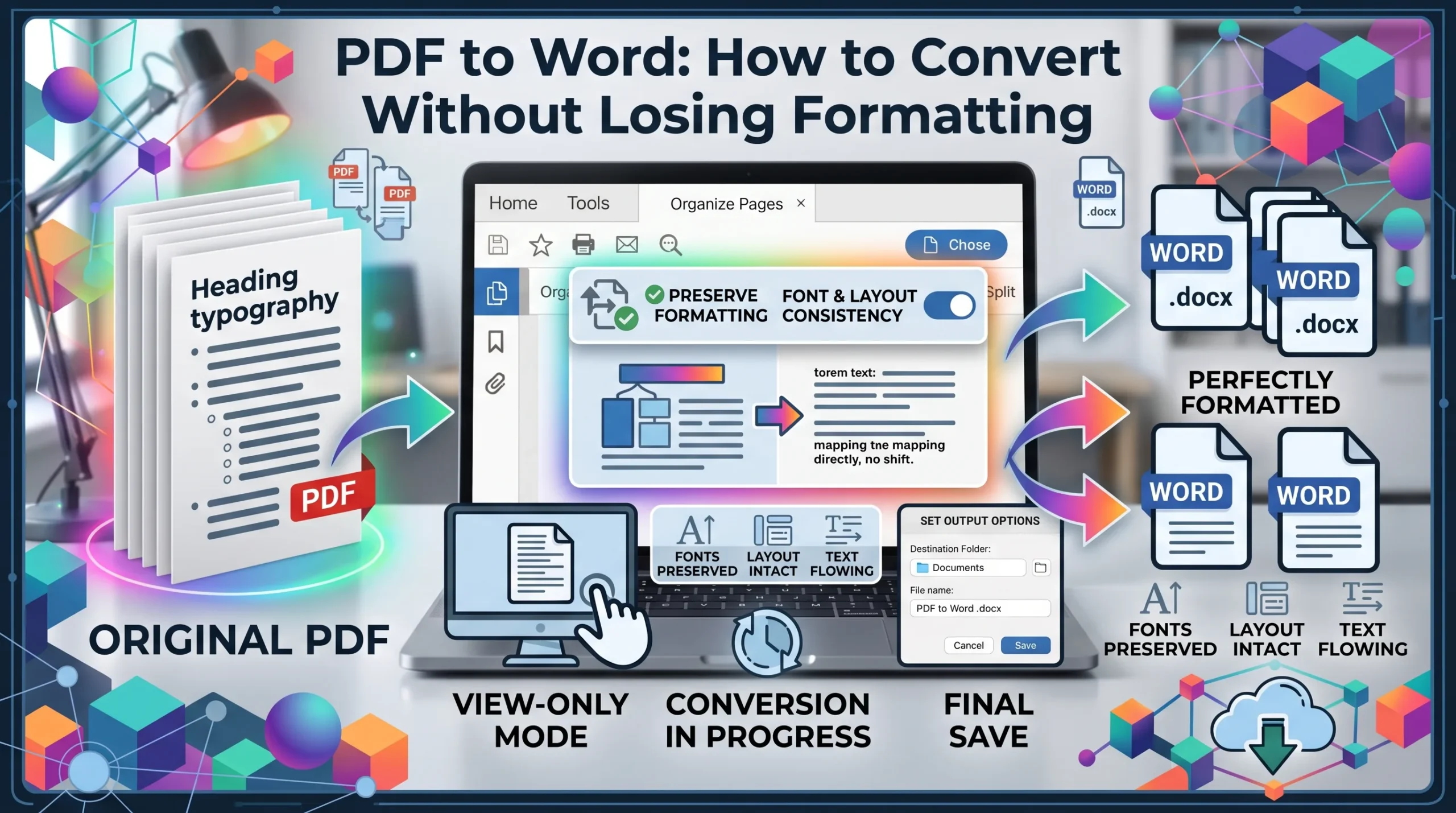
Converting a PDF to Word sounds simple until you open the converted document and discover that the fonts have changed, tables are broken, images have moved, or the spacing looks completely different.
If you need to edit a PDF in Microsoft Word, the goal is not just to extract the text. You also want to keep the original document’s formatting, layout, fonts, tables, images, headings, and page structure as close to the PDF as possible.
The good news is that modern PDF converters can do a much better job than basic copy-and-paste methods. Adobe Acrobat, Microsoft Word, Foxit, Smallpdf, Sejda, and other tools provide ways to convert PDF files into editable Word documents. However, the quality of the result depends heavily on how the original PDF was created.
In this guide, you’ll learn how to convert PDF to Word without losing formatting, which method works best for different types of PDFs, how to handle scanned documents, and what to do when the converted Word file doesn’t look like the original.
Can You Convert PDF to Word Without Losing Formatting?
Yes, in many cases you can convert a PDF to an editable Word document while preserving most of its original formatting.
However, perfect one-to-one conversion is not always possible.
A PDF is designed primarily to preserve the appearance of a document. Microsoft Word, on the other hand, is designed for editable, flowing content. Because of this difference, some PDFs convert cleanly while others require manual adjustments afterward.
Microsoft explains that Word attempts to match the original PDF’s layout, but the converted document may not look the same. PDF files containing mostly text generally convert better than documents containing complex graphics, charts, or unusual layouts.
The best results usually come from PDFs containing:
- Normal selectable text
- Standard fonts
- Simple paragraphs
- Basic tables
- Regular page layouts
- Properly embedded images
- Clearly structured headings
More complicated PDFs may require additional editing after conversion.
Why Does PDF Formatting Change When Converted to Word?
Before choosing a converter, it helps to understand why formatting problems happen.
PDF and Word don’t organize content in the same way.
A PDF can position text, images, lines, and other objects at specific locations on a page. Word needs to turn that visual arrangement into editable paragraphs, tables, images, and other document elements.
During this process, the converter has to interpret the PDF’s structure.
This can result in problems such as:
- Font changes
- Different line spacing
- Text moving to another page
- Broken tables
- Images shifting position
- Headers and footers changing
- Columns becoming misaligned
- Missing symbols
- Incorrect page breaks
- Text appearing in the wrong order
Nitro specifically notes that converting a PDF to Word cannot always preserve the exact original layout and formatting, even though its conversion is designed to retain the document’s visual structure as much as possible.
That’s why choosing the right conversion method is important.
How to Convert PDF to Word Without Losing Formatting
There are several ways to convert a PDF to Word. The best option depends on whether your PDF contains normal text, tables, images, or scanned pages.
Method 1: Use Adobe Acrobat
Adobe Acrobat is one of the most reliable options when formatting accuracy is important.
Adobe’s current Acrobat workflow allows you to export a PDF directly into Microsoft Word formats such as DOCX or DOC. Adobe also provides export settings that can help control the conversion.
Steps to convert PDF to Word with Adobe Acrobat
- Open your PDF in Adobe Acrobat.
- Select Convert.
- Choose Microsoft Word.
- Select DOCX or DOC.
- Choose the location where you want to save the document.
- Click the option to convert or save the file.
- Open the resulting Word document.
- Check the formatting carefully.
Adobe recommends DOCX for modern Word workflows. DOC is the older Microsoft Word format, while DOCX is the newer XML-based format used by modern versions of Word.
Why use Adobe Acrobat?
Adobe Acrobat is particularly useful when you are working with:
- Business documents
- Contracts
- Reports
- Professional forms
- Multi-page PDFs
- Documents with images
- Documents where layout matters
Adobe’s newer guidance says its export process is designed to retain layout and text flow when converting PDFs into editable formats.
Method 2: Open the PDF Directly in Microsoft Word
You don’t necessarily need a separate PDF converter.
Microsoft Word can open a PDF and create an editable Word copy.
How to do it
- Open Microsoft Word.
- Select File.
- Choose Open.
- Browse to your PDF.
- Select the PDF.
- Word will display a message explaining that it will convert the PDF into an editable document.
- Select OK.
- Wait for Word to convert the document.
- Review the formatting.
- Save the result as a DOCX file.
Microsoft says Word creates a copy of the PDF and attempts to match its original layout, so your original PDF remains unchanged.
When Microsoft Word works best
Word’s built-in PDF conversion is a good choice when your PDF is:
- Mostly text
- A simple report
- A letter
- A basic business document
- A straightforward article
- A document without complicated graphics
It may not perform as well with heavily designed PDFs, forms, charts, or documents where the entire page is essentially an image. Microsoft notes that graphics-heavy PDFs may be inserted as images, making their text unavailable for normal editing.
Method 3: Convert PDF to Word Online
If you don’t want to install software, an online PDF to Word converter can be convenient.
Several online services provide PDF-to-DOCX conversion directly from a web browser.
For example, Smallpdf provides an online PDF-to-Word converter designed to create editable DOCX files while maintaining the PDF’s formatting as much as possible. It supports conversion across desktop and mobile platforms.
Sejda also provides an online PDF-to-Word converter. Its service allows users to upload a PDF, convert it, and download the resulting Word document. Sejda states that uploaded files are processed securely and automatically deleted after a limited period.
General steps
- Open a reputable PDF to Word converter.
- Upload your PDF.
- Choose PDF to Word or PDF to DOCX.
- Start the conversion.
- Wait for processing to finish.
- Download the Word document.
- Open it in Microsoft Word.
- Compare it with the original PDF.
Advantages of online converters
- No software installation
- Works on many devices
- Quick for small documents
- Useful for occasional conversions
- Convenient on phones and tablets
Disadvantages
You should be more careful with confidential documents.
Before uploading sensitive contracts, financial records, personal documents, or business information, check the service’s privacy and file-handling policies.
For particularly sensitive documents, an offline desktop converter may be preferable.
Method 4: Use Foxit PDF to Word Converter
Foxit also provides PDF conversion tools designed to preserve document structure.
Its current PDF conversion documentation says its tools can preserve elements such as paragraph structure, fonts, tables, images, and formatting. It also provides options for handling page ranges, tables, layout retention, and OCR.
Basic process
- Open your PDF in Foxit.
- Choose the PDF conversion option.
- Select Word.
- Choose your desired conversion settings.
- Convert the document.
- Save the Word file.
- Review the result.
Foxit can also use OCR for scanned PDFs, which is important when the original document doesn’t contain selectable text.
How to Convert a Scanned PDF to Word Without Losing Formatting
Scanned PDFs are different from normal PDFs.
When you scan a physical document, each page may simply be an image. There may be no actual text layer for a converter to read.
That’s where OCR (Optical Character Recognition) becomes important.
OCR analyzes the image and attempts to recognize the text contained in it.
For example, imagine you scan a printed invoice. Without OCR, the PDF may contain nothing more than a photograph of the invoice. With OCR, software can identify words, numbers, and other text and turn them into editable content.
Foxit recommends using OCR when converting scanned PDFs into editable Word documents.
Wondershare’s conversion documentation also recommends OCR for scanned PDFs and selecting the correct document language to improve recognition accuracy.
Basic OCR workflow
- Open the scanned PDF.
- Select an OCR or text-recognition feature.
- Choose the correct language.
- Run OCR.
- Check the recognized text.
- Convert the document to Word.
- Review the formatting.
Important OCR warning
OCR is not perfect.
It can make mistakes with:
- Small text
- Blurry scans
- Handwriting
- Unusual fonts
- Low-resolution documents
- Urdu or other languages
- Tables
- Mathematical symbols
- Poor-quality photocopies
Always proofread an OCR-converted document before using it professionally.
How to Convert PDF Tables to Word Without Breaking Them
Tables are one of the biggest challenges during PDF-to-Word conversion.
A PDF may visually display a perfect table, but the underlying structure may not actually be stored as a Word-style table.
When converted, you may see:
- Missing borders
- Incorrect columns
- Text appearing outside cells
- Merged cells breaking apart
- Numbers moving
- Different row heights
- Incorrect alignment
For this reason, table-heavy documents should be converted with a tool that specifically handles table recognition.
Foxit’s current conversion tools include table recognition and reconstruction options.
Wondershare also notes that PDF tables can be difficult to transfer into Word while maintaining their original alignment and structure.
Tips for table conversion
After converting:
- Click inside the table.
- Check every column.
- Check merged cells.
- Compare numbers with the original.
- Check borders.
- Check text alignment.
- Check row and column sizes.
- Make sure no information disappeared.
For financial documents, invoices, applications, and legal forms, don’t assume the table is correct just because it looks approximately right.
How to Keep Fonts When Converting PDF to Word
Fonts are another common source of formatting problems.
If the PDF uses a font that isn’t installed on your computer, Word may substitute another font.
This can change:
- Text width
- Line breaks
- Page count
- Heading sizes
- Paragraph spacing
- Table dimensions
If the original document uses a specific font, install that font on your computer when legally permitted and available.
Then reopen the converted Word document and check whether the layout improves.
Also check font settings
Look for:
- Font family
- Font size
- Bold text
- Italics
- Underlining
- Character spacing
- Paragraph spacing
- Heading styles
A small font difference can cause an entire paragraph to move onto another page.
PDF to Word for Multi-Column Documents
Newspapers, magazines, brochures, newsletters, and some reports often use multiple columns.
These documents can be difficult to convert because the PDF’s visual layout doesn’t always translate naturally into Word’s editable structure.
For example, a page may visually contain:
Column 1 → Column 2
But a basic converter might extract the text in an unexpected order.
Microsoft notes that PDF conversion works best with primarily text-based documents and that some elements may not be detected correctly.
What to do
After conversion:
- Check reading order
- Check column breaks
- Check headings
- Check images
- Check captions
- Check page breaks
- Check text boxes
For complex layouts, a professional PDF editor with configurable conversion settings is generally a better choice.
Best PDF to Word Conversion Settings
Some desktop PDF converters provide settings that let you prioritize different aspects of the conversion.
For example, Wondershare’s documentation describes options such as text layout priority and text recognition priority. It also provides OCR and language recognition settings.
A useful approach is to choose settings based on your goal.
If layout is most important
Choose settings that prioritize:
- Original text layout
- Fonts
- Positioning
- Tables
- Page structure
If editable text is most important
Prioritize:
- Text recognition
- OCR
- Correct language detection
- Clean paragraphs
There isn’t always one perfect setting for every PDF.
PDF to Word Without Losing Images
Images can also move or resize during conversion.
To reduce problems:
- Use a converter that supports image preservation.
- Check the image position after conversion.
- Check image dimensions.
- Make sure captions remain connected to images.
- Check image quality.
- Check text wrapping.
Foxit says its conversion tools are designed to preserve images along with fonts, tables, and paragraph structure.
Still, always review the final document because complex positioning can change between PDF and Word.
What Is the Best Format: DOC or DOCX?
When converting a PDF to Microsoft Word, you’ll usually see DOC and DOCX options.
For most modern users, DOCX is the better choice.
DOCX is the newer Word format and is generally more compatible with current Microsoft Office applications. Adobe identifies DOC as the older Word format and DOCX as the newer XML-based format introduced with modern versions of Word.
Use DOCX when:
- You have a modern version of Word
- You need to edit the document
- You want better compatibility
- You want a smaller modern document format
Use DOC mainly when you specifically need compatibility with older software.
How to Fix Formatting After PDF to Word Conversion
Even with a good converter, you may need to make a few adjustments.
Here’s a useful checklist.
1. Check page breaks
Make sure headings aren’t left at the bottom of a page and that paragraphs haven’t moved unexpectedly.
2. Check fonts
Compare the Word document with the original PDF.
3. Check tables
Look carefully for missing rows, columns, borders, or numbers.
4. Check images
Make sure images haven’t shifted or become stretched.
5. Check headers and footers
Headers and footers can sometimes become ordinary text or move to another location.
6. Check page margins
Compare the left, right, top, and bottom margins.
7. Check paragraph spacing
Look for unusual spaces between paragraphs.
8. Check numbered lists
Lists may lose their numbering or indentation during conversion.
9. Check hyperlinks
Make sure important links still work.
10. Compare the final page count
If the PDF has 10 pages and the Word version has 17, that’s a sign that formatting changed significantly.
Which Method Should You Use?
Here’s a simple comparison:
| Method | Best For | Formatting |
|---|---|---|
| Adobe Acrobat | Professional documents | Very good |
| Microsoft Word | Simple text PDFs | Good |
| Foxit | Complex documents and tables | Very good |
| Smallpdf | Quick online conversion | Good |
| Sejda | Simple online conversion | Good |
| OCR-based converter | Scanned PDFs | Depends on scan quality |
| Basic copy/paste | Small amounts of text | Often poor |
The important thing is that no converter can guarantee perfect formatting for every PDF.
A simple text-based PDF may convert almost perfectly, while a highly designed brochure or scanned form may require manual cleanup.
How to Convert PDF to Word for Free
If you only need to convert an occasional document, you have several options.
Option 1: Microsoft Word
If Microsoft Word is already installed, try opening the PDF directly.
Option 2: Online PDF converters
Browser-based services such as Smallpdf and Sejda can convert PDFs without requiring desktop software.
Option 3: Free trials or limited tools
Some professional PDF editors provide limited free conversion features.
Before using an online service, consider the sensitivity of your document.
For private or confidential files, an offline application can provide a more appropriate workflow.
How to Convert PDF to Word on a Phone
You don’t necessarily need a computer.
Many PDF conversion services work through mobile browsers, while dedicated PDF applications are available for Android and iPhone.
A typical workflow is:
- Open your PDF converter.
- Upload the PDF from your phone.
- Select PDF to Word.
- Start the conversion.
- Download the DOCX file.
- Open it with Microsoft Word or another compatible document app.
- Check the formatting.
Smallpdf states that its PDF-to-Word converter works across Windows, Mac, Linux, iOS, and Android.
For a large or complicated document, however, a desktop computer is usually more comfortable for checking the final formatting.
How to Preserve Formatting When Converting PDF to Word
If formatting is your top priority, follow these tips:
1. Use the original PDF
Don’t convert a screenshot or compressed image of the PDF unless that’s your only source.
2. Choose a reliable converter
Professional conversion software generally gives you more control than basic copy-and-paste.
3. Use OCR for scanned documents
If the PDF contains images of pages, OCR is essential for creating editable text.
4. Select the correct language
Language recognition can affect OCR accuracy.
5. Check fonts
Missing fonts can cause major layout changes.
6. Review tables
Never assume that a converted table is accurate without checking it.
7. Compare page by page
For important documents, compare the PDF and Word file side by side.
8. Save as DOCX
For modern Microsoft Word workflows, DOCX is generally the preferred format.
Is It Possible to Convert PDF to Word 100% Exactly?
Not always.
This is one of the most important things to understand about PDF conversion.
A PDF is primarily designed to preserve a fixed visual presentation, while Word is designed around editable content and reflowable layouts.
Microsoft states that a PDF opened in Word may not look exactly like the original, especially when the document contains complex elements.
Nitro similarly explains that exact layout and formatting cannot always be preserved during PDF-to-Word conversion.
So instead of looking for a tool that promises 100% identical conversion for every PDF, look for a converter that produces the closest editable result and then review the document.
Conclusion
If you need to convert PDF to Word without losing formatting, the most important factor is the structure of the original PDF.
For ordinary text documents, Microsoft Word or a reliable online PDF converter may be enough. For professional documents where layout matters, Adobe Acrobat, Foxit, or another dedicated PDF editor can provide more control. For scanned PDFs, make sure the tool supports OCR before converting.
Remember that no conversion method can guarantee a perfect copy of every PDF. Complex tables, multiple columns, unusual fonts, images, forms, and scanned pages can all require some manual cleanup.
The best workflow is simple:
Use a reliable converter → select the right settings → use OCR for scans → convert to DOCX → compare the result with the original PDF → fix any remaining formatting issues.
That approach gives you the best chance of getting an editable Word document while keeping the original design and structure as close as possible.
Frequently Asked Questions
Can I convert PDF to Word without losing formatting?
Yes. Many PDF converters can preserve much of the original formatting, but complex PDFs may still require manual adjustments.
What is the best way to convert PDF to Word?
For professional documents, dedicated PDF software such as Adobe Acrobat or Foxit can provide strong conversion results. For simple PDFs, Microsoft Word or an online converter may be sufficient.
Can Microsoft Word convert PDF to DOCX?
Yes. Word can open a PDF and create an editable Word copy while attempting to match the original layout.
How do I convert a scanned PDF to Word?
Use a converter with OCR. OCR recognizes text inside scanned page images and converts it into editable text.
Why does my PDF look different after converting to Word?
PDF and Word use different document structures. Fonts, tables, images, columns, spacing, and page breaks can therefore change during conversion.
Should I use DOC or DOCX?
For most modern Word users, DOCX is the preferred option because it is the newer Word document format.
Can I convert PDF to Word for free?
Yes. Microsoft Word and several online PDF conversion services provide ways to convert PDFs without purchasing a dedicated PDF editor. The available features and limits vary by tool.