
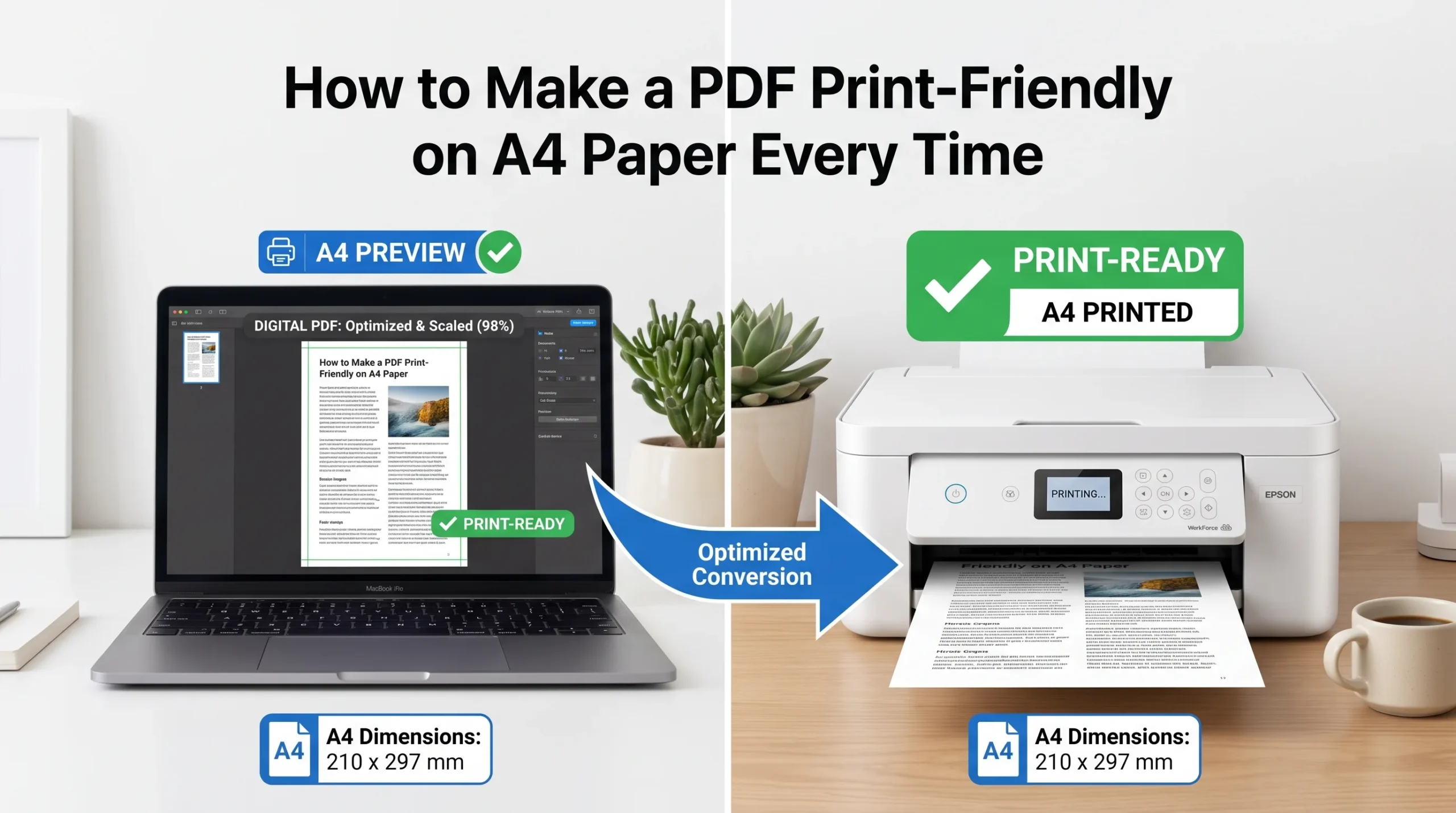
Two documents that look identical on screen can come out of a printer completely differently, one perfectly centered on the page, the other shrunk with huge white borders, or worse, missing a line of text along one edge. Nine times out of ten this comes down to a single mismatch: the PDF was built for one paper size, and the printer is set to another. Here’s how to tell exactly which problem you have and fix it without wasting a stack of paper testing blindly.
First, Figure Out Which Problem You Actually Have
Not every printing issue has the same fix. Before changing any settings, look at what actually came out of the printer and match it to one of these:
| What You See on Paper | Likely Cause |
|---|---|
| Everything shrunk with wide white margins on all sides | Printer is set to a different paper size than the PDF (commonly A4 vs US Letter) |
| Text or a table column cut off on one edge only | Content sitting inside the printer’s non-printable zone, usually 3 to 6mm from each edge |
| Page looks correct size but slightly cropped top and bottom | Scaling was applied at above 100%, pushing content past the printable area |
| Print job is slow, or only part of the page prints | File size too large, overwhelming the printer’s memory buffer |
A4 and US Letter look almost identical on a screen, 210 x 297mm versus 216 x 279mm, but that small difference is exactly what causes many PDFs to shrink or shift the moment the actual paper in the tray doesn’t match what the document was designed for.
The Setting That Fixes Most A4 Printing Problems
In the print dialog (whether you’re using Adobe Reader, Chrome, or Word), look for a section usually labeled “Page Sizing & Handling” or similar. There are typically three options here, and picking the wrong one by default is behind most printing complaints:
Actual Size (or 100%) prints the PDF exactly as it was designed, with no automatic scaling. This is correct when your printer’s paper size already matches the PDF’s page size.
Fit to Printable Area shrinks the content slightly so it stays within the margins every printer physically can’t reach, typically that 3 to 6mm border. This is the safest default when you’re not sure the sizes match, since it prevents edges from getting clipped.
Shrink Oversized Pages only kicks in when content is genuinely larger than the paper, and does nothing if the sizes already match.
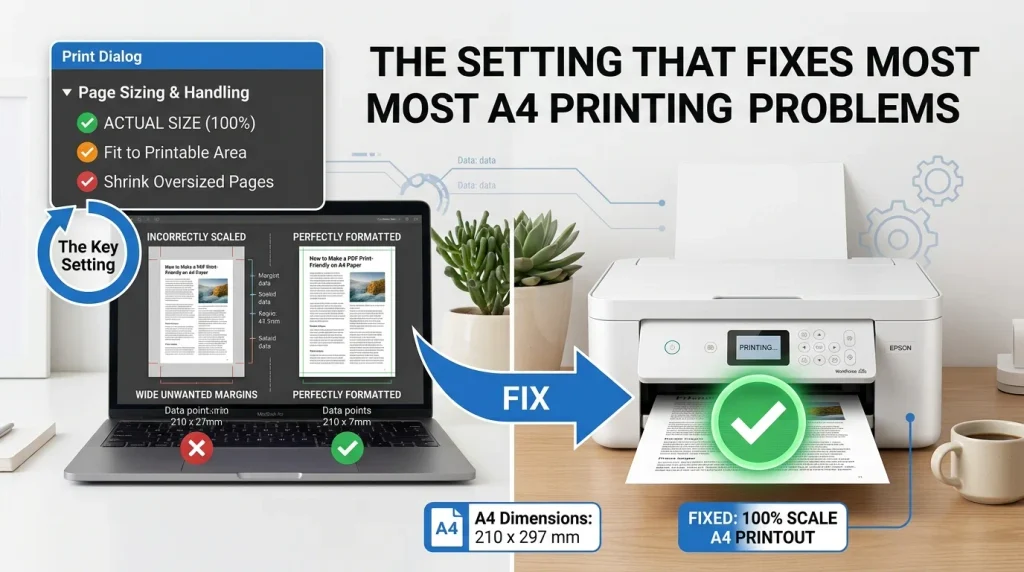
If a document keeps printing too small with unexplained wide margins, it usually means “Fit” or “Shrink” is scaling something that didn’t need scaling in the first place, because the paper size selected in the print dialog doesn’t match the PDF’s actual page size. Checking that both are set to A4 (not one showing A4 and the other defaulting to Letter) resolves this more often than adjusting the scale percentage manually.
Building a PDF That Prints Correctly From the Start
If you’re the one creating the PDF rather than just printing someone else’s, a few habits prevent this problem before it ever reaches a printer:
Set the page size to A4 at the point of creation, not after the document is already built around a different size. Retrofitting a Letter-sized document to A4 afterward often shifts where content sits relative to the new margins.
Keep at least 10 to 15mm of margin on every edge. Since printers can’t reach the outer few millimeters of any page, content sitting right at the edge is exactly what gets clipped, especially headers, footers, and page numbers, which people forget to check because they’re not part of the “main” content.
Avoid designing right up to the very edge for anything with fixed positioning that matters, like a signature line, a barcode, or a table that needs every column visible. These are the elements most likely to get cropped if a printer applies even mild automatic scaling.
Read More: How to Convert a Receipt Photo Into a PDF for Expense Reports
When the File Itself Is the Problem
A PDF that’s unusually heavy, dozens of high-resolution images, or complex embedded graphics, can overwhelm a printer’s internal memory buffer, causing jobs to stall, print painfully slowly, or come out with parts missing entirely. This has nothing to do with paper size or margins. If a document prints fine on screen preview but consistently fails or hangs mid-print, checking the file size is worth doing before troubleshooting anything else.
Running the PDF through AsanTool’s PDF tools first reduces embedded image weight without touching the page layout or margins, which often resolves stalled or incomplete print jobs that had nothing to do with A4 settings at all.
Working with a PDF that needs resizing or compressing before it prints cleanly? AsanTool’s free tools handle both directly in your browser. No account, no software, and your file is never kept on our servers.
1 thought on “How to Make a PDF Print-Friendly on A4 Paper Every Time”