
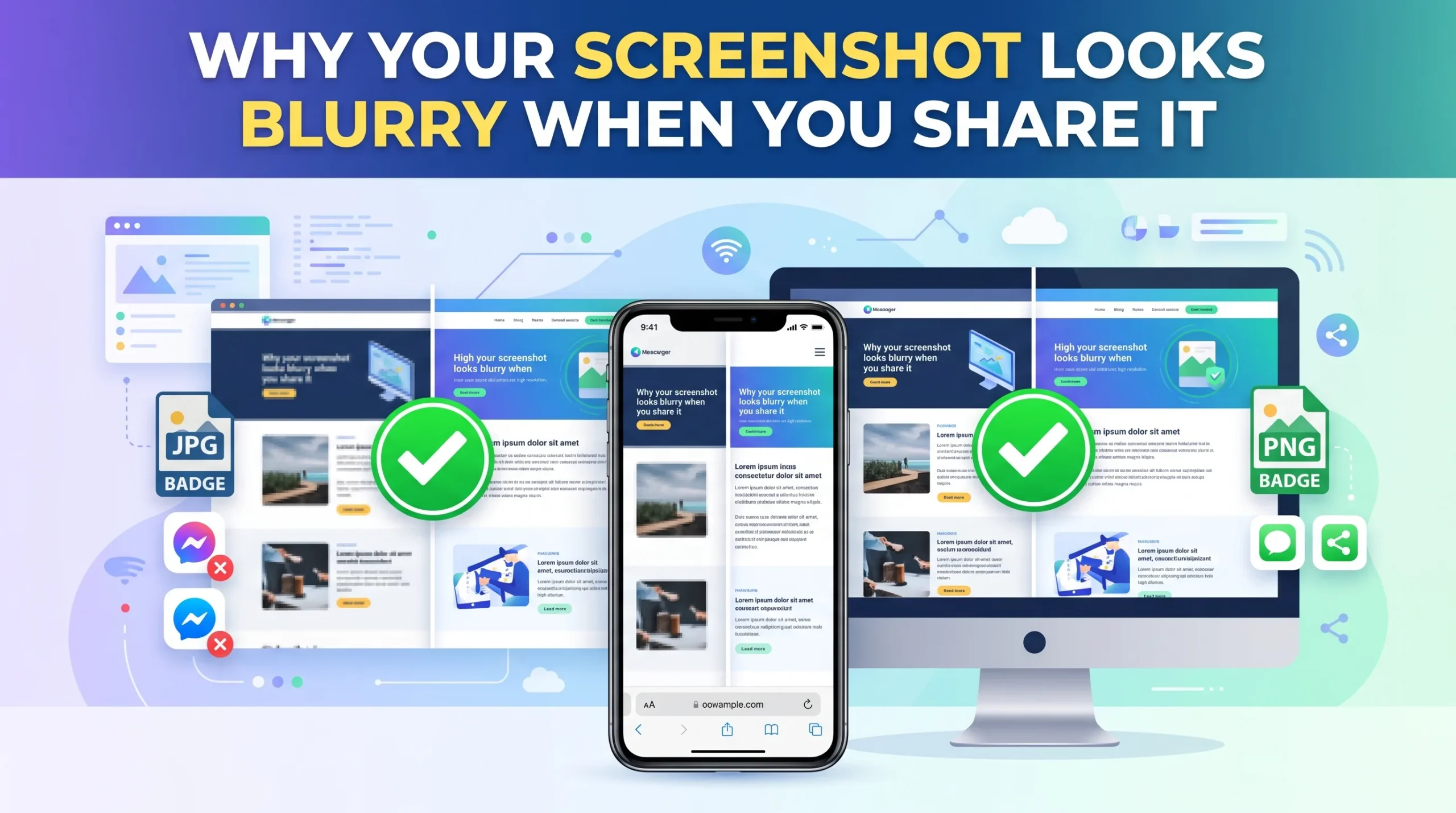
The screenshot looks perfect the moment you take it, every word crisp, every icon sharp. You paste it into a chat, or upload it somewhere, and by the time the other person sees it, the text has gone soft and the colored buttons look like they’ve got a faint halo around them. Nothing about your screen changed. Something happened to the file between the moment you captured it and the moment someone else opened it, and it’s rarely just one thing.
Your Screen Might Be Capturing More Detail Than the Recipient Can See
If you’re on a Retina display or any high-DPI screen, your screenshot is captured at a much higher pixel density than a standard monitor uses. That’s usually a good thing; more detail means a sharper image, but it becomes a problem the moment that screenshot gets displayed at a fixed pixel size somewhere that assumes standard density. The image effectively gets squeezed into a smaller space than it was designed for, and depending on how the receiving platform handles that resize, the result can look softer than the original, even though technically nothing was compressed yet.
The Technical Reason Colored Text Blurs Before Anything Else
This is the part almost nobody explains, and it’s specifically why screenshots with colored UI elements, red error messages, blue links, and colored buttons tend to blur faster and more noticeably than plain black-and-white text screenshots.
Most compression happens through something called chroma subsampling, a technique that reduces color detail more aggressively than brightness detail, because the human eye is naturally less sensitive to small color shifts than to small brightness shifts. This works fine for regular photos. But screenshots aren’t photos; they’re full of sharp, high-contrast edges between colored elements and background, exactly the kind of content chroma subsampling handles worst. A crisp red button outline can turn into a soft red smear along its edge, while the plain black text right next to it stays perfectly readable, because subsampling only degraded the color information, not the brightness information carrying the text.
This is also why a screenshot with a lot of colored graphics degrades faster across repeated shares than one that’s mostly plain text on a white background; the compression is hitting the color-dependent parts every single time it’s re-applied.
Where the Blur Actually Gets Introduced
A handful of destinations are notorious for adding this kind of compression the moment a screenshot passes through them, and the behavior differs depending on exactly how you share it:
| Platform | What Happens |
|---|---|
| Slack (pasted into chat) | Compresses on paste |
| Slack (attached as file) | Usually preserves original quality |
| Microsoft Teams (pasted) | Compresses similarly to Slack |
| Notion (drag-and-drop file) | Often preserves quality better than paste |
| Twitter/X | Converts to JPEG or WebP regardless of source, but starting from PNG gives it a cleaner file to compress |
| Email (inline embed) | Frequently compressed by the email client |
| Email (as attachment) | Usually preserved at original quality |
The pattern across almost every platform is the same: pasting directly into a chat or editor triggers automatic compression more often than attaching or uploading the file directly. If a screenshot needs to stay sharp, especially one full of text or colored detail someone needs to actually read, sending it as a proper file attachment rather than pasting it inline is usually the single most effective fix, with no editing required at all.
Sharing It More Than Once Makes It Worse Each Time
A screenshot that gets forwarded from one person to another, then re-shared again to a third, picks up a fresh round of compression at every single hop. None of it is dramatic on its own, but it stacks. By the fourth or fifth re-share, a screenshot that started perfectly legible can genuinely be hard to read, particularly for anything with small text or fine detail, since that’s exactly what compression erodes first.
If a screenshot has already been through several rounds of this and looks noticeably degraded, going back to the source and recapturing it is almost always faster and more reliable than trying to sharpen an already-damaged copy. Detail that’s been discarded through repeated compression generally isn’t recoverable; no amount of editing brings back information the file no longer contains.
Taking a Screenshot That Survives Sharing
Saving as PNG rather than JPEG from the start matters more for screenshots than for photos, since PNG’s lossless compression preserves the sharp edges and flat colors that make up most screen captures, exactly what JPEG-style chroma subsampling handles worst. Beyond that, capturing at your display’s native resolution, rather than a scaled or zoomed view, avoids introducing softness before the file even leaves your device.
If a screenshot still needs to be compressed to meet a platform’s size limit, AsanTool’s Image Compressor lets you control that process directly, rather than leaving it to whatever automatic compression a chat app or upload form applies without asking. Doing it yourself, once, at a quality level you can actually check, beats an unpredictable compression pass every time the file gets shared again.
Conclusion
A blurry screenshot usually isn’t one single failure; it’s a combination of pixel-density mismatches, aggressive color compression that hits UI elements and colored text hardest, and platform-specific compression that triggers more easily when pasted than when attached as a file. Understanding which of these is actually happening turns a frustrating “why does this keep happening” moment into a specific, fixable choice, usually as simple as attaching instead of pasting, or saving as PNG instead of JPEG.
Frequently Asked Questions
Why do colored parts of my screenshot blur more than the text? This comes down to chroma subsampling, a compression technique that reduces color detail more aggressively than brightness detail. Colored edges and UI elements lose sharpness first, while plain black text often stays readable longer.
Does pasting a screenshot into chat compress it more than attaching it as a file? Yes, on most platforms. Pasting directly into a chat window like Slack or Teams frequently triggers automatic compression, while attaching the same image as a file usually preserves its original quality.
Should I save screenshots as PNG or JPEG? PNG, in almost every case. Its lossless compression handles the sharp edges and flat colors typical of screenshots far better than JPEG, which is optimized for photographic content instead.
Can a blurry screenshot be fixed after the fact? Sometimes partially, if the blur came from moderate compression and the underlying detail is still technically present in the file. If a screenshot has been through many rounds of re-sharing, the lost detail usually can’t be fully recovered, and recapturing the original is faster than trying to repair it.
Need to compress a screenshot without losing sharpness? Try AsanTool’s free Image Compressor, giving you control over the quality instead of leaving it to automatic platform compression. No account, no software, and your file is never kept on our servers.