
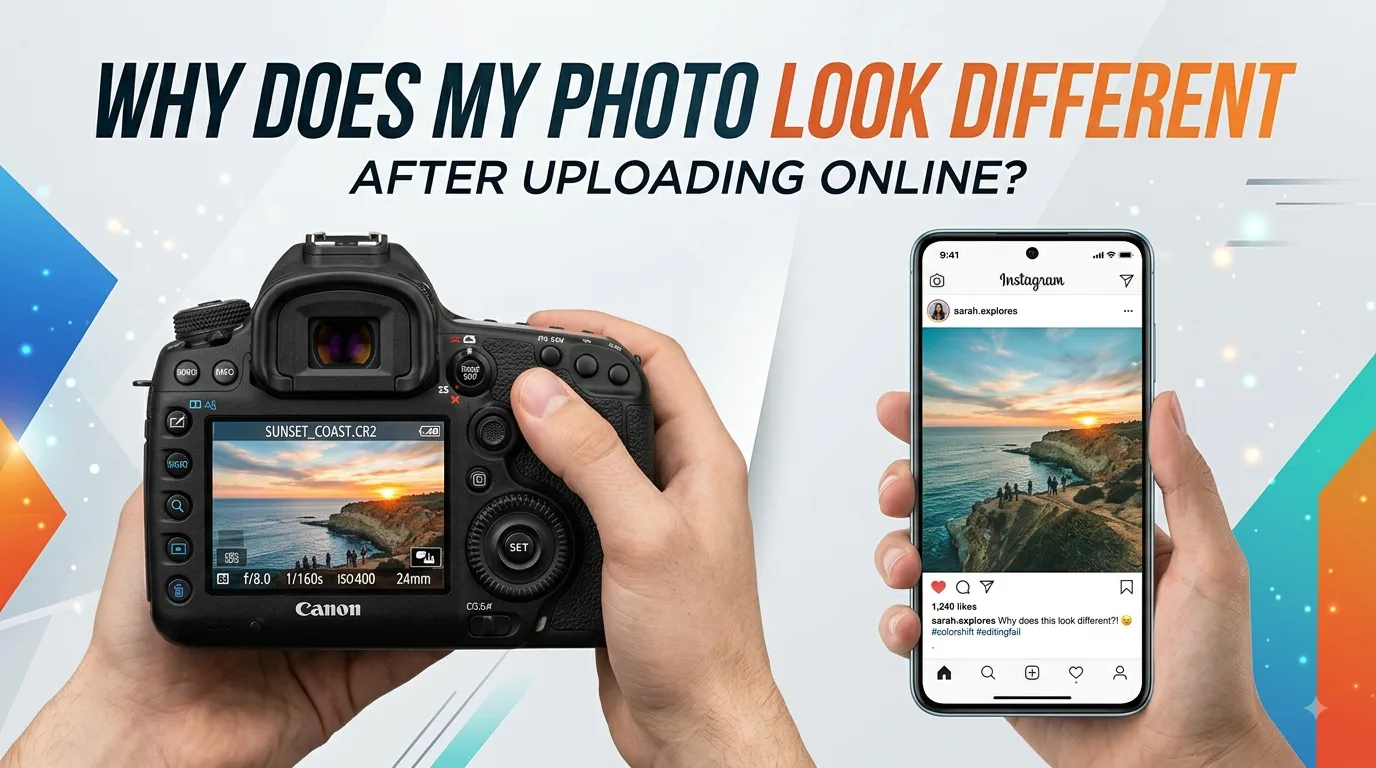
You upload a photo that looked sharp and perfectly colored on your phone, and the moment it’s live on a website, social media post, or online form, it looks slightly off — a bit washed out, softer than before, or the colors don’t quite match what you remember seeing. Nothing was wrong with your original photo. This happens to almost everyone, and it comes down to a few predictable things that occur the moment a photo leaves your device.
Reason 1: The Platform Compressed It Automatically
Almost every website, social media platform, and messaging app automatically compresses uploaded images. This isn’t a bug — it’s intentional, done to keep pages loading fast and to reduce server storage costs across millions of users.
The problem is that this compression is applied automatically and invisibly, with no preview of what it’s doing to your photo. A crisp, detailed photo can come out slightly blurred or blotchy after the platform’s own compression algorithm processes it, especially in areas with subtle color gradients like skin tones or sunsets.
Reason 2: Your Photo Got Resized to Fit a Container
Websites and apps display images inside fixed-size containers — a profile picture circle, a post thumbnail, a banner space. If your photo’s dimensions don’t match that container exactly, the platform stretches, squeezes, or crops it automatically to force it to fit.
This can distort proportions slightly, or crop out parts of the image you intended to be visible, all without asking for confirmation first.
Reason 3: Color Profile Differences Between Devices
Every screen — your phone, your laptop, the recipient’s device — renders color slightly differently, based on its color profile and calibration. A photo edited or viewed on one screen can genuinely look different in color and brightness on another, even with zero compression involved. This is why a photo that looked perfectly warm and bright on your phone can look slightly cooler or duller on someone else’s laptop screen.
Reason 4: The Format Itself Changed
Sometimes the platform silently converts your photo’s file format during upload — for example, converting a high-quality PNG into a compressed JPG, or converting an iPhone’s HEIC format into something else entirely. Each format handles color and detail differently, so a format change alone can shift how the image looks, independent of any deliberate compression.
Reason 5: Multiple Rounds of Compression Stack Up
If a photo has already been compressed once (say, sent through WhatsApp) and then gets uploaded somewhere else that compresses it again, the quality loss compounds. Each round of compression discards a bit more detail, and by the third or fourth platform, the difference from the original becomes obvious, even though no single step looks dramatically different on its own.
How to Minimize the Difference
- Start with your original, uncompressed photo whenever possible, rather than uploading a copy that’s already been through WhatsApp or another compressing app
- Resize to the platform’s recommended dimensions yourself before uploading, instead of letting the platform crop or stretch it automatically
- Compress the photo yourself, moderately, before uploading — a controlled compression you apply usually looks better than an aggressive one the platform applies without asking
- Use JPG for photos, since it’s the format most platforms are optimized to handle without additional silent conversion
- Avoid re-uploading an already-uploaded copy — always go back to your original source file if you need to post the same photo somewhere else
Read More: PDF vs Word: Which Format Should You Actually Send?
Take Control of the Process Yourself
The core idea behind all of this is simple: platforms will compress and resize your photo whether you prepare it or not — the only choice you have is whether you control that process, or leave it entirely up to an automated system that doesn’t know what matters most in your image.
AsanTool’s Image Compressor and Image Resizer let you handle both steps yourself, right in your browser, before the photo ever reaches the platform that’s going to alter it anyway:
- Compress to a controlled, moderate file size instead of letting a platform crush it unpredictably
- Resize to the exact dimensions a platform recommends, avoiding automatic cropping or stretching
- No software or account needed, and your photo is never stored on our servers — it’s deleted automatically within the hour
Conclusion
A photo looking different after uploading almost never means something is wrong with the original — it means a platform’s automatic compression, resizing, or format conversion changed it along the way, often through more than one of these factors at once. Preparing the photo yourself before uploading puts that control back in your hands, and it’s usually the difference between a photo that looks noticeably degraded and one that still looks close to the original.
Want your photos to look sharp everywhere you post them? Try AsanTool’s free Image Compressor and Image Resizer — no account, no software, and your files are never kept on our servers.