
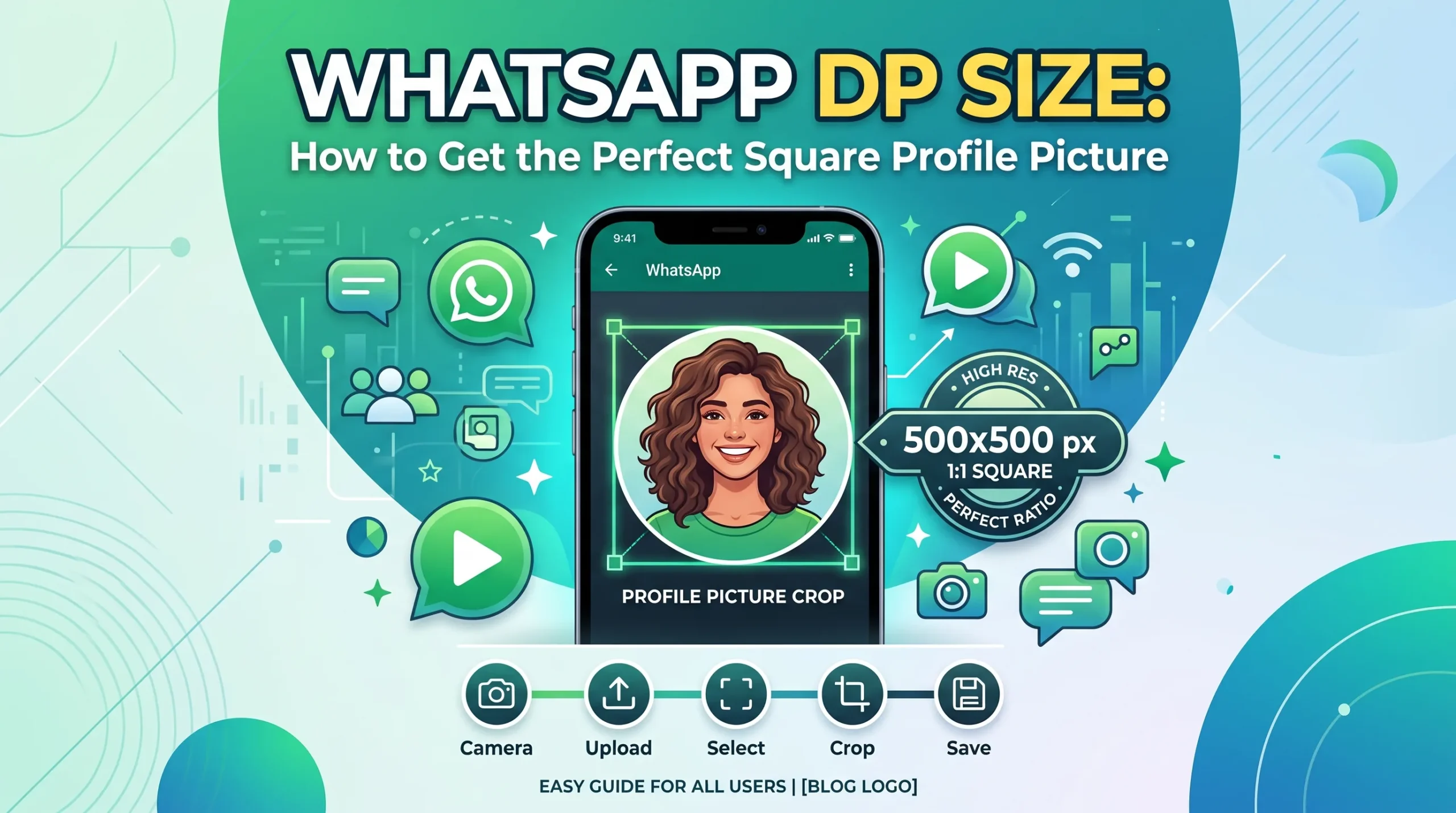
You set a photo as your WhatsApp DP, and it looks slightly soft, or your face ends up too close to the edge once it displays as a circle in chats and contact lists. WhatsApp doesn’t publish one single rigid number the way some platforms do, but there’s a clear, tested range that keeps a profile picture looking sharp and properly framed.
The Size That Actually Works
Based on WhatsApp’s own display behavior and how the app handles uploads, here’s the practical range:
- Minimum accepted size: around 192 x 192 pixels, though anything this small looks visibly soft in the larger contact info view
- Safe working size: 500 x 500 pixels, square format, is a reliable size that avoids blur without being unnecessarily large
- Best quality upload: 1080 x 1080 pixels gives WhatsApp more image data to work with during its own compression, resulting in a sharper final result on modern high-resolution phone screens
The reason for the range rather than one fixed number is that WhatsApp compresses and resizes whatever you upload internally, so uploading larger than the minimum gives the app more detail to preserve after its own processing, rather than starting from an already-thin file.
Why It Always Displays as a Circle
Every WhatsApp DP, whether personal or business, gets displayed inside a circular frame throughout the app, in chats, contact lists, group info, and calls. You upload a square image, but the circle crop removes the four corners of that square before showing it anywhere.
This is the single biggest reason DPs look awkwardly framed. A photo can be perfectly centered as a square and still lose part of a face, a logo edge, or important detail once the circular mask is applied on top. The safe fix is keeping your subject, face, logo, whatever matters most, within the center 70 to 80 percent of the square frame, leaving visible margin on all sides that the circle can safely crop away without cutting anything important.
Read More: YouTube Thumbnail Size: The Exact Dimensions That Actually Work
Common WhatsApp DP Mistakes
- Uploading a rectangular photo without cropping to square first, letting WhatsApp’s automatic crop decide what gets cut, which often isn’t where you’d choose
- Framing too tightly, with a face or logo extending close to the edges of the square, right where the circular mask removes content
- Using a low-resolution image, resulting in a blurry, pixelated DP once WhatsApp’s compression is applied on top of an already-small file
- Sending an already-compressed copy (like one downloaded from another chat) as your new DP, compounding quality loss from multiple rounds of compression
How to Prepare a Clean, Sharp WhatsApp DP
- Start with the highest-resolution photo you have, ideally 1080 x 1080 pixels or larger, so there’s enough detail left after WhatsApp’s own compression.
- Crop to a perfect square first, rather than uploading a rectangular photo and letting WhatsApp guess the crop.
- Center the important subject well within the frame, leaving margin around the edges for the circular display crop.
- Save as JPG for photos, which handles WhatsApp’s compression more predictably than PNG for photographic content.
- Preview it after uploading, checking the actual circular display in your profile, contact info, and a chat, since the crop can look slightly different across these views.
Resize Your DP in Seconds
AsanTool’s Image Resizer lets you crop and resize a photo to the exact square dimensions needed for a sharp WhatsApp DP, directly in your browser:
- Upload your photo
- Set it to a square format at your target size
- Download instantly, ready to upload as your new DP
- No software or account required, and your photo is never stored on our servers
Conclusion
A blurry or awkwardly cropped WhatsApp DP almost always comes down to two things: starting with too small an image, or not accounting for the circular crop that hides the corners of every square upload. Preparing a properly sized, well-centered square photo before uploading fixes both at once, and keeps your DP looking sharp and correctly framed everywhere it appears in the app.
Need to resize a photo for your WhatsApp DP right now? Try the free Image Resizer. No account, no software, and your photo is never kept on our servers.
1 thought on “WhatsApp DP Size: How to Get the Perfect Square Profile Picture”