
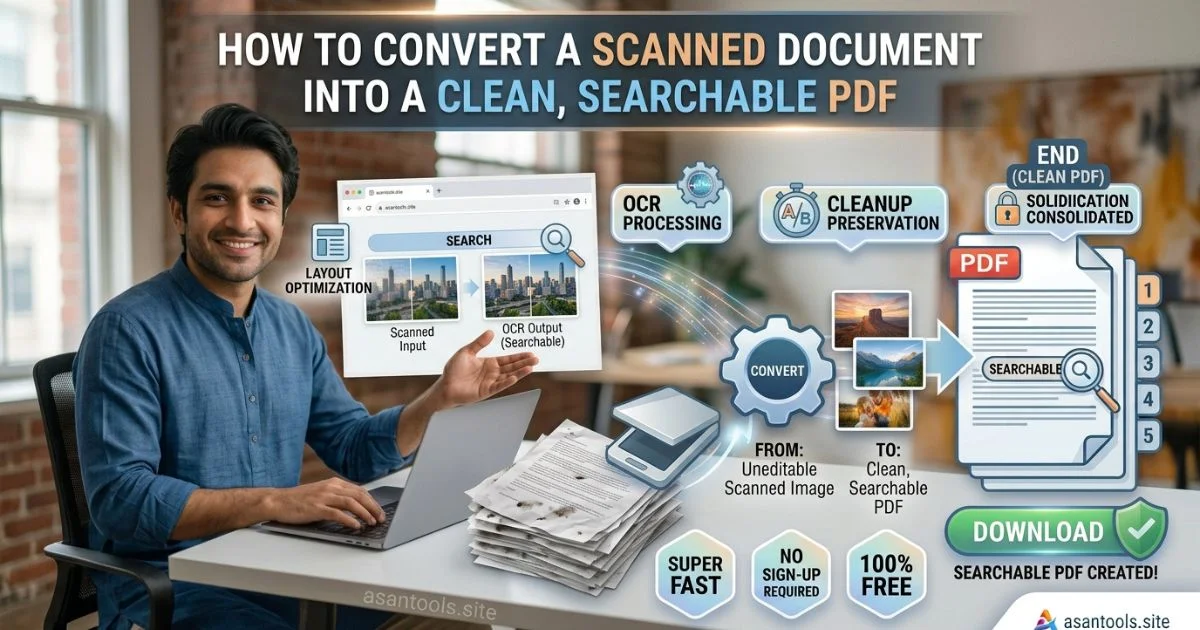
You scan a document a contract, an old certificate, a stack of receipts and end up with a PDF that looks fine on screen but is completely useless for anything beyond viewing. You can’t search it for a keyword, you can’t copy a single line of text out of it, and if the scan was even slightly crooked or dim, it looks unprofessional every time someone opens it. A scanned PDF is really just a photo wearing a PDF’s file extension, and that’s exactly the problem this guide solves.
Why a Scanned PDF Isn’t a “Real” PDF
When you scan a page, what you get is technically an image saved inside a PDF wrapper. To your eyes it looks like a document, but to a computer, it’s just pixels — no actual text exists inside the file. That’s why:
- Ctrl+F (search) does nothing there’s no text for the search function to look through, just a picture of text
- You can’t select or copy text highlighting a line just selects a rectangle of the image, not actual words
- File sizes are often bloated a scanned page stored as a raw image is far heavier than the same page stored as real text
- It looks unprofessional when shared, especially if the scan is slightly tilted, has shadows, or uneven lighting
What “Searchable” Actually Means
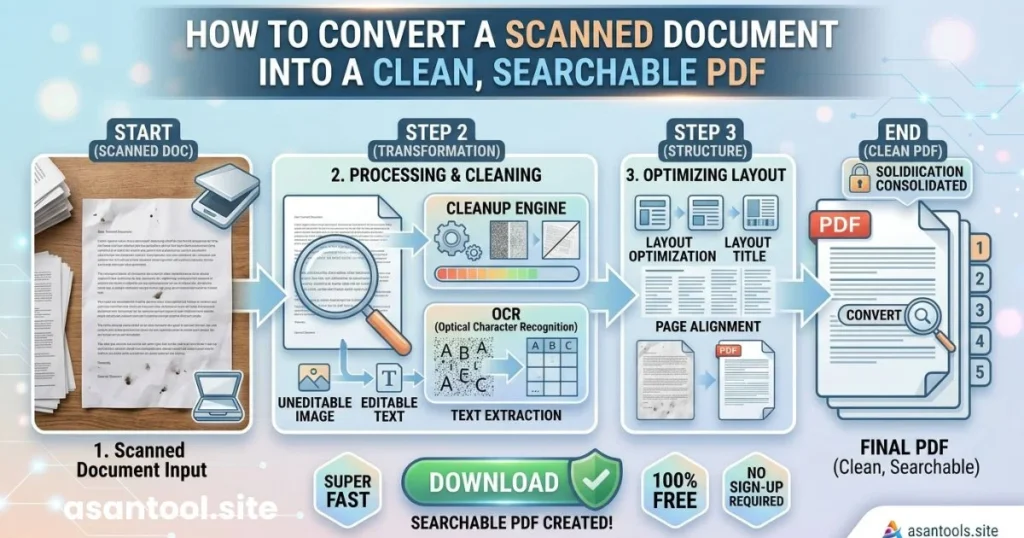
A searchable PDF has an invisible layer of real text sitting behind the scanned image. This is done through a process called OCR (Optical Character Recognition), which analyzes the image, recognizes the shapes of letters and words, and generates matching text data layered underneath the visual scan.
The result looks identical to the original scan, but now:
- You can search for any word and jump straight to it
- You can select and copy text just like a normal document
- Screen readers can read it aloud, which matters for accessibility
- The file often becomes smaller and more efficient to store and share
When You Actually Need This
- Legal or business contracts that need to be searched later for specific clauses or names
- Old certificates or academic records that need to be archived digitally in a usable format
- Receipts and invoices where you’ll need to search or copy details later for expense reports
- Scanned books, notes, or research papers where quoting or referencing specific text matters
- Government and official documents that require text to be extractable for verification systems
How to Get a Clean, Searchable PDF
- Start with the best scan quality possible. A blurry, dim, or crooked scan makes text recognition far less accurate, no matter how good the OCR process is.
- Straighten the page before scanning if possible. Even a slight tilt can cause OCR to misread words, especially near the edges of the page.
- Use good lighting when scanning with a phone camera, since shadows and glare are two of the most common causes of OCR errors.
- Run the scanned PDF through an OCR/conversion tool rather than leaving it as a raw image-based file.
- Spot-check the result by searching for a word you know is on the page, confirming the text layer was generated correctly.
- Compress afterward if the file is still large, since even a properly OCR’d document can carry extra weight depending on scan resolution.
Read More: Text to PDF: Turn Plain Notes Into a Print-Ready Document Instantly
A Few Things That Affect Accuracy
OCR accuracy depends heavily on what’s being scanned. Clean, typed text in a standard font converts almost perfectly. Handwritten notes, unusual fonts, low-resolution scans, or documents with a lot of background clutter reduce accuracy, sometimes significantly. If a scanned document is going to be used for something important a legal file, an official record it’s worth double-checking a few key sections manually rather than trusting the conversion blindly.
Convert and Clean Up Your Documents With AsanTool
If your scanned pages are still sitting as separate images, AsanTool’s Image to PDF tool combines them into a single document in seconds, right in your browser no software, no account needed, and nothing is stored on our servers. From there, keep the file organized and ready to search, share, or archive without digging through a folder of loose photos.
Conclusion
A scanned document doesn’t have to stay a static picture forever. Turning it into a properly structured, searchable PDF takes a scan you can only look at and turns it into one you can actually use searched, copied from, and archived the way a real document should be.
Need to combine or organize your scanned pages first? Try the free Image to PDF tool no account, no software, and your files are never kept on our servers.