
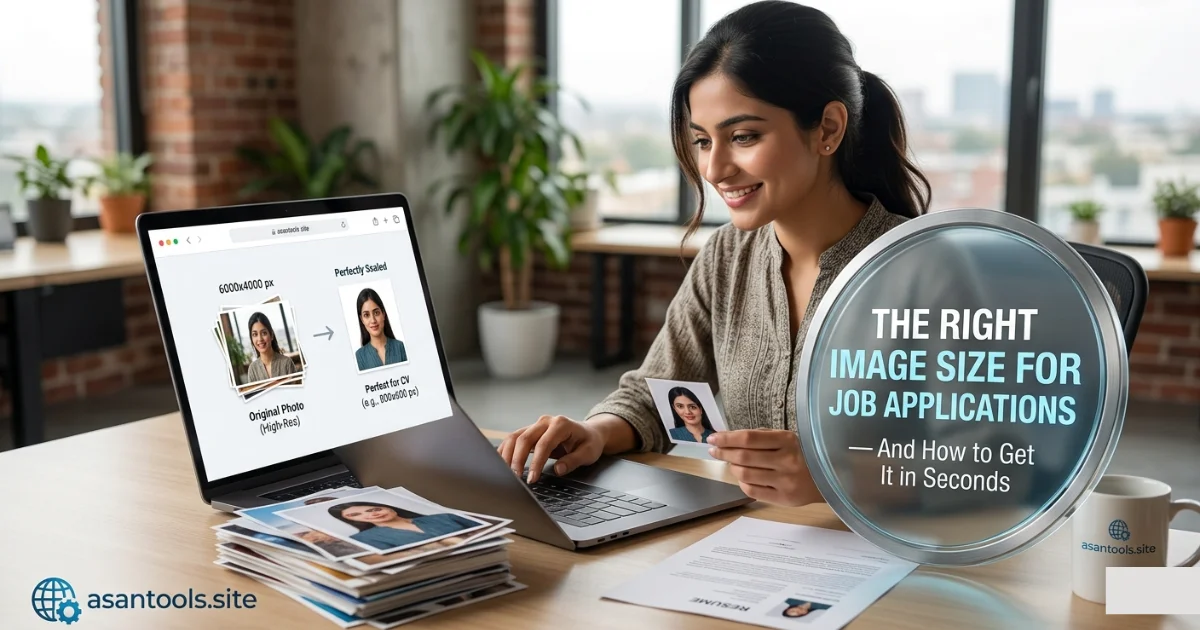
You’ve found the job, filled out the form, written a solid cover letter and then the photo upload rejects your file. “Image must be under 100KB” or “Photo must be 200×200 pixels.” It’s a small technical detail standing between you and submitting an application you’ve already spent time on, and it trips up far more people than it should.
Here’s what job portals are actually asking for, why the requirements exist, and how to get it right on the first try.
Why Job Portals Are So Specific About Photo Requirements
It’s not arbitrary. A few real reasons sit behind these limits:
- Consistency across applications. When every applicant’s photo is a similar size, the portal displays them uniformly in candidate lists and printed shortlists, instead of some photos looking huge and others tiny.
- Server load. Companies and government portals processing thousands of applications need lightweight files so uploads, storage, and page loading stay fast for everyone.
- Print and ID matching. Many job applications tie into official verification processes (like CNIC matching), where a standard photo size and format make cross-checking easier.
- Database limits. Some older or government-run portals still run on systems with hard storage caps per applicant, so small file sizes aren’t optional they’re a technical ceiling.
The Two Numbers You Actually Need to Match
Job application photo requirements usually come in two parts, and missing either one causes a rejection:
- File size (in KB) how much data the file takes up. Common limits: 20KB, 50KB, 100KB.
- Pixel dimensions (width x height) the actual shape and resolution of the image. Common requirements: 200x200px, 300x300px, or passport-style ratios.
A photo can meet one requirement and completely miss the other. A tiny 30KB file might still be 4000×3000 pixels if it was over-compressed without resizing, and a properly sized 200×200 photo can still be 500KB if it wasn’t compressed. Both numbers need to be handled, not just one.
Common Mistakes That Cause Rejections
- Uploading the phone photo straight from the camera roll without touching size or dimensions at all
- Only compressing, not resizing the file gets small enough in KB, but the dimensions are still wrong, and some portals check both
- Using a screenshot of the photo instead of the actual image file, which often changes both the format and the quality unpredictably
- Wrong file format some portals only accept JPG, and a PNG or HEIC (default on iPhones) gets silently rejected without a clear error message
- Cropping incorrectly, cutting off part of the face or leaving too much background, which can fail the portal’s photo guidelines even if the size is technically correct
How to Prepare Your Photo the Right Way
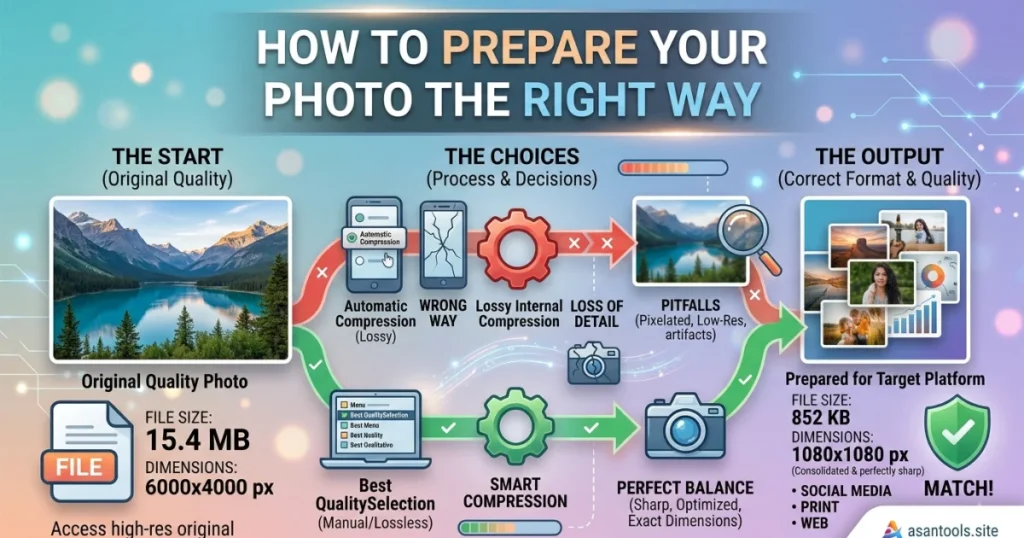
- Read the exact requirement first both the KB limit and the pixel dimensions, since portals rarely state just one.
- Start with a clear, well-lit photo where your face is centered and clearly visible, since poor source quality compresses worse and looks worse after resizing.
- Resize to the exact pixel dimensions requested, not an approximate size some portals reject files that don’t match precisely.
- Compress to fit the file size limit, checking that the image still looks sharp at full zoom afterward.
- Save as JPG unless the portal specifically asks for PNG, since JPG is the standard format almost all job portals expect.
- Double check both numbers file size and dimensions before uploading, rather than uploading and hoping it works.
Read More: Image Resizer — Get the Exact Pixel Size You Need | AsanTool
Get It Right in Seconds
AsanTool has both tools you need, and you can use them one after the other in your browser:
- Image Resizer set the exact pixel dimensions the job portal is asking for
- Image Compressor bring the file size down to meet the KB limit without losing visible quality
- Both tools work directly in your browser, no software or account needed
- Files are never stored they’re deleted automatically from our servers within the hour
Resize first, then compress doing it in this order keeps the final result sharp instead of compressing an already-resized (and sometimes distorted) file.
Conclusion
Photo rejections on job applications almost always come down to matching two separate numbers file size and pixel dimensions not just one. Once you treat them as two distinct steps instead of one vague “make it smaller” task, getting your photo accepted on the first upload becomes a quick, repeatable process instead of a frustrating guessing game.
Preparing a photo for a job application right now? Try the free Image Resizer and Image Compressor no account, no software, and your files are never kept on our servers.