
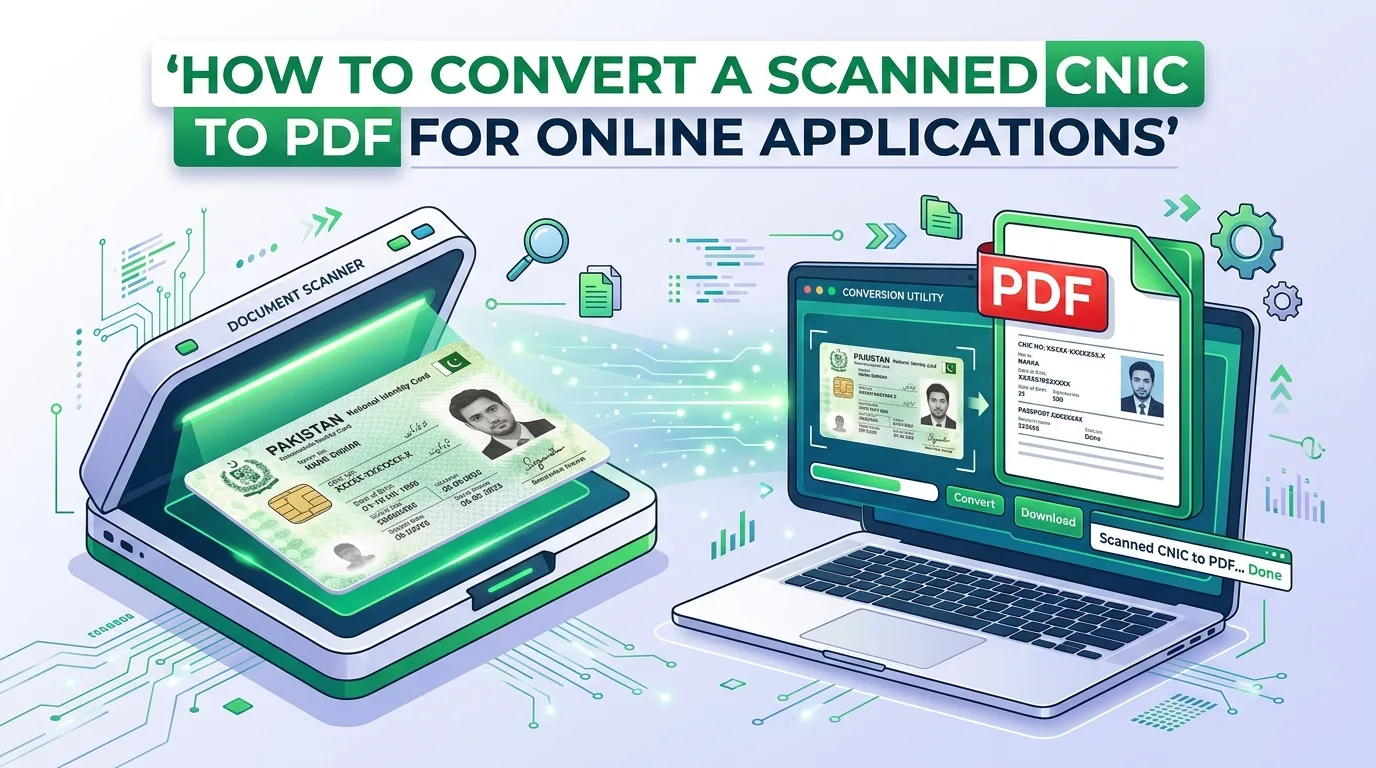
Almost every online form in Pakistan- bank account opening, SIM registration, university admission, job applications- asks for a copy of your CNIC. The moment you scan or photograph it, you’re left with an image file, and most of these portals specifically want a PDF, not a JPG or PNG. This small mismatch causes more failed uploads than people realize.
Why Portals Ask for PDF Specifically Instead of an Image
A PDF behaves consistently across every device and system that opens it, which matters a lot for document verification. An image file can get compressed differently by whatever app handles the upload, sometimes distorting fine details like the CNIC number or photo. A PDF locks the content in place, which is exactly why banks, universities, and government portals default to requesting it instead of accepting a raw photo.
There’s also a practical reason: many portals allow combining both the front and back of the CNIC into a single PDF, so the applicant doesn’t need two separate upload fields. An image format doesn’t offer that same flexibility.
What Usually Goes Wrong When Uploading a CNIC Scan
- Uploading the front and back as two separate image files, when the portal only has one upload field expecting a single combined document
- Low lighting or glare on the CNIC’s holographic elements, making the ID number or photo hard to read once uploaded
- File size too large, since a high-resolution phone photo of a CNIC can easily exceed a government portal’s upload limit
- Wrong file type entirely, uploading a HEIC or unusual format that the portal’s system doesn’t recognize
How to Prepare a Clean CNIC PDF
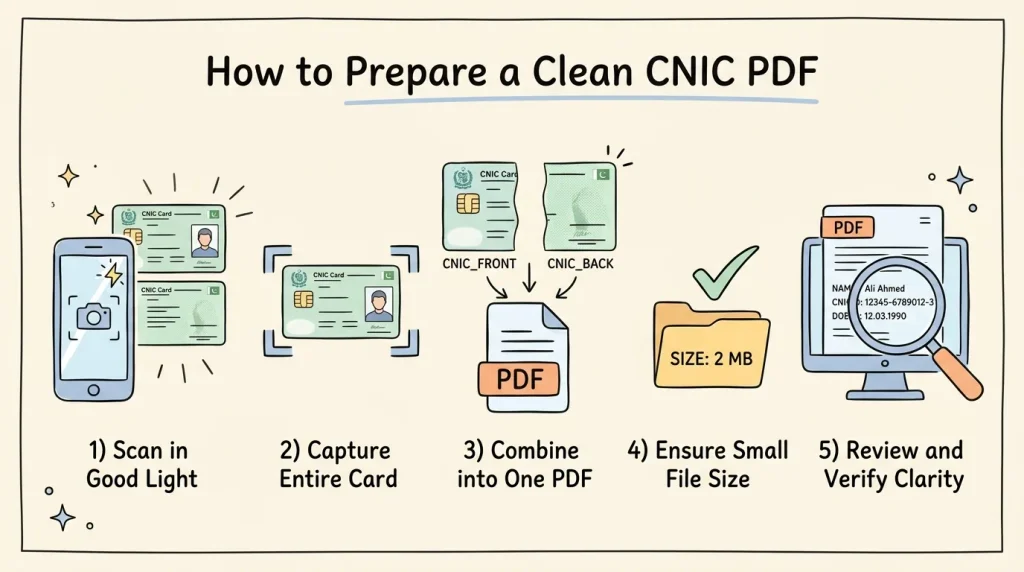
- Photograph or scan both sides in good, even lighting, avoiding glare on the CNIC’s reflective security features, which can obscure the printed details.
- Keep the CNIC flat and fully within frame, with all four corners visible and the text clearly readable.
- Combine the front and back into a single PDF if the portal expects one document, rather than submitting two separate image files.
- Check the file size against the portal’s limit before submitting, since scanned ID documents can be unexpectedly large if the source photos were high resolution.
- Open the final PDF and zoom in to confirm the CNIC number and photo are both sharp and legible, not blurred from over-compression.
Combine and Convert in Seconds
AsanTool’s Image to PDF tool takes the front and back CNIC photos and combines them into a single, clean PDF directly in your browser:
- Upload both CNIC images
- Arrange them in the order you need (front first, then back)
- The tool combines them into one PDF automatically
- Download instantly, no software or account required
- Your images are never stored on our servers; they’re deleted automatically within the hour
If the resulting file is still too large for the portal’s upload limit, running it through the Image Compressor beforehand brings the file size down without making the text or photo unreadable.
Related Article: How to Compress a PDF for Email Without Losing Readability
Conclusion
A CNIC upload failing usually isn’t about the photo itself; it’s about the format and structure the portal actually expects. Combining both sides into a single PDF, keeping the file size within limits, and double-checking legibility before submitting turns a repeated upload frustration into a one-time, thirty-second task.
Need to combine your CNIC scans into one PDF right now? Try the free Image to PDF tool. No account, no software, and your files are never kept on our servers.
1 thought on “How to Convert a Scanned CNIC to PDF for Online Applications”