
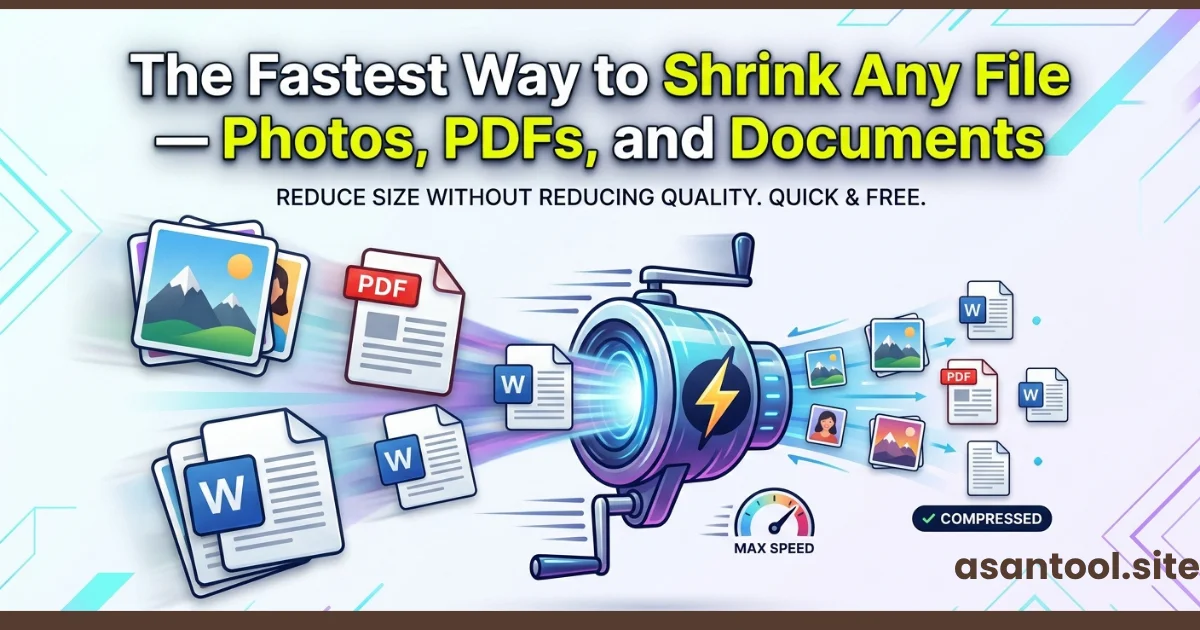
“File too large” is one of those errors that shows up at the worst possible moment right before a deadline, mid-application, or while trying to send something urgent. The frustrating part isn’t the error itself, it’s not knowing the fastest way to actually fix it, since photos, PDFs, and documents don’t shrink the same way. Here’s the quickest path for each one, without hunting through settings or downloading extra software.
Why “Shrinking a File” Isn’t One Single Process
This is the part that trips people up. A photo, a PDF, and a Word document are structured completely differently on a technical level, so the fastest way to shrink each one is different too. Trying to use the same method across all three usually wastes time resizing a PDF the way you’d resize a photo, for example, simply doesn’t work.
The fastest overall approach is knowing exactly which method matches which file type, instead of guessing.
Shrinking Photos The Fastest Method
For images, the quickest fix is almost always compression, not resizing. Compression reduces the file’s data weight while keeping the dimensions and visual quality essentially the same.
- Skip apps that “resize” as their main function resizing changes dimensions, not necessarily file weight
- Use a dedicated image compressor that targets file size directly
- JPG compresses far more efficiently than PNG for photos, so converting format first can help if you’re starting from PNG
- A well-compressed photo shrinks by 60-80% with no visible quality loss
Fastest path: Upload → compress → download. No cropping, no manual adjustments needed for most cases.
Shrinking PDFs — The Fastest Method
PDFs bloat for a different reason than photos usually because they contain high-resolution embedded images, unnecessary fonts, or scanned pages saved at full camera resolution.
- If the PDF was made from a scanned document, the images inside are almost always the biggest contributor to file size
- A PDF compression tool re-processes those embedded images down to a reasonable size without touching the text or layout
- Avoid trying to “print to PDF” again as a shrinking method it often doesn’t reduce size meaningfully and can degrade quality unpredictably
Fastest path: Upload the PDF → run it through a compression tool built specifically for PDFs → download the smaller version.
Shrinking Documents (Word Files) The Fastest Method
Word documents usually bloat from embedded images, tracked changes history, or leftover formatting data that accumulates over edits.
- Converting to PDF often shrinks the effective file size significantly, since PDF handles embedded content more efficiently than the .docx format
- If the document needs to stay editable, removing high-resolution images and replacing them with compressed versions is the fastest manual fix
- Clearing tracked changes and comments (if they’re no longer needed) can meaningfully reduce file size in longer documents
Fastest path: If the final destination allows it, convert to PDF it’s usually faster than manually hunting for bloated content inside the Word file.
A Quick Comparison
| File Type | What Usually Causes the Bloat | Fastest Fix |
|---|---|---|
| Photos (JPG/PNG) | High resolution, uncompressed format | Direct compression |
| PDFs | Embedded high-res images, scanned pages | PDF-specific compression |
| Word Documents | Embedded images, tracked changes | Convert to PDF or strip images |
Do All of This in One Place
AsanTool covers all three directly in your browser, with no software to install and no file kept on the server longer than an hour:
- Image Compressor — shrink photos without losing visible quality
- Word to PDF — convert documents into a lighter, formatting-locked PDF
- PDF Merge / PDF to JPG — manage and restructure PDF content as needed
Each tool works the same on a phone or a laptop, so the fix takes seconds regardless of what device the deadline catches you on.
Related Article: 7 Free Online Tools Every Student Should Bookmark in 2026
Conclusion
There’s no single trick that shrinks every file type the fastest approach is knowing that photos need compression, PDFs need their embedded content optimized, and Word documents often shrink fastest by converting to PDF entirely. Once that distinction is clear, “file too large” stops being a scramble and becomes a quick, predictable fix.
Need to shrink a file right now? Try AsanTool’s free tools for photos, PDFs, and documents — no account, no software, and nothing kept on our servers.