
You’ve spent an hour getting a resume or report to look exactly right in Word — margins lined up, fonts consistent, images placed just where you want them. Then you send the .docx file to someone, and it opens on their screen looking completely different: fonts swapped, spacing shifted, images moved. Converting to PDF is the fix, but only if it’s done properly.
This guide explains why Word documents break when opened elsewhere, and how to convert to PDF without losing a single detail of your formatting.
Why Word Documents Look Different on Other Devices
A .docx file isn’t a finished, locked-in document — it’s a set of instructions that gets rebuilt every time it’s opened, and that rebuild depends entirely on the software and system opening it.
- Fonts aren’t embedded by default. If the person opening your file doesn’t have the exact font installed, Word silently substitutes a different one, which shifts spacing and line breaks throughout the document.
- Different Word versions render layouts differently. A document built in a newer version of Word can shift slightly when opened in an older version, or in Google Docs, or on a phone.
- Margins and page breaks can move depending on the default printer driver or page settings on the receiving device, which Word sometimes uses to calculate layout.
- Images and text boxes can reflow if the software handles wrapping or anchoring differently than the version the document was created in.
None of this happens with a PDF, because a PDF isn’t rebuilt when opened — it’s a fixed snapshot of exactly how the page looked at the moment of conversion.
Why PDF Fixes This Problem
A PDF is designed specifically to look identical no matter where it’s opened.
- Layout is locked. Every element stays exactly where it was placed, regardless of the device, operating system, or software used to view it.
- Fonts are embedded directly into the file, so there’s no substitution or reflow, even if the viewer doesn’t have that font installed.
- Looks the same everywhere — a PDF opened on a phone, a laptop, or printed on paper shows the exact same layout every time.
- Harder to accidentally edit, which matters for documents like contracts, resumes, or official submissions where you want the content to stay exactly as finalized.
When You Should Convert Word to PDF
This comes up constantly in everyday situations:
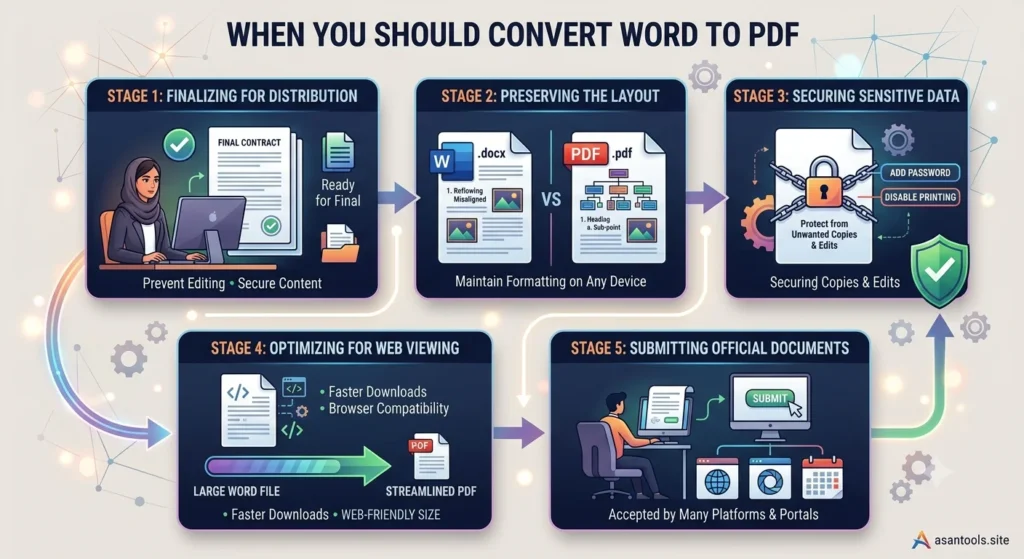
- Resumes and job applications, where formatting consistency directly affects how professional the document looks to a recruiter
- Contracts and official documents, where layout needs to be locked in and not accidentally editable
- Reports and assignments submitted to portals that specifically require PDF format
- Anything sent for printing, since PDF guarantees the printed page matches what you designed on screen
- Documents shared with people using different software, avoiding the guesswork of whether they have Word installed at all
How to Convert Word to PDF Without Breaking Anything
- Finalize your formatting in Word first. Fix spacing, fonts, and image placement before converting — a PDF locks in whatever state the document was in at conversion time.
- Check for font compatibility issues by reviewing the document as-is, since unusual or custom fonts are the most common cause of layout shifts.
- Convert using a proper tool, not by simply renaming the file extension, which doesn’t actually process or lock the formatting.
- Open the resulting PDF and compare it side-by-side with the original Word document to confirm nothing shifted.
- Check multi-page documents carefully, especially page breaks and headers/footers, since these are the most common spots where small formatting issues show up after conversion.
Convert Word to PDF in Seconds
No need to open Word or install anything extra. AsanTool’s Word to PDF converter handles the entire process in your browser:
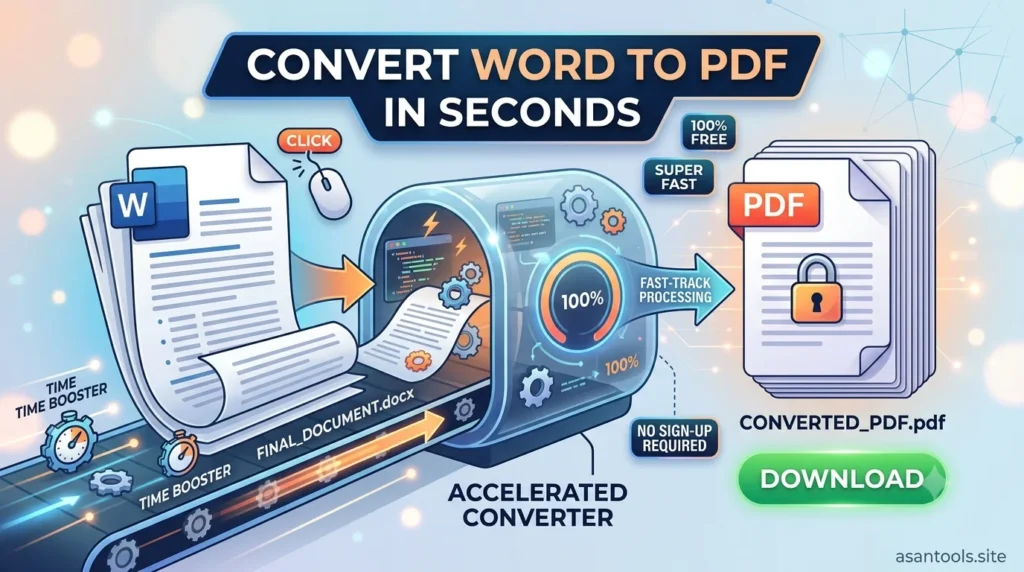
- Upload your .docx file
- The tool converts it to PDF while preserving fonts, spacing, and layout exactly as designed
- Download the finished file instantly
- Nothing is stored on our servers — your file is deleted automatically within the hour
It works the same whether you’re converting a resume from your phone before an interview or a full report from a laptop.
Frequently Asked Questions
Will my document’s formatting change during conversion?
No, not with a proper converter. The layout, fonts, spacing, and images are locked in exactly as they appeared in the original Word document.
Can I still edit a PDF after converting from Word?
Not as easily as a Word document. This is actually a benefit for finalized documents like contracts and resumes, since it prevents accidental changes — though dedicated PDF editing tools can still make changes if needed.
Why did my Word document look different when someone else opened it?
This usually happens because of missing fonts or differences in the version of Word being used. Converting to PDF eliminates this issue entirely, since the layout is fixed at the time of conversion.
Does converting to PDF reduce image quality in my document?
No. A well-built converter preserves images at their original quality — nothing is recompressed unnecessarily during the process.
Need to convert Word to PDF right now? Try the free Word to PDF converter — no account, no software, and your file is never kept on our servers.