
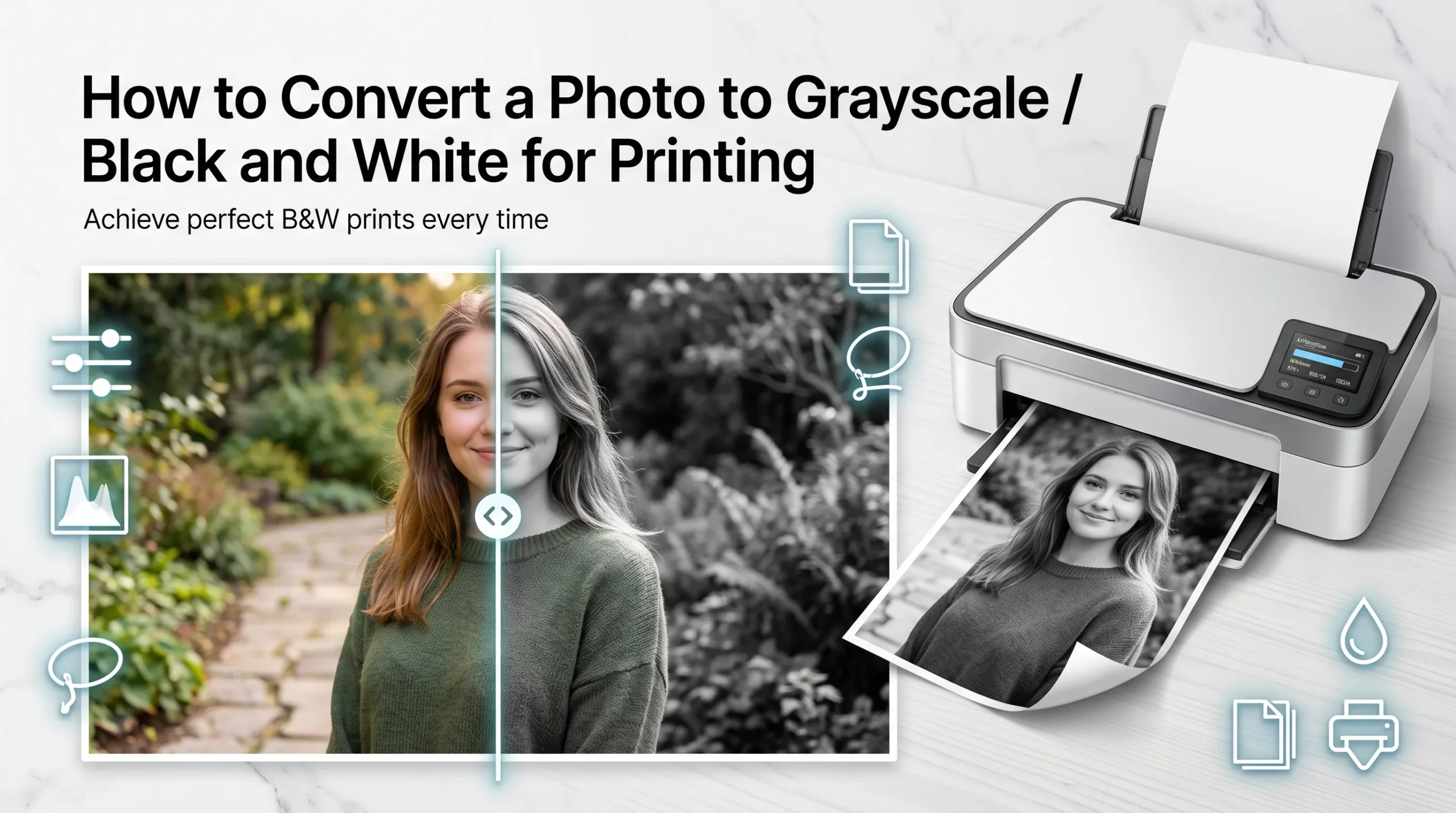
Grayscale and black and white are used as if they mean the same thing, but they’re technically different, and knowing the difference actually changes how good your printed photo looks. A true black and white image contains only two values, pure black and pure white, with nothing in between. Grayscale keeps 256 possible shades running from black to white, which is what gives a printed portrait or landscape actual depth instead of looking flat and harsh. When most people say they want a “black and white photo,” what they actually want, and what looks better on paper, is grayscale.
Why Converting Before Printing Beats Letting the Printer Do It
Most printers offer a “print in grayscale” or “print in black and white” option right in the print dialog, and it’s tempting to just use that instead of touching the file. The problem is that this setting only changes how ink gets applied at the very last step; the printer is still working from full-color image data and making a rushed decision about how to translate it, which can flatten contrast or lose detail in shadows and highlights that a proper conversion would have preserved.
Converting the image to grayscale beforehand gives you, or the software doing it, a chance to actually look at the tonal result and adjust it before it’s committed to paper. It also means what you see in the preview is genuinely what prints, rather than guessing how the printer driver will interpret a color file.
The Method Matters More Than People Expect
Not all grayscale conversions are created equal, even though they might look similar at a glance. A simple desaturation, just stripping the color out, treats every color as equally important, which often makes reds and blues collapse into nearly the same shade of gray, losing separation that mattered in the original photo. A properly weighted grayscale conversion accounts for how the human eye perceives brightness differently across colors, keeping that separation intact so a red shirt and a blue sky don’t end up looking like the same tone of gray.
This is why professional photo editors use tools like a channel mixer or a dedicated black-and-white adjustment layer rather than just hitting “desaturate.” For casual printing, a good browser-based converter that handles this weighting automatically gets you most of the way there without needing to understand color channels at all.
Getting It Right for Printing Specifically
A photo that looks perfectly balanced in grayscale on a bright phone screen can print noticeably darker or lose shadow detail once it’s on paper, since screens emit light and paper only reflects it. A few adjustments before printing help close that gap: slightly boosting brightness and contrast compared to how the image looks on screen compensates for paper’s naturally lower dynamic range, and checking the print preview at 100 percent zoom, not the thumbnail, catches any areas that have gone fully black with no visible detail left.
Grayscale printing also uses noticeably less ink than a color print of the same photo, since it typically only draws on black (and sometimes gray) cartridges rather than mixing cyan, magenta, and yellow to fake a black-and-white look, which is worth knowing if you’re printing in volume.
Read More: iPhone Photo Won’t Upload to Android Group? Here’s the Fix
Convert to Grayscale in Seconds
AsanTool’s Image Compressor and Resizer tools can be paired with a grayscale conversion step to prepare a photo for printing entirely in your browser, no software installation, no account, and nothing stored on our servers longer than an hour.
Conclusion
A grayscale photo that prints well isn’t just about stripping the color out; it’s about preserving the tonal range that made the original photo work in the first place, then adjusting for how differently paper renders that range compared to a screen. Converting the image properly before it reaches the printer, rather than relying on the printer’s own grayscale setting, is what actually protects that detail.
Frequently Asked Questions
Is grayscale the same as black and white? Not technically. True black and white contains only pure black and pure white with no gray tones, giving a stark, high-contrast look. Grayscale retains a full range of gray shades, which is what most people actually mean when they say they want a black-and-white photo.
Should I convert to grayscale myself or let the printer handle it? Converting beforehand gives you control over how the tones translate and lets you preview the actual result before printing, rather than trusting a last-second decision made by the printer driver.
Does printing in grayscale save ink? Yes, generally. Grayscale prints typically rely mainly on black ink rather than mixing color cartridges to simulate a black-and-white look, which uses noticeably less ink over a large print run.
Why does my grayscale photo look darker once printed than it did on screen? Screens emit light while paper only reflects it, so paper has a smaller usable range between the darkest and lightest tones. Slightly increasing brightness and contrast before printing helps compensate for this difference.
Need to prepare a photo for printing right now? Try AsanTool’s free Image Compressor and Resizer. No account, no software, and your file is never kept on our servers.
1 thought on “How to Convert a Photo to Grayscale for Printing”