
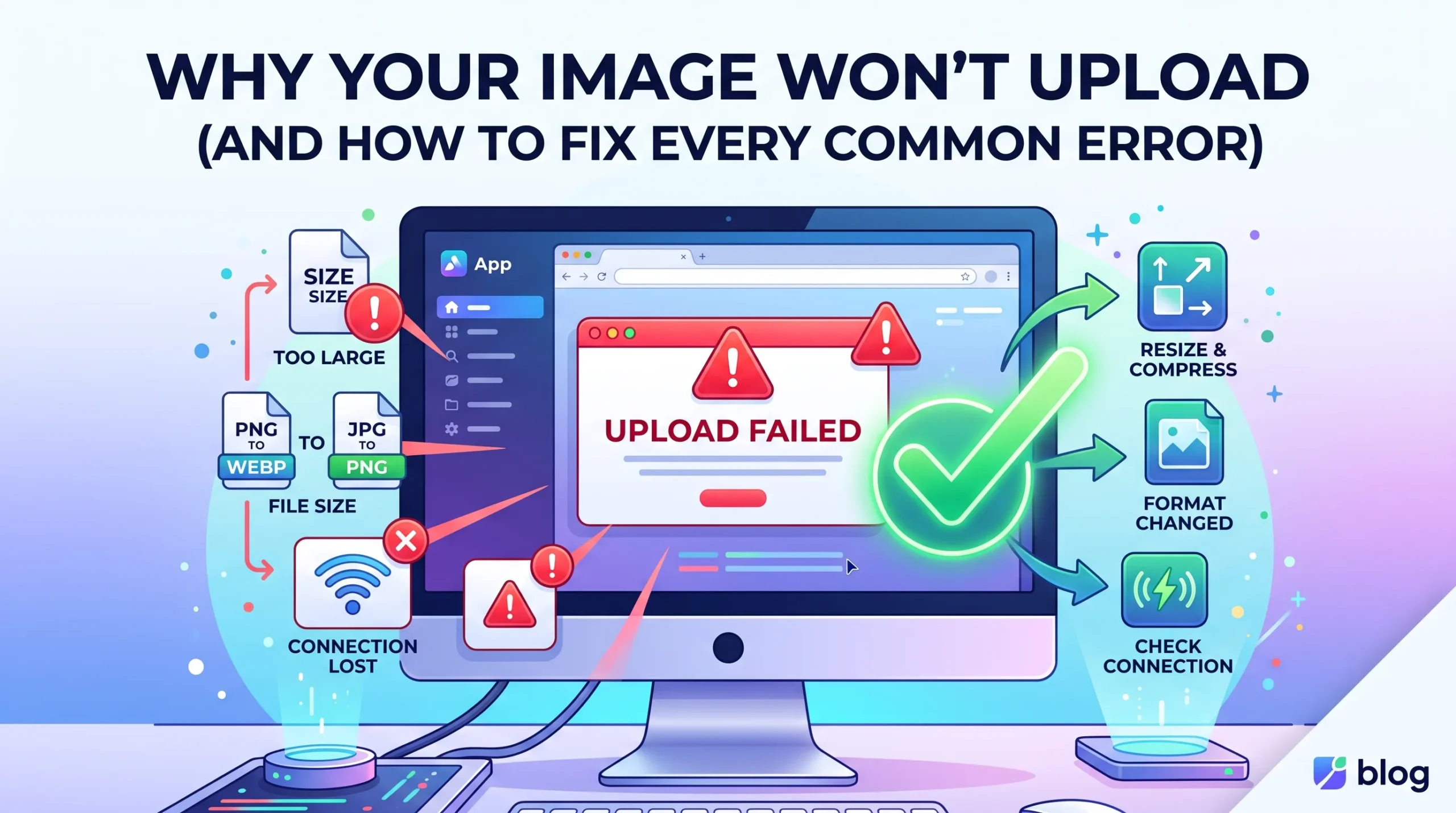
The photo looks fine. It’s clear, properly framed, exactly what you meant to submit. And yet the upload button either does nothing, throws a vague red error, or resets the whole form and makes you start over. This happens on job portals, government forms, e-commerce listings, and website admin panels alike, and in almost every case the actual cause has nothing to do with how the photo looks.
Here’s every common reason an image fails to upload, in the order you should actually check them.
1. File Size Too Large (The Most Common Cause)
Modern phone cameras produce photos in the 3 to 8 MB range, while most upload forms expect something far smaller, often under 200 KB, sometimes under 50 KB for strict government or exam portals. This mismatch is by far the single biggest reason uploads fail.
The fix: Resize to smaller pixel dimensions first, since this alone often cuts a large chunk of the file size, then compress the result to hit the exact target the form requires.
2. File Size Too Small (Yes, This Happens Too)
Less commonly, some forms set a minimum file size as well as a maximum, something like “between 10 KB and 50 KB.” If you compress a photo aggressively to get well under the maximum, it’s possible to accidentally drop below the hidden minimum, which the form rejects just as readily as an oversized file.
The fix: If a photo that was compressed is now being rejected as too small, there’s no need to redo it from scratch; target a size in the upper half of the allowed range instead of the very bottom, giving yourself margin on both ends.
3. Wrong File Format
A form that specifically asks for JPG will often silently reject a PNG, WebP, or HEIC file, sometimes without a clear error explaining why. This is especially common with iPhone photos, which save in HEIC format by default, a format many older or stricter upload systems don’t recognize at all.
The fix: Convert to the exact format requested rather than assuming the form will accept whatever your phone produced. Renaming a file’s extension from .heic to .jpg does not actually convert it, some systems detect the real file format regardless of what the filename says, and the upload will still fail.
4. Wrong Pixel Dimensions
Some portals check the image’s actual width and height in pixels, separately from its file size in KB. A photo can be small enough in file size and still get rejected if its dimensions don’t match what’s specified, or if the aspect ratio is wrong for a form expecting a specific shape like passport-style proportions.
The fix: Check whether the form specifies exact pixel dimensions, not just a size limit, and resize accordingly before compressing.
5. The Upload Reaches 100% and Then Fails
This specific pattern, where the progress bar completes and then an error appears, usually points to a server-side check happening after the file transfer finishes, rather than a problem during the upload itself. Common triggers include the file exceeding a size limit the client-side interface didn’t warn you about, an unsupported format being detected after the fact, or an account-level restriction.
The fix: Treat this the same as a size or format rejection, double-check both against the form’s stated requirements, since the failure is usually happening at validation, not during transfer.
6. Browser or Connection Issues
Occasionally the problem isn’t the image at all. An ad blocker interfering with the upload script, a browser extension conflicting with the page, a weak or unstable internet connection, or a temporarily overloaded server can all cause an upload to fail on a perfectly valid file.
The fix: Try a different browser (Chrome tends to have the fewest compatibility issues), temporarily disable ad blockers, and confirm your connection is stable before troubleshooting the image itself.
7. Corrupted or Damaged File
Rarely, the image file itself is subtly damaged; it might still open and display fine in your phone’s gallery, but fail when a different application tries to read it, showing distorted colors, only partially loading, or having an unusually small file size for what should be a full-resolution photo.
The fix: Open the file in a different viewer to check it displays correctly. If it looks wrong there too, re-export or re-save the image from its source rather than continuing to troubleshoot a damaged file.
The Fast Diagnostic Order
When an upload fails and the error message isn’t helpful, working through these checks in order resolves the vast majority of cases:
- Is the file the correct format? If not, convert it.
- Is the file size within the stated limits, both maximum and minimum? If not, resize and compress.
- Are the pixel dimensions correct for what the form expects? If not, resize specifically to those dimensions.
- Try a different browser with ad blockers disabled.
- Test the file in a different viewer to rule out corruption.
Read More: WhatsApp DP Size: How to Get the Perfect Square Profile Picture
Fix Format, Size, and Dimensions in One Place
AsanTool’s tools cover the three most common causes directly in your browser, no software or account needed:
- Image Compressor brings file size down to meet strict KB limits
- Image Resizer sets the exact pixel dimensions a form requires
- JPG to PNG / PNG to JPG converters handle format mismatches instantly
Every file is processed locally and never stored on our servers longer than an hour.
Conclusion
An image that won’t upload rarely means something is fundamentally wrong with the photo; it usually means the file doesn’t match one specific, checkable requirement: size, format, or dimensions. Working through these in order, rather than guessing randomly, turns a frustrating repeated failure into a fix that takes less than a minute.
Dealing with an upload error right now? Try AsanTool’s free Image Compressor, Resizer, and format converters. No account, no software, and your files are never kept on our servers.
1 thought on “Why Your Image Won’t Upload (And How to Fix Every Common Error)”