
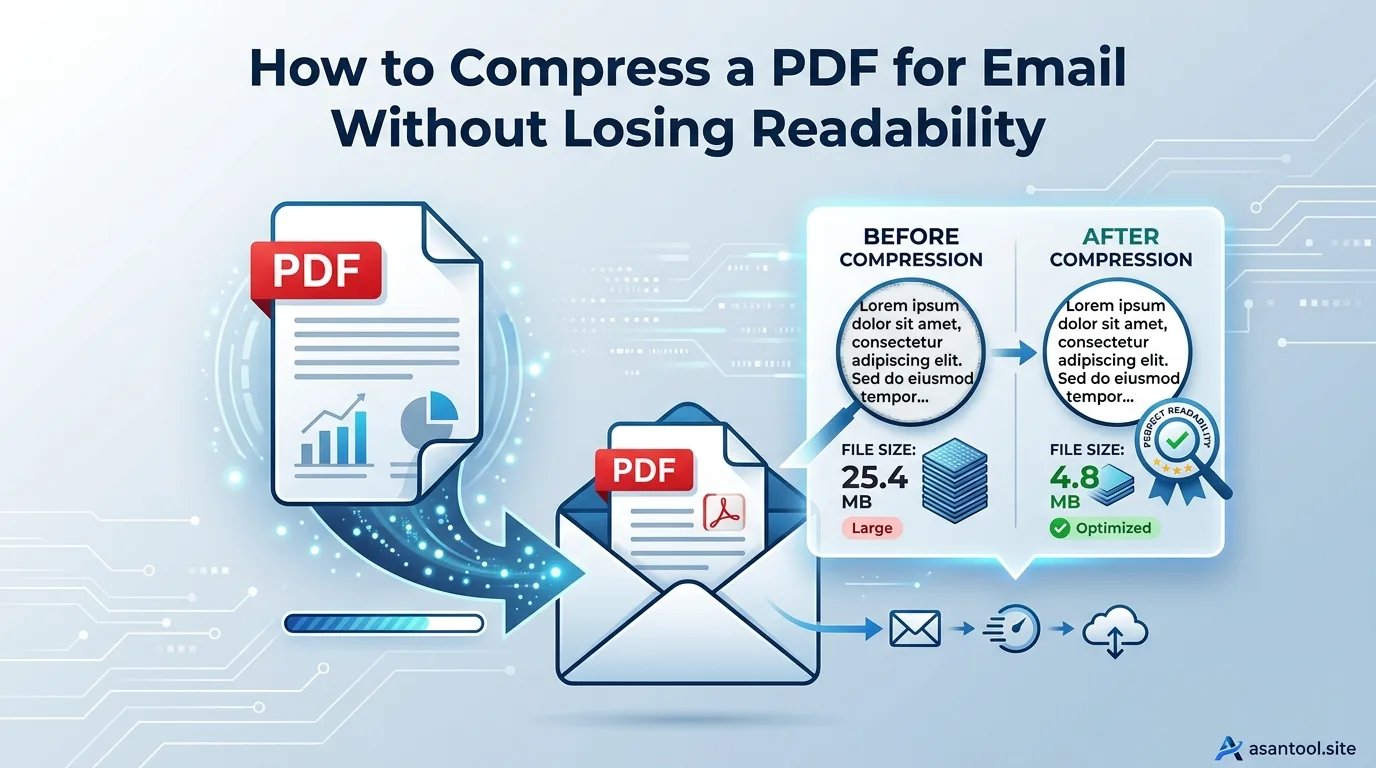
You attach a PDF, hit send, and immediately get bounced back with an error. “Attachment too large.” Most email providers, including Gmail and Outlook, cap attachments somewhere around 20 to 25 MB, and a single scanned contract or image-heavy report can blow past that limit without you realizing it until the email fails to send.
The instinct is often to compress the file as hard as possible just to get it under the limit, but that approach frequently makes the text blurry or the document hard to read. There’s a better way to think about this.
Why PDFs Get So Large in the First Place
A PDF’s file size rarely comes from the text itself; plain text takes up very little space. The real culprits are almost always:
- High-resolution embedded images, especially in scanned documents where every page is essentially a large photo
- Embedded fonts, which get bundled into the file so it displays correctly on any device, adding weight even to text-heavy documents
- Multiple pages of scanned content, where each page contributes its own image data rather than lightweight text
- Leftover data from edits, such as previous versions of content that weren’t fully cleaned out during editing
Understanding this matters because it tells you where compression actually helps. A PDF that’s mostly scanned images benefits enormously from compression. A PDF that’s mostly typed text usually doesn’t need much at all, since there’s very little bulky data to remove in the first place.
The Difference Between Compression Levels
Most PDF compression tools offer a choice, often labeled something like Low, Medium, and High, or Basic and Strong. Understanding what these actually do prevents over-compressing a document that didn’t need it:
- Light compression mainly cleans up redundant data and slightly optimizes embedded images, with virtually no visible quality loss. This is usually enough for most text-heavy documents that are only a little over the size limit.
- Medium compression reduces image resolution more noticeably, which is fine for documents that will only be viewed on screen but can start to look soft if the PDF gets printed later.
- Strong compression aggressively reduces image quality to hit the smallest possible file size, which works for cases like property photos or workshop manuals where some visible quality loss is an acceptable trade-off for a much smaller file.
For a document you need to stay clearly readable, starting with the lightest compression level that actually gets you under the size limit is the safer approach, rather than defaulting straight to the strongest setting.
How to Compress a PDF Without Hurting Readability
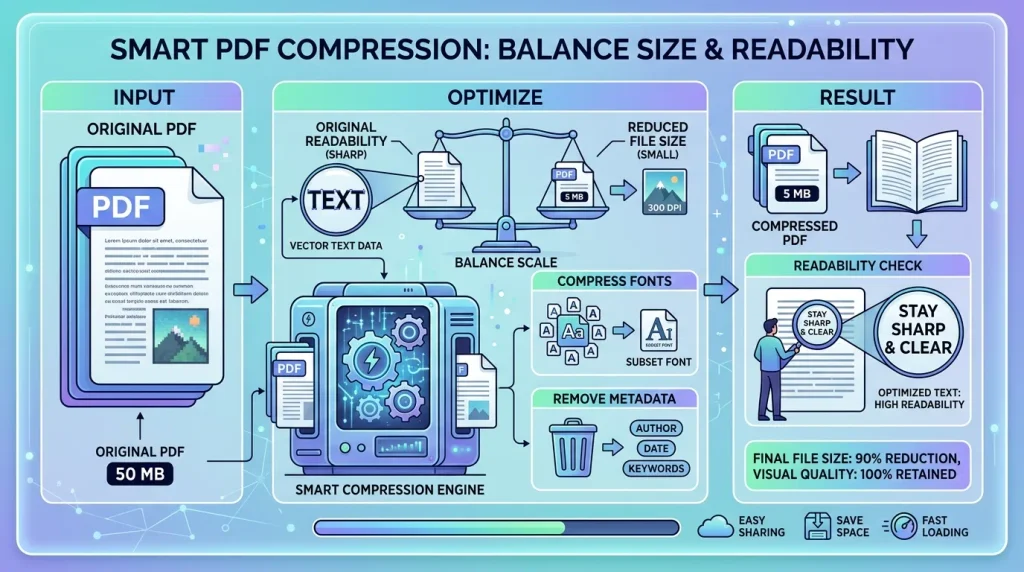
- Check what’s actually taking up space first. If the PDF is a scan, the images are almost certainly the main contributor. If it’s a typed document with a few embedded images, the fix will likely need far less aggressive compression.
- Start with light or medium compression, not the strongest setting, and check the result before deciding you need more.
- Preview the compressed file at full zoom, especially any pages with small text or fine details, to confirm nothing became blurry or hard to read.
- Compare the file size against your actual limit, not just “as small as possible.” If Gmail’s limit is 25 MB and your file is now 18 MB, there’s no reason to compress further and risk quality.
- Keep your original, uncompressed file saved separately, so you’re not stuck re-scanning or recreating the document if a different situation later needs a higher-quality version.
When Compression Alone Isn’t Enough
If a PDF is extremely image-heavy or has dozens of high-resolution scanned pages, even light compression might not bring it under an email limit without noticeably affecting quality. In that case, splitting the document into smaller sections, or sharing it through a cloud storage link instead of a direct attachment, avoids the trade-off entirely, since the recipient can view the file at full quality without an email provider’s size limit getting in the way.
Read More: How to Crop a Photo to a Perfect Square Without Cutting Off Faces
Compress Your PDF in Seconds
AsanTool’s PDF tools handle this directly in your browser, no software or account required, and nothing stored on our servers longer than an hour. Upload your PDF, let it optimize automatically, and download a smaller file that’s ready to attach without the readability trade-offs that come from over-compressing.
Conclusion
A PDF that’s too large for email almost always comes down to embedded images or scanned pages, not the text itself. Compressing with a light touch, checking the result before compressing further, and knowing when to split a file instead of squeezing it too hard keeps documents both under the size limit and genuinely readable once they land in someone’s inbox.
Need to shrink a PDF for email right now? Try AsanTool’s free PDF tools. No account, no software, and your file is never kept on our servers.
1 thought on “How to Compress a PDF for Email Without Losing Readability”