
Facebook Cover Photo Size: Get It Right the First Time: A cover photo is the first thing anyone sees when they land on a Facebook profile or Page, and it’s also one of the easiest things to get wrong. A logo that looked centered while designing can end up half-hidden behind the profile picture. Text that read clearly on a laptop can get sliced off on a phone. Facebook displays cover photos differently depending on the device, which is exactly why so many covers look slightly off despite being uploaded at a size that seemed correct.
The Official Dimensions
According to Facebook’s own Help Center, a cover photo should be uploaded as an sRGB JPG file, 851 pixels wide by 315 pixels tall, under 100 kilobytes for the fastest loading. This is the size Facebook recommends for both personal profiles and business Pages, since both share identical cover photo dimensions.
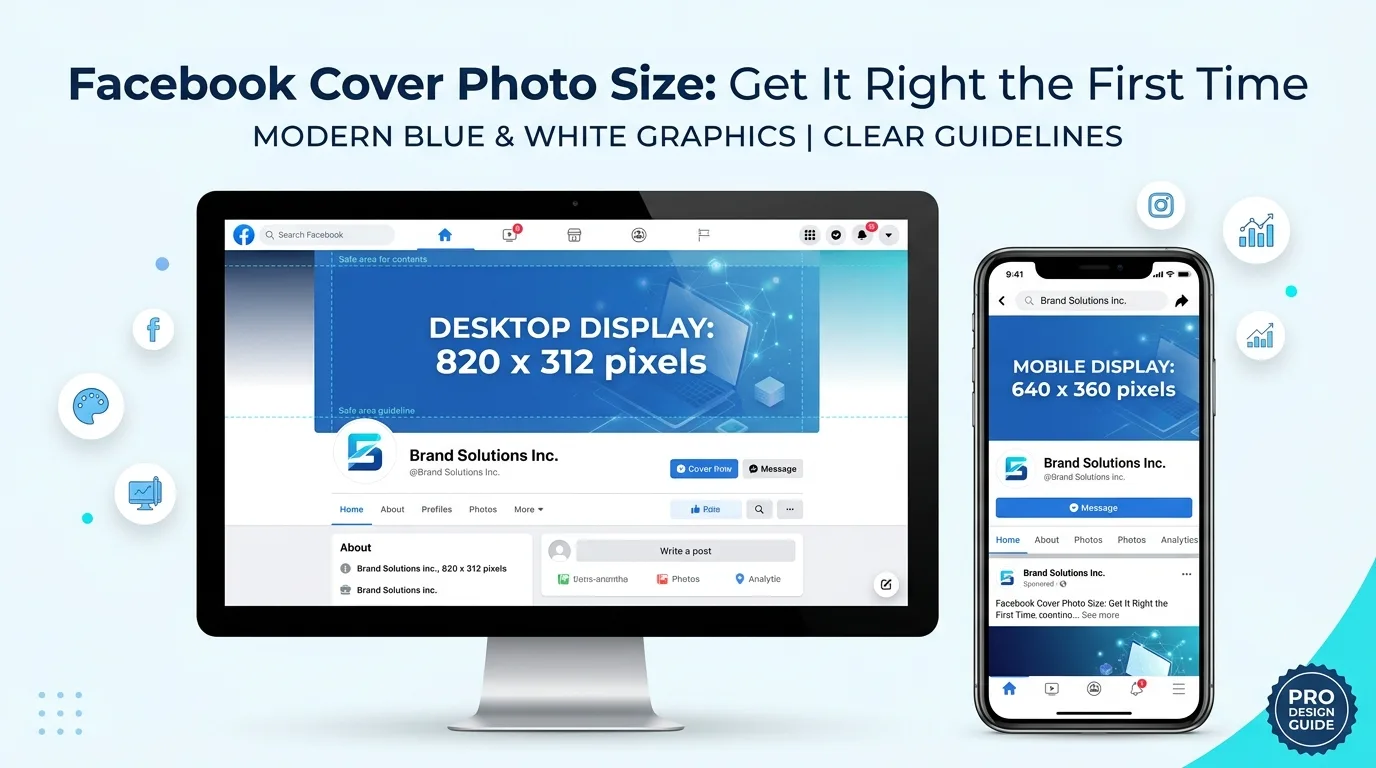
Once uploaded, that image doesn’t display at the exact size you uploaded it, though. Facebook renders it differently depending on where it’s being viewed:
- Desktop: 820 x 312 pixels
- Mobile: 640 x 360 pixels
This mismatch between upload size and display size is the root cause of most cover photo cropping issues.
Why the Same Photo Looks Different on Desktop vs. Mobile
Desktop and mobile don’t just resize the cover photo; they crop it differently, because the two display shapes have different proportions. Desktop shows a wider, shorter slice of the image. Mobile shows a narrower, taller slice. Anything sitting near the left or right edges on desktop can end up cut off on mobile, and vice versa.
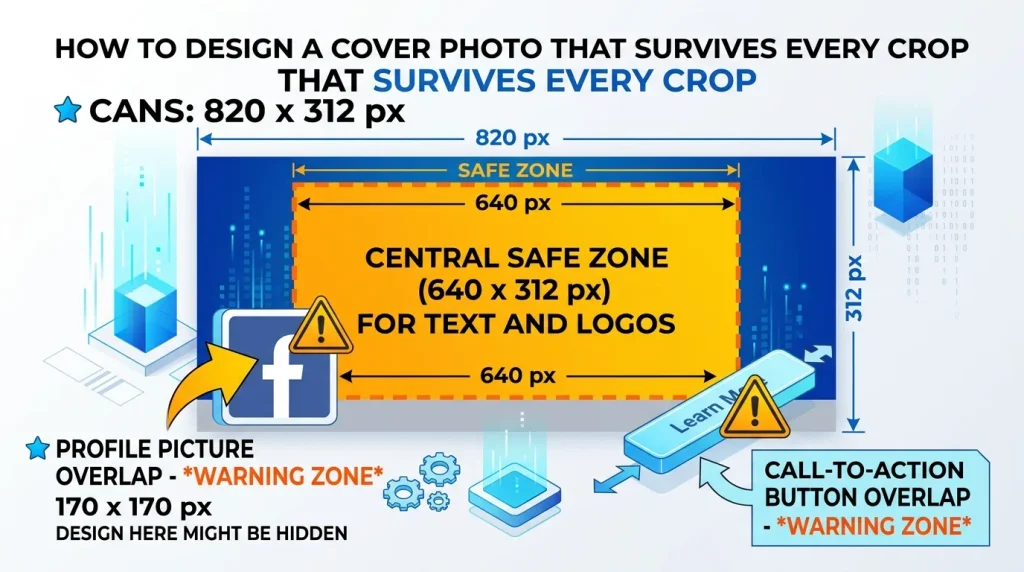
The area that reliably shows up on every device is called the safe zone, roughly the center 640 x 312 pixels of the image. Anything outside that central zone, meaning the outer edges of the photo, should be treated as background or bleed rather than a place for important text, logos, or faces.
The Profile Picture Overlap Problem
On both profiles and Pages, the circular profile picture sits on top of the bottom-left corner of the cover photo, overlapping it by roughly 170 pixels on that corner (the overlap is smaller on mobile, closer to 40 pixels, but the principle is the same). Any text, logo, or important visual element placed in that bottom-left area will be partially or fully hidden behind the profile picture. On business Pages, there’s also typically a call-to-action button positioned in the lower-right corner, so that area is worth keeping clear as well.
How to Design a Cover Photo That Survives Every Crop
- Design at a higher resolution than the minimum, such as 1640 x 624 pixels (roughly double the standard size), so the image stays sharp on high-resolution screens instead of looking slightly soft.
- Keep all critical content inside the central safe zone (roughly 640 x 312 pixels), including logos, text, and faces, rather than spreading them toward the edges.
- Avoid placing anything important in the bottom-left corner, since the profile picture will cover it on every device.
- Leave the lower-right area clear on business Pages, where a call-to-action button typically sits.
- Export as JPG for photographic images, and reserve PNG for covers with sharp text or logo details where crisp edges matter more than file size.
- Keep the final file under 100 KB where possible, since Facebook explicitly recommends this for fastest loading, especially on slower mobile connections.
Groups and Events Use Different Sizes Entirely
It’s a common mistake to reuse a personal profile or Page cover photo for a Group or Event, but they don’t share the same dimensions:
| Cover Type | Recommended Size |
|---|---|
| Personal Profile / Business Page | 851 x 315 px (upload) |
| Facebook Group | 1640 x 856 px |
| Facebook Event | 1920 x 1005 px |
Using profile-sized dimensions for a Group or Event cover typically results in a stretched or oddly cropped image, since the aspect ratios are meaningfully different between formats.
Resize Your Cover Photo Correctly
Getting these exact dimensions right doesn’t require design software. AsanTool’s Image Resizer lets you set the precise pixel dimensions needed for whichever Facebook surface you’re designing for, directly in your browser:
- Upload your cover photo
- Set the exact width and height needed
- Download instantly, ready to upload
- No software or account needed, and your file is never stored on our servers
Read More: The Right Image Size for Instagram Posts, Stories, and Reels in 2026
Conclusion
A Facebook cover photo rarely looks wrong because of bad design; it looks wrong because the same image gets cropped differently across devices and partially covered by the profile picture in a predictable spot. Designing within the safe zone, avoiding the bottom-left corner, and using the correct dimensions for whichever surface (profile, Page, Group, or Event) removes the guesswork and gets it right the first time.
Need to resize your cover photo to the exact Facebook dimensions? Try the free Image Resizer. No account, no software, and your file is never kept on our servers.