
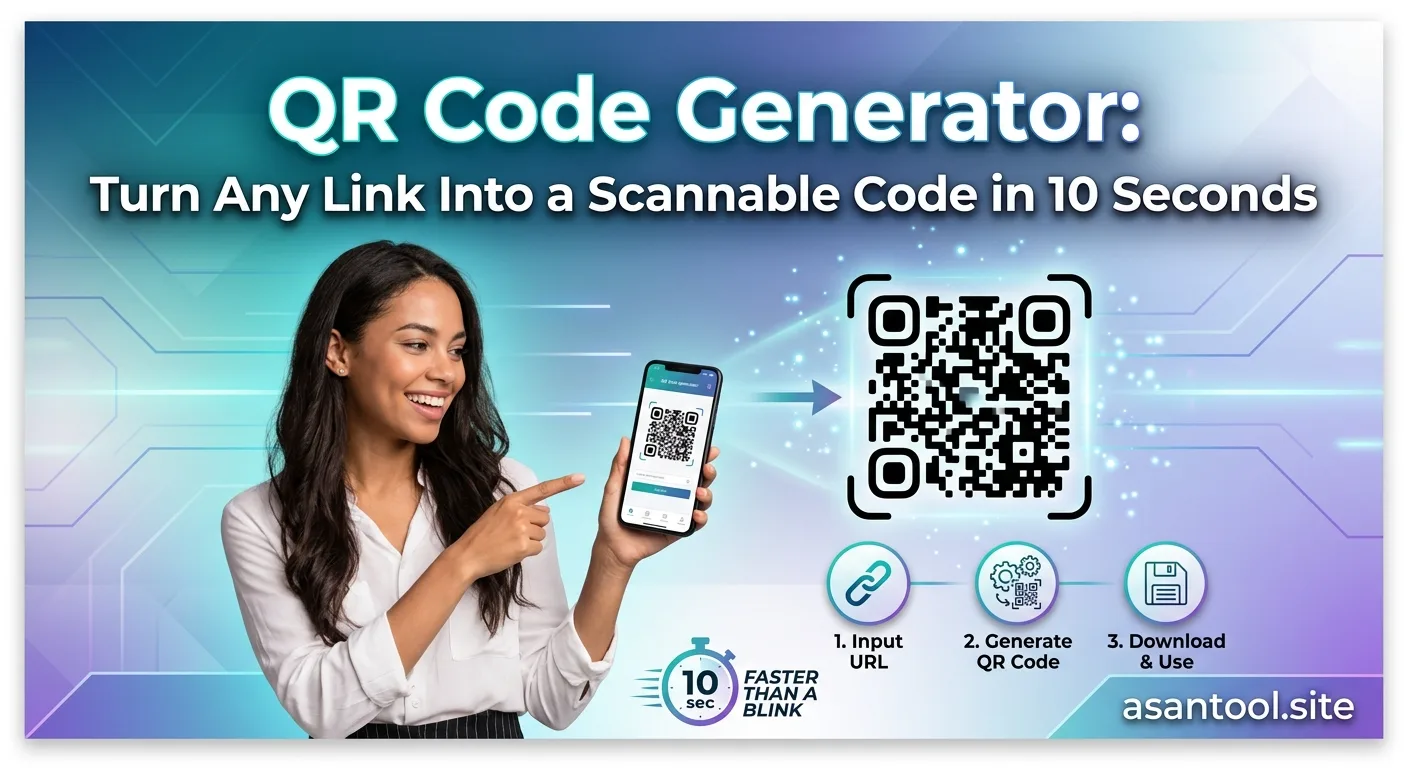
Business cards, menus, flyers, product packaging. QR codes show up everywhere now, and for good reason. Instead of someone typing out a long website address or searching for your business by name, they point a camera at a small black-and-white pattern and land exactly where you wanted them, instantly. Creating one takes seconds, but understanding a few basics first will save you from printing a QR code that doesn’t actually work.
What a QR Code Actually Is
A QR (Quick Response) code is a two-dimensional barcode. It’s a grid of black and white squares that stores information in a pattern a camera can read. Unlike a traditional barcode, which only holds a short string of numbers and has to be scanned in a specific direction, a QR code holds far more data and can be scanned from any angle. That flexibility is why it took over from traditional barcodes for marketing, packaging, and quick-access use cases.
When someone scans it with a phone camera, the pattern gets decoded back into whatever it was storing. Most commonly that’s a website link, but QR codes can also hold contact details, WiFi credentials, plain text, phone numbers, or email addresses.
Static vs. Dynamic QR Codes: The Difference That Actually Matters
This is the one distinction most people skip, and it’s the one that causes the most regret later.
Static QR codes have their content locked in permanently the moment they’re created. If the code points to a URL and that URL changes later, the QR code itself becomes useless. There’s no way to update it without generating and reprinting a brand new code.
Dynamic QR codes point to a redirect link that can be updated behind the scenes, meaning the destination can change even after the code has already been printed on a thousand flyers or business cards.
For something you’ll never need to change, like a WiFi password or a fixed contact card, static is perfectly fine and simpler. For anything tied to a website, a menu, or a campaign link that might get updated, moved, or replaced, a dynamic code saves you from reprinting everything just because a URL changed.
What You Can Actually Put Inside a QR Code
A QR code isn’t limited to just website links. Depending on what it’s built for, it can store:
- A URL. The most common use, linking straight to a website, landing page, or social profile.
- Plain text. A short message displayed directly when scanned, with no website needed.
- Contact information (vCard). Scanning it can add a name, phone number, and email directly to someone’s contacts.
- WiFi credentials. Scanning connects a device to a network automatically, without typing a password.
- Phone number or SMS. Scanning opens a pre-filled call or text message.
Knowing this matters because a lot of people default to “just make it a link” when a more direct option, like a vCard or WiFi code, would actually serve the purpose better.
Read More: How to Crop a Photo to a Perfect Square Without Cutting Off Faces
The Mistake That Makes QR Codes Unscannable
The single most common reason a QR code fails to scan isn’t a generator problem. It’s low contrast between the code’s foreground and background colors. QR scanners rely on being able to clearly distinguish the dark squares from the light background. A code with pale gray on white, or two colors that are too visually similar, can look fine to the human eye but fail to scan reliably on many phones.
If you’re customizing colors to match branding, keep the contrast strong. Dark on light works best, and it’s worth testing the final code with an actual phone camera before printing it anywhere.
How to Create a QR Code the Right Way
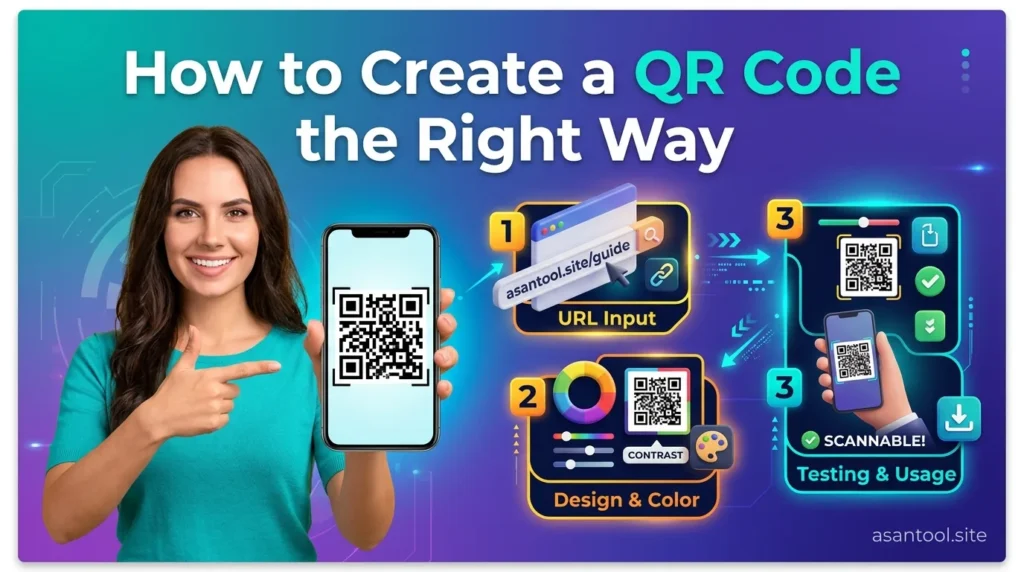
- Decide what the code needs to store. A link, contact info, WiFi access, or plain text all determine what type of QR code to generate.
- Choose static or dynamic based on whether the destination might ever need to change after printing.
- Keep colors high-contrast if customizing the design, and avoid overly busy patterns or logos that cover too much of the code’s surface.
- Test the code before printing or publishing it widely. Scan it yourself with more than one device to confirm it works reliably.
- Download in the right format for your use case. PNG works fine for digital and web use, while a higher-resolution or vector format holds up better for large-scale printing like posters or banners.
Generate a QR Code in Seconds
AsanTool’s QR Code Generator creates a scannable code directly in your browser:
- Enter your link or text
- The tool generates a clean, high-contrast QR code instantly
- Download it ready to use on a website, printed material, or business card
- No account or software required, and nothing is stored on our servers
Conclusion
A QR code seems simple on the surface, but the difference between one that works reliably and one that causes a frustrating “why isn’t this scanning” moment usually comes down to a few overlooked details. Contrast, the static versus dynamic choice, and testing before it goes out into the world all matter. Get those right, and it becomes one of the fastest, most reliable ways to connect something physical to something digital.
Need a scannable QR code right now? Try the free QR Code Generator. No account, no software, and nothing kept on our servers.