
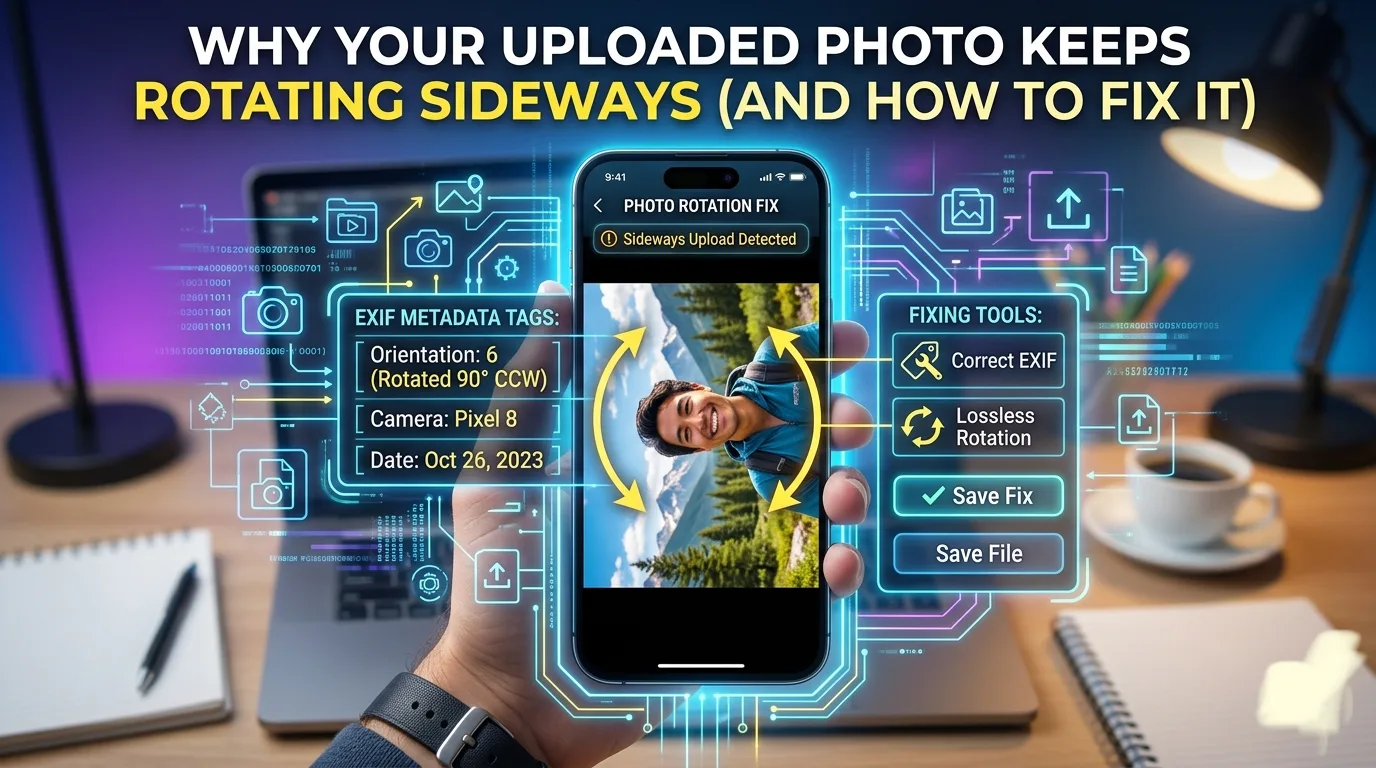
You take a photo holding your phone upright, it looks perfectly normal in your gallery, and then the moment you upload it somewhere — a form, a website, an email — it shows up rotated sideways or even upside down. You didn’t do anything wrong. This is one of the most common, most confusing photo quirks, and it happens because of something most people never knew existed: EXIF orientation data.
What’s Actually Happening
Modern phone cameras don’t always save a photo “rotated” the way you saw it when you took it. Instead, many phones save the image in its raw sensor orientation and add a small piece of hidden metadata called EXIF orientation data, which tells any app or device: “display this photo rotated by this many degrees to make it look upright.”
Your phone’s gallery app reads that metadata correctly and shows the photo the right way up. The problem is that not every website, upload tool, or piece of software reads that same metadata the same way — some ignore it completely and just display the raw image exactly as it was saved, sideways sensor orientation and all.
Why This Happens Inconsistently
This is the part that makes it especially confusing — the same photo can display correctly on one platform and rotate incorrectly on another:
- Some apps read EXIF data properly and auto-correct the display, showing the photo the way you expect
- Some apps ignore EXIF data entirely and just render the raw pixel data as-is
- Some apps read it but display it inconsistently across different browsers or operating systems
- Editing an already-rotated photo can strip or duplicate the EXIF data, causing double-rotation or the orientation flag getting lost entirely
None of this means your photo file is damaged — it’s a display and interpretation issue, not a problem with the actual image content.
Where This Causes the Most Trouble
- Job application and form uploads, where a sideways ID or certificate photo can look unprofessional or even get flagged as an invalid submission
- Website and blog uploads, where a rotated featured image throws off the whole page layout
- Printing services, where some print systems ignore EXIF data and print the raw sideways version
- Sharing across different platforms, where a photo can look fine on your phone but sideways once it’s posted somewhere else
How to Fix It Permanently
The most reliable fix isn’t hoping every platform reads EXIF data correctly — it’s re-saving the photo in its correct, upright orientation before uploading, so there’s no ambiguous metadata left to misinterpret.
- Open the photo and rotate it manually using any basic photo editor, then save it as a new file.
- This “bakes in” the correct orientation into the actual pixel data, rather than relying on metadata that some platforms ignore.
- Re-upload the corrected version. Once orientation is baked in, it will display correctly everywhere, regardless of whether the receiving platform reads EXIF data or not.
- If a photo keeps flipping back after multiple edits, it usually means the EXIF flag is still present and conflicting with the baked-in rotation — re-saving through a fresh export usually clears this.
Quick Fix, No Software Needed
If you don’t have a photo editor handy, AsanTool’s Image Resizer and Image Compressor tools re-process the image when you use them, which typically corrects orientation issues as part of the standard conversion — giving you a clean file ready to upload without the sideways surprise.
- Upload your photo
- The tool processes and re-saves it in its correct orientation
- Download the corrected version
- Works directly in your browser, no software or account needed, and your file is never stored on our servers
Conclusion
A sideways photo after uploading isn’t a sign that something’s broken — it’s a mismatch between hidden orientation data and how a particular platform chooses to read it. Re-saving the photo with its correct orientation baked directly into the image, rather than relying on metadata, is the fix that works consistently everywhere, every time.
Dealing with a photo that keeps rotating after upload? Try AsanTool’s free Image Resizer or Compressor to re-save it correctly — no account, no software, and your file is never kept on our servers.