
Photoshop subscriptions cost money you might not have for a quick background removal or a one-off Instagram edit. The good news: browser-based photo editors have gotten good enough in 2026 that most people never need to open desktop software at all.
But here’s the problem with almost every “best free photo editor” list online right now: they call tools “free” without telling you what actually happens after you upload your photo. Some editors cap your export resolution. Some slap a watermark on anything you download. Some give you 3 free edits and then ask for a card number. That distinction matters more than the feature list, so this guide sorts every tool below by what its free plan really includes, not just what it claims.
[SCREENSHOT: hero image of a browser photo editor interface]
What Actually Makes a Photo Editor “Free” in 2026
Before the list, three quick things to check on any tool you try:
- Export limits — some free plans cap resolution at 72 DPI or add a watermark to your final image
- Credit-gated AI tools — background removal, generative fill, and object removal are often free for the first few uses, then locked behind credits
- Browser-only processing vs. cloud upload — a few editors (like Photopea) process your image locally in the browser and never touch their servers, which matters if you’re editing anything private
With that out of the way, here are the tools worth your time.
1. Photopea: Best All-Round Free Editor (No Account Needed)
Photopea runs entirely in your browser and opens native PSD, AI, XD, Sketch, and PDF files without converting them first. That alone makes it the closest thing to a genuinely free Photoshop replacement online — you can open a client’s PSD file on any computer and export without installing anything.
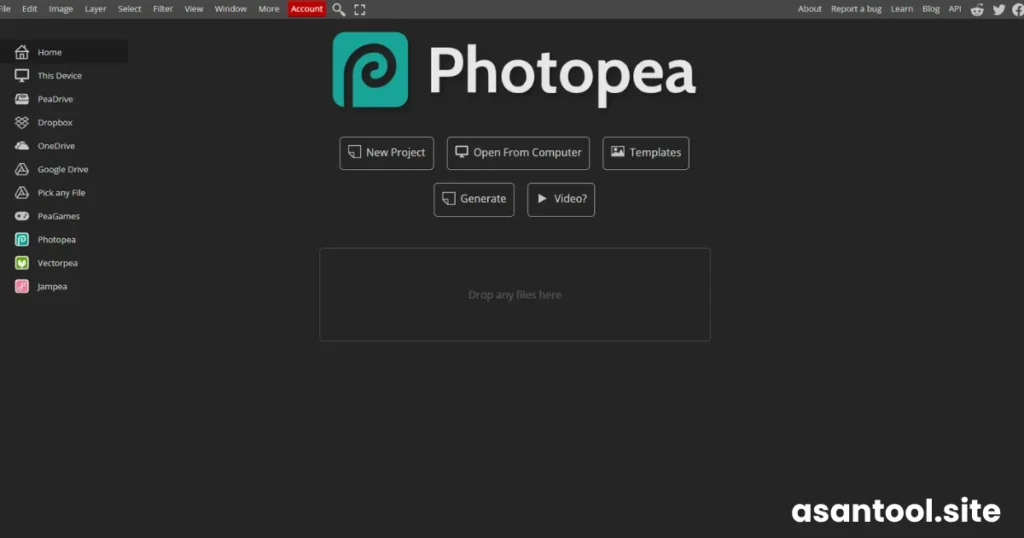
The free tier gives you the full editor with ads on the sides of the canvas, but no watermark on your PNG/JPG exports. Most browser-based tools, Photopea included, process images locally inside your browser’s temporary memory, so your files aren’t uploaded to a server unless you turn on cloud backup yourself.
[SCREENSHOT: Photopea editor with layers panel]
Good for: anyone who needs layers, masks, and PSD compatibility without paying for Creative Cloud. Limitation: large files can slow down on older hardware since everything runs in the browser tab.
2. Canva: Best for Quick Graphics, Not Deep Photo Editing
Canva isn’t a photo editor in the traditional sense — it’s a design tool that happens to include photo editing. The free tier includes thousands of templates, stock photos, and fonts, plus drag-and-drop tools for cropping, filters, and basic background removal.
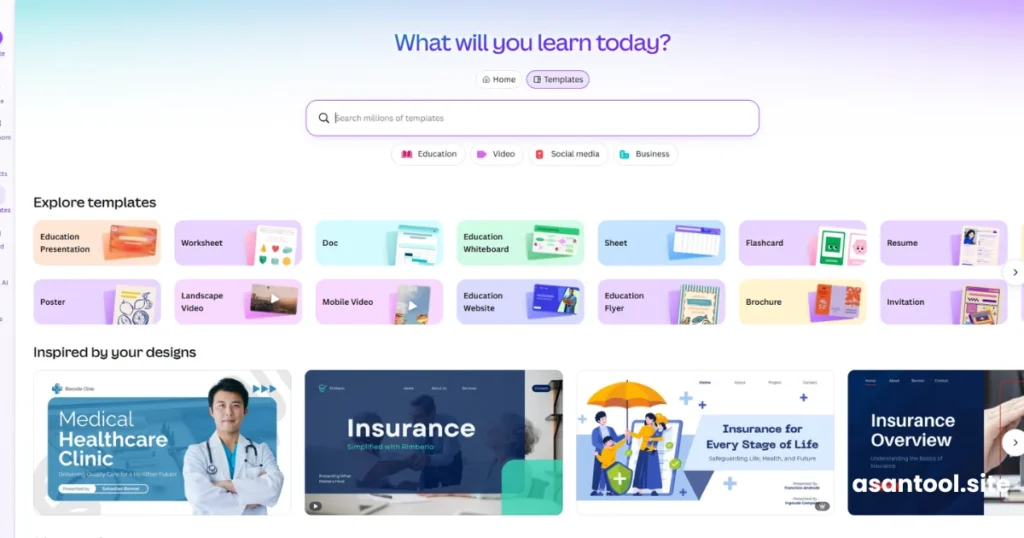
Where it falls short: there’s no real color grading or layer-based retouching. If you’re making a thumbnail, a poster, or a social media graphic, Canva is faster than any dedicated editor. If you’re trying to fix exposure or skin tone on a photo, it’s the wrong tool.
Good for: thumbnails, social posts, quick text-over-image graphics. Limitation: background removal and premium templates are gated behind the paid plan.
Read More: 7 Free Online Tools Every Student Should Bookmark in 2026
3. Pixlr: Closest to Photoshop’s Interface, Browser-Only
Pixlr E (the advanced editor) mirrors Photoshop’s layout closely enough that anyone coming from Adobe software will feel at home immediately. The free version lets you resize, crop, and layer images without much friction, and there’s a simplified Pixlr X mode for one-click edits.
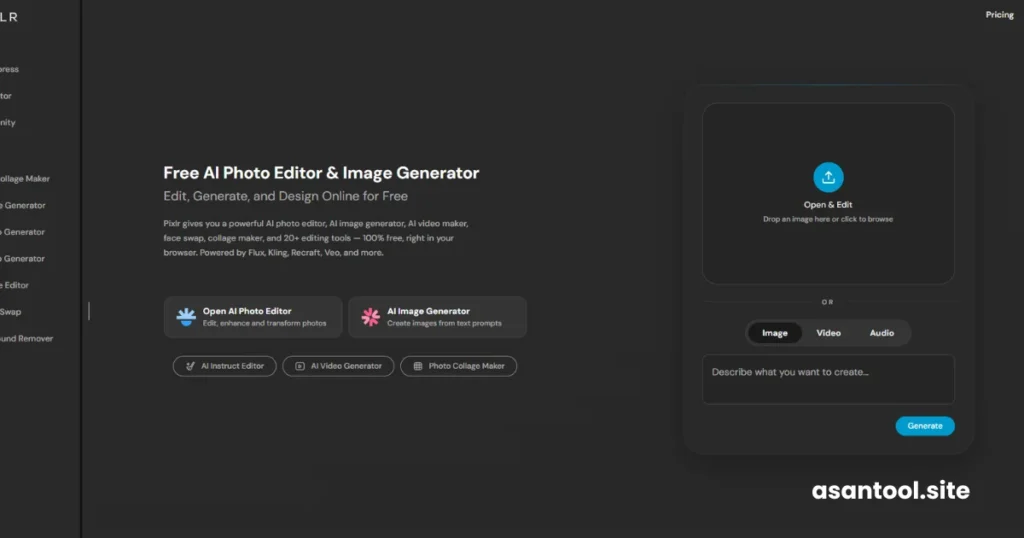
Good for: users switching from Photoshop who want a familiar layout without the subscription. Limitation: the free plan pushes you toward Pixlr’s premium AI tools fairly often.
4. Fotor: Best for One-Click Portrait Touch-Ups
Fotor’s basic editor is completely free, and it’s built around fast, one-click results rather than manual control. The portrait retouching engine is genuinely strong for quick skin smoothing and color correction, and the mobile app mirrors the web version closely.
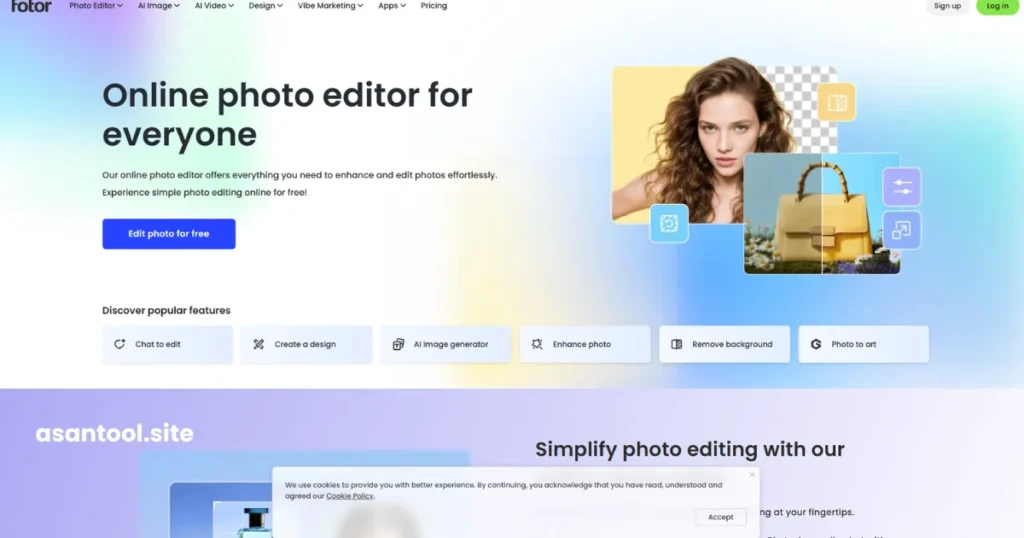
Good for: fast portrait edits and simple color correction, especially from a phone. Limitation: the free version limits export options and prompts you to upgrade frequently. Advanced AI tools need credits.
5. Picsart: Best for Social-Media-Style Creative Edits
Picsart leans into bold, stylized editing rather than subtle correction — think AI Replace (brush over an object and type a prompt to swap it), collage tools, and trend-driven templates. It’s especially popular with younger users who want expressive edits fast rather than a precise professional workflow.
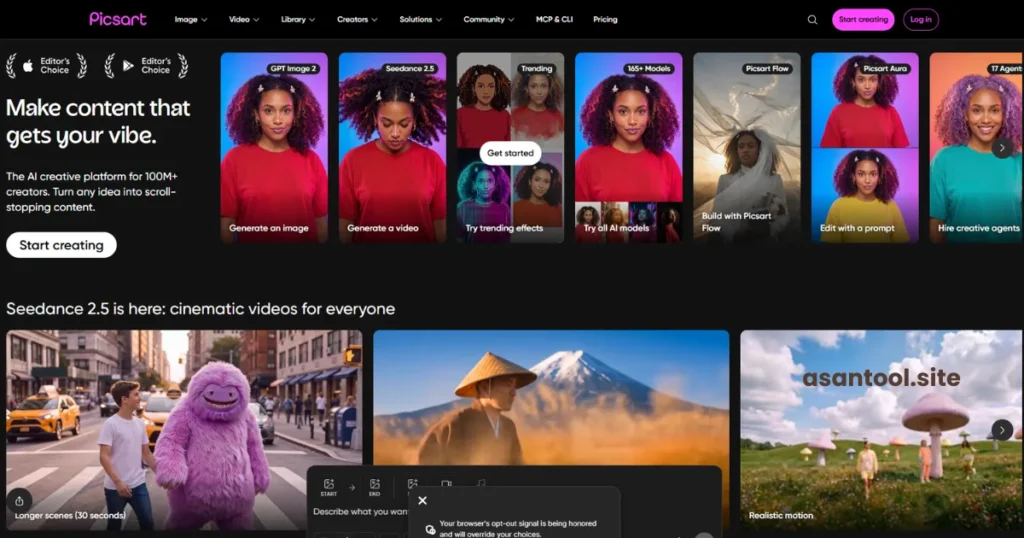
Good for: Instagram/TikTok-style creative edits, collages, AI object replacement. Limitation: the strongest AI features sit behind the Gold subscription.
Read More: The Fastest Way to Shrink Any File — Photos, PDFs, and Documents
6. Photoroom: Best for Product Photography and Online Sellers
If you sell on Shopify, Etsy, or eBay, Photoroom is built specifically for you. It processes background removal and batch product photo cleanup at scale, which makes it far more efficient than a general-purpose editor for listing photos.
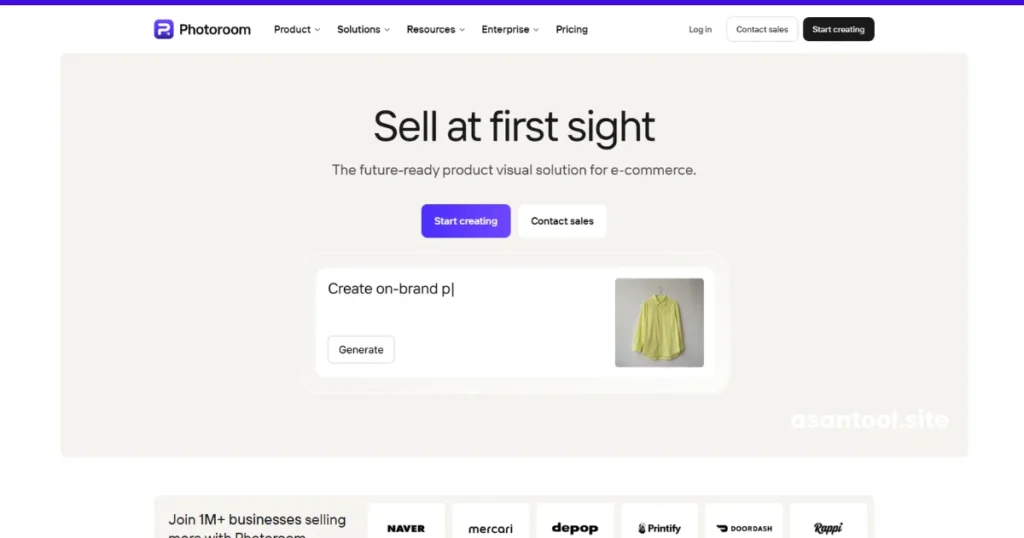
Good for: e-commerce sellers who need clean, consistent product shots fast. Limitation: less useful outside product photography — it’s a specialist tool, not a general editor.
7. Adobe Express: Adobe’s Free Browser Editor
Adobe Express is the free, simplified sibling to Photoshop, aimed at quick graphics and social content rather than deep editing. The free plan includes a monthly allowance of generative AI credits for things like generative fill.
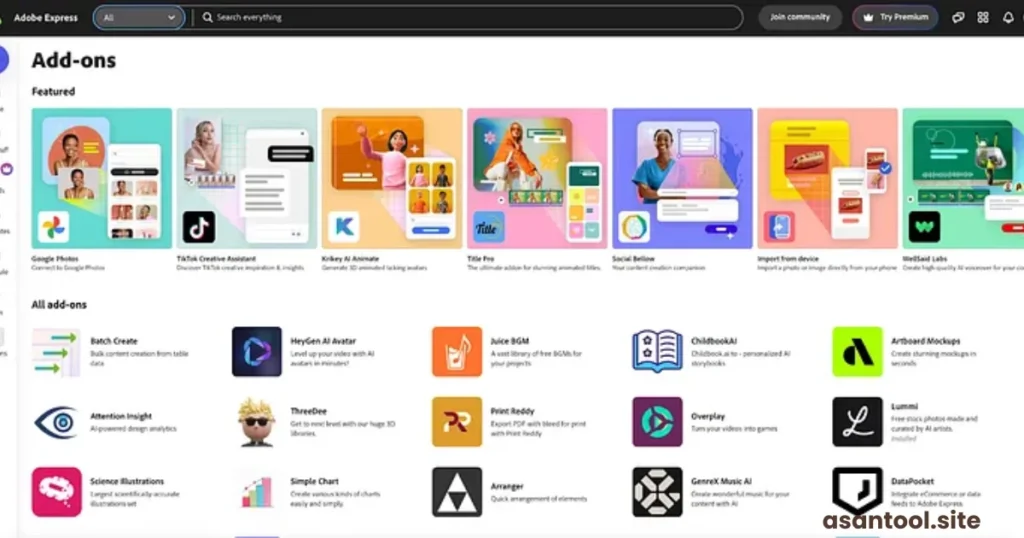
Good for: people who want Adobe’s design sensibility without the Creative Cloud price tag. Limitation: generative AI credits run out fast on the free tier.
8. BeFunky: Good Middle Ground Between Canva and Pixlr
BeFunky combines a photo editor, a collage maker, and basic design templates in one browser tool. It’s less powerful than Photopea for detailed editing but easier to pick up than Pixlr’s Photoshop-style layout.
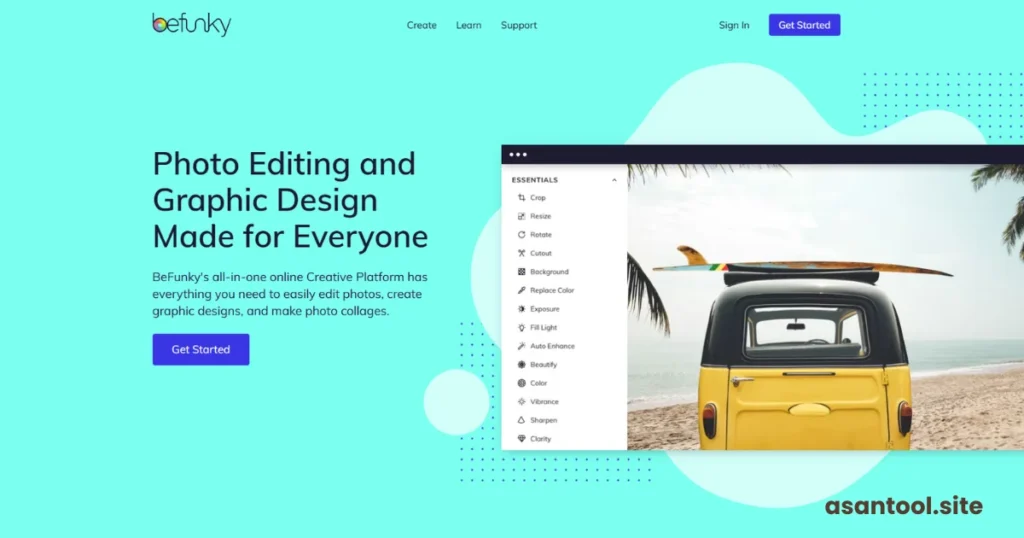
Good for: beginners who want editing plus light design work in one place. Limitation: batch editing and some effects are locked to the paid plan.
9. YouCam Online Editor: Best Free Generative-AI Editor
YouCam’s web editor focuses on AI-driven edits — face retouching, background generation, and style transfer — with a genuinely usable free tier for casual use.
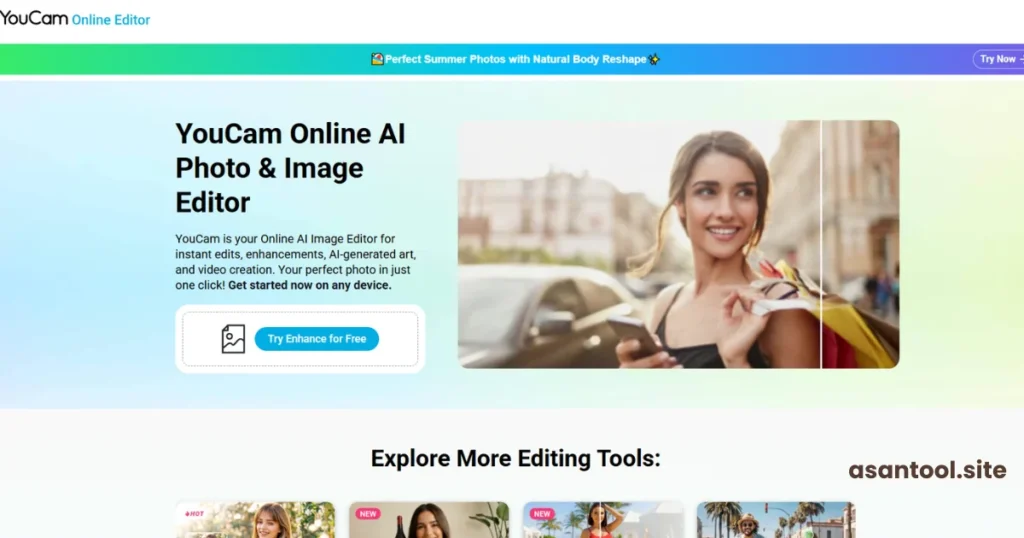
Good for: portrait retouching and AI-generated backgrounds without installing an app. Limitation: heavier AI features are credit-limited, same pattern as most AI-first tools.
10. Polarr: Best for Color Grading and Filters
Polarr’s strength is its filter and color-grading engine, closer to a Lightroom-style workflow than a Photoshop one. It’s aimed at photographers who care more about mood and tone than pixel-level retouching.
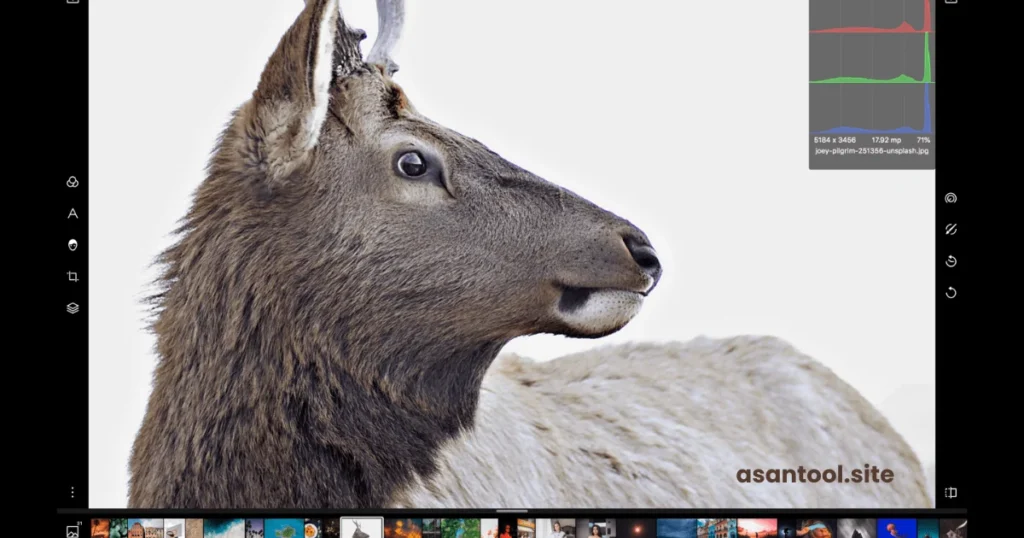
Good for: color grading, custom filters, photographers who shoot for a consistent aesthetic. Limitation: not built for object removal, layering, or graphic design work.
11. iLoveIMG: Best for Basic, Fast Tasks
iLoveIMG isn’t trying to be a full editor — it’s a set of single-purpose tools: resize, crop, compress, convert, and watermark. For quick, no-nonsense tasks, it’s faster than opening a full editor for a 10-second job.
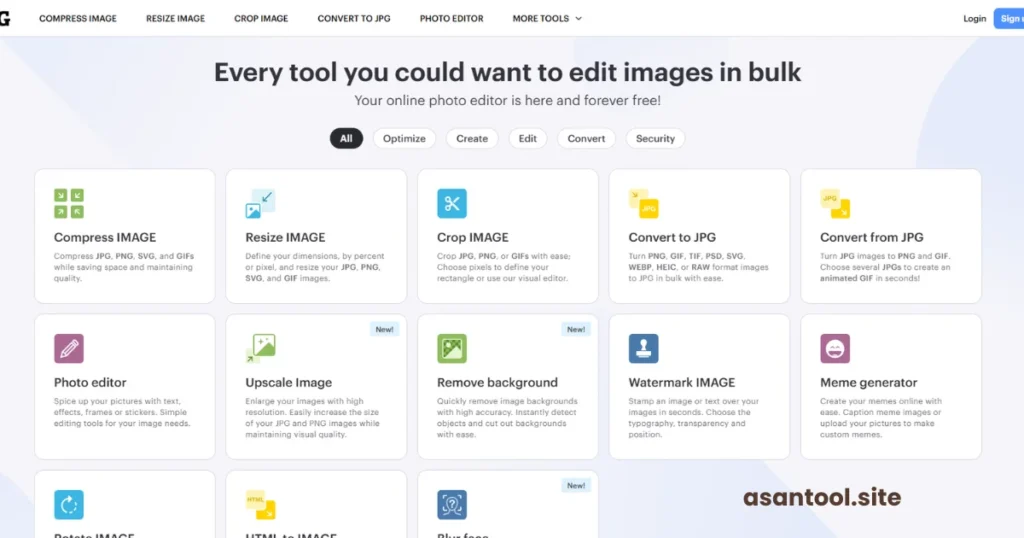
Good for: resizing, compressing, and format-converting images quickly. Limitation: no real editing — no filters, no retouching, no layers.
12. GIMP: The Free Desktop Alternative Worth Knowing About
GIMP isn’t browser-based, but it earns a spot on this list because it’s the only tool here with genuinely zero limits: no ads, no watermarks, no credit system, no subscription tier waiting behind the “advanced” features. It’s fully open-source, supports layers, masks, curves, and custom scripting, and still pulls millions of downloads a year.
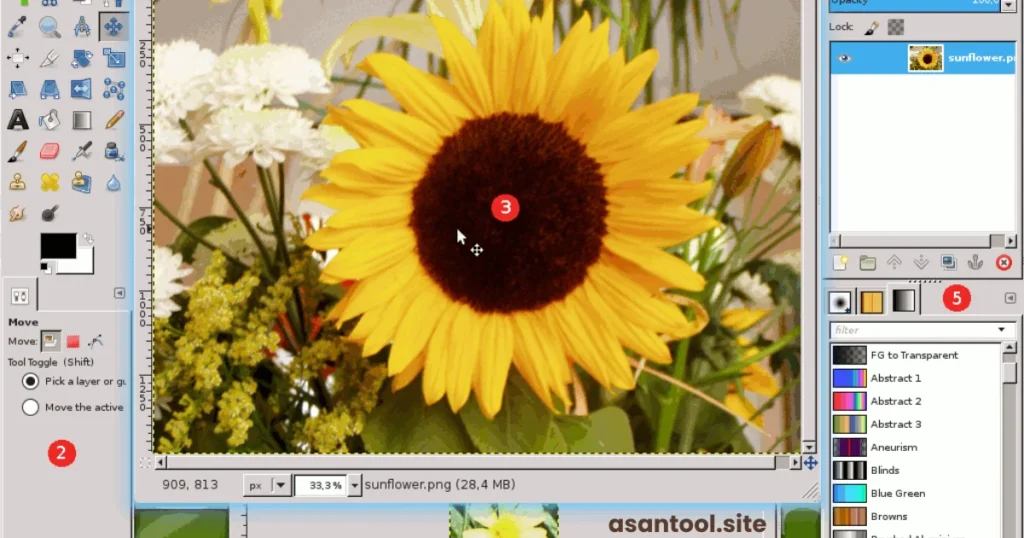
Good for: anyone willing to install one program in exchange for unlimited, completely free professional editing. Limitation: it requires installation, and the interface has a steeper learning curve than any tool above it.
13. Darktable: Best Free RAW Photo Editor
If you shoot RAW and want a free Lightroom alternative, Darktable is the strongest option available. It’s GPL-licensed, has no paid tier at all, and reads RAW files from virtually every major camera brand.
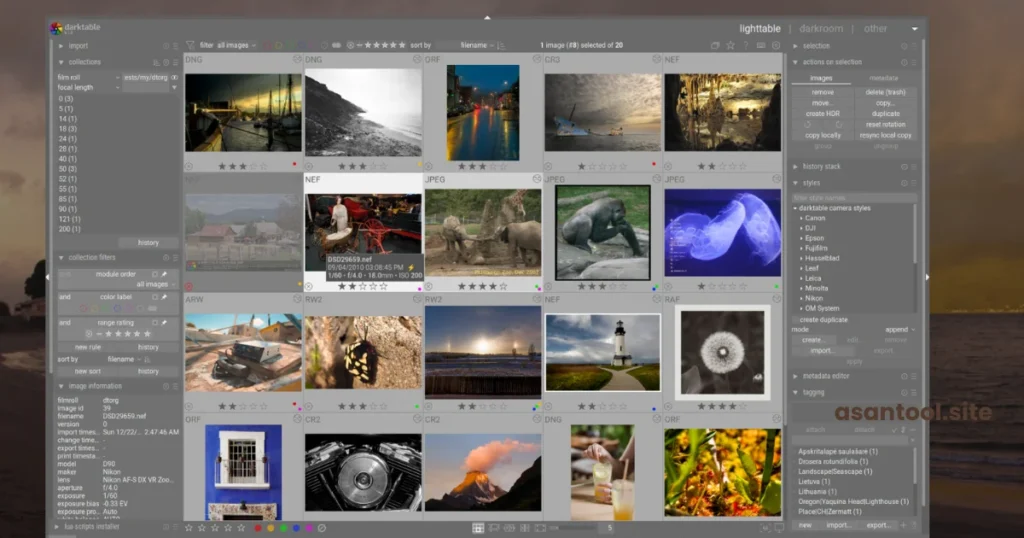
Good for: photographers doing RAW processing and photo catalog management for free. Limitation: desktop-only, and RAW workflows have a learning curve regardless of the tool.
Comparison: Which Free Photo Editor Should You Actually Use?
| Tool | Best for | Browser-based | Real limitation |
|---|---|---|---|
| Photopea | PSD editing, layers | Yes | Slower on big files |
| Canva | Quick graphics | Yes | Not for deep editing |
| Pixlr | Photoshop-style layout | Yes | Frequent upgrade prompts |
| Fotor | Portrait touch-ups | Yes | Limited exports on free plan |
| Picsart | Social/creative edits | Yes | Best AI tools are paid |
| Photoroom | Product photography | Yes | Narrow use case |
| Adobe Express | Adobe-style quick edits | Yes | AI credits run out fast |
| BeFunky | Beginner editing + design | Yes | Batch tools are paid |
| YouCam Online | AI portrait/background edits | Yes | AI features credit-limited |
| Polarr | Color grading | Yes | No layering/retouching |
| iLoveIMG | Resize/compress/convert | Yes | No real editing tools |
| GIMP | Unlimited professional editing | No (download) | Learning curve |
| Darktable | RAW photo processing | No (download) | Desktop-only |
How to Pick the Right One
- Editing a client’s PSD file with no software installed? Photopea.
- Making a thumbnail or social post? Canva.
- Cleaning up product photos for an online store? Photoroom.
- Fixing a portrait fast from your phone? Fotor or YouCam Online.
- You don’t mind installing something, and want zero limits forever? GIMP.
FAQ
Are these photo editors actually free, or do they show ads and watermarks? It varies by tool. Photopea shows ads but doesn’t watermark your exports. GIMP and Darktable have no ads, no watermarks, and no usage caps at all since they’re open-source. Most of the AI-driven tools (Picsart, YouCam, Adobe Express) are free for basic edits but gate their strongest AI features behind a credit system.
Do I need to create an account to use these? No, for most of them. Photopea, Pixlr, and iLoveIMG all work without signing up. Canva, Fotor, and Picsart generally ask for a free account before you can export.
Is my photo private when I use a browser-based editor? It depends on the tool. Photopea and similar editors process images locally in your browser and don’t upload them to a server unless you turn on cloud sync. Others upload your photo to their servers to apply AI-based edits, so check the tool’s privacy page if you’re editing something sensitive.
Which free tool is closest to Photoshop? Photopea, by a clear margin. It uses the same panel layout, opens native PSD files, and supports layers and masks the way Photoshop does.