
How to Turn Multiple Images Into One PDF (No Software Needed): If you’ve ever had to submit ten separate photos for a job application, a visa form, or a college assignment, you already know how messy it gets. Most forms only accept one file, uploading images one by one is slow, and nobody wants to open ten different attachments just to review one document. The fix is simple: combine everything into a single PDF.
This guide walks through why PDF is the right format for this job, and exactly how to turn a stack of images into one clean, properly ordered file.
Why PDF Is the Right Format for Multiple Images
A PDF isn’t just another image format — it’s a document container, which is exactly why it works so well for this.
- One file instead of many. Instead of attaching ten images separately, you send one PDF that opens as a multi-page document.
- Order is preserved. Pages stay in the exact sequence you arranged them in, unlike a folder of images where the order can get scrambled depending on how someone views it.
- Looks professional. A single, well-organized PDF reads as a finished document, while a pile of loose image attachments looks unorganized, even if the content is identical.
- Works everywhere. PDFs open the same way on every device and operating system, without depending on which image viewer someone happens to have installed.
- Print-ready by default. A PDF is already formatted for standard paper sizes, so anyone printing it gets consistent margins and page breaks without extra adjustment.
Common Situations Where You Need This
This isn’t a niche need — it comes up constantly:
- Job and government applications that ask for scanned documents like ID cards, certificates, or forms, often submitted as separate photos that need to become one file
- School and university assignments where handwritten pages are photographed and need to be combined into a single submission
- Receipts and invoices for expense reports, where multiple photographed receipts need to become one document
- Portfolios and work samples where several images need to be presented together as a cohesive set
- Legal or medical documents photographed in parts that must be reassembled into their original page order
What Actually Happens During the Conversion
Understanding this makes the process much less confusing:
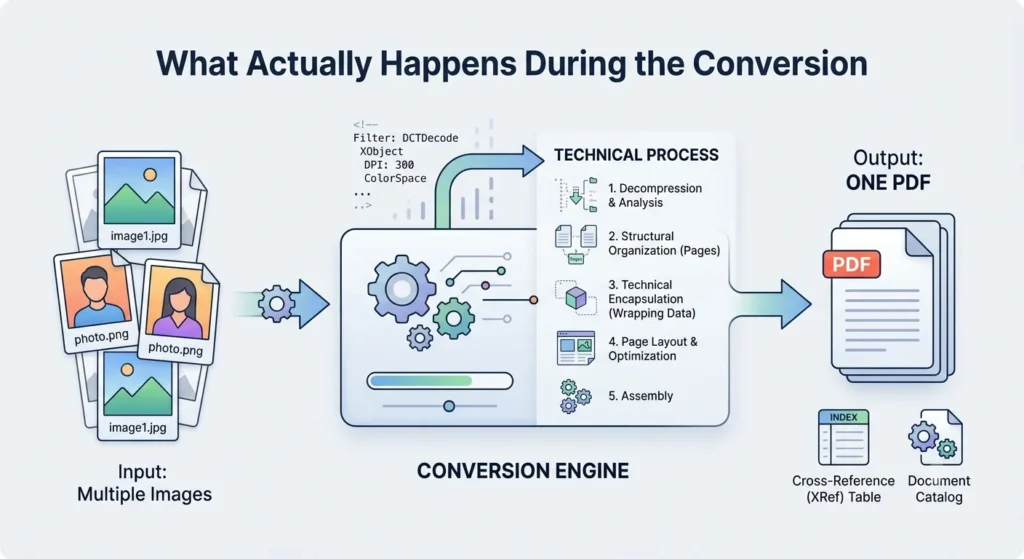
- Each image you upload becomes one page in the final PDF, in the order you provide them.
- The image is placed to fit the page while keeping its original aspect ratio, so nothing gets stretched or distorted.
- The quality of each image is preserved — a good converter doesn’t recompress your photos harder than necessary during the process.
- The result is a single file containing all your images as sequential pages, ready to upload, print, or share.
Read More: PNG to JPG: Shrink Your Photos in Seconds Before You Send Them
How to Combine Images Into a PDF the Right Way
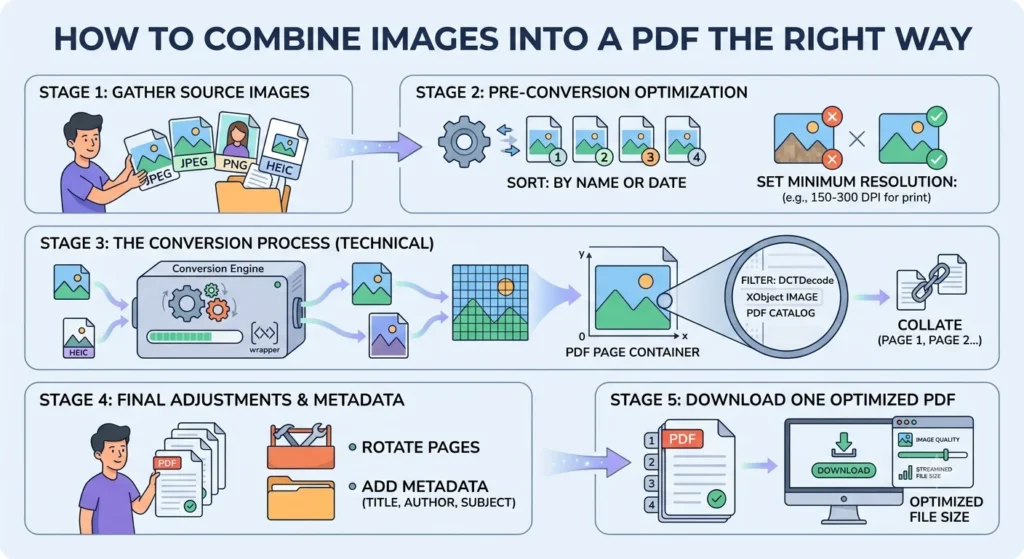
- Gather all your images first and check them for quality — blurry or poorly lit photos will look just as bad inside the PDF.
- Decide the order before you upload, since most tools convert images in the sequence you add them.
- Keep file names organized (like
01.jpg,02.jpg,03.jpg) if your tool sorts by filename, so pages land in the right order automatically. - Convert the images to a single PDF using a dedicated tool rather than manually copy-pasting into a document editor, which often distorts sizing.
- Open and check the final PDF before submitting it anywhere, confirming every page is present, correctly oriented, and in the right order.
Turn Your Images Into a PDF in Seconds
No design software or document editor required. AsanTool’s Image to PDF converter does the entire job right in your browser:
- Upload multiple images at once
- Arrange them in the order you want
- The tool combines them into a single, clean PDF automatically
- Download the finished file instantly
- Nothing is stored on our servers — your files are deleted automatically within the hour
It works the same whether you’re combining photos straight from your phone’s camera roll or scanned documents from a laptop.
Frequently Asked Questions
Will my images lose quality when converted to PDF?
Not with a properly built tool. Your images are placed into the PDF at their original quality, without unnecessary recompression.
Can I control the order of the pages?
Yes. The order you upload or arrange the images in is the order they’ll appear as pages in the final PDF.
Is there a limit to how many images I can combine?
Most tools handle a reasonable number of images without issue, but very large batches may take a bit longer to process — this depends on total file size, not just image count.
Can I mix JPG and PNG images in the same PDF?
Yes. The final PDF format doesn’t care what format your source images were in — both convert cleanly into pages within the same document.
Need to combine images into one PDF right now? Try the free Image to PDF converter — no account, no software, and your files are never kept on our servers.