
PNG to JPG: Shrink Your Photos in Seconds Before You Send Them: If you’ve ever tried to email a PNG screenshot or a saved image and watched it eat up your entire attachment limit, you already know the problem. PNG files are often two, three, even five times larger than they need to be for everyday sharing and converting them to JPG is usually the fastest fix.
This guide explains exactly why PNG files get so heavy, when converting to JPG actually makes sense, and how to do it without wrecking the image in the process.
Why PNG Files Are So Much Bigger Than JPG
PNG and JPG were built for different jobs, and that difference is exactly why PNG files balloon in size.
- PNG uses lossless compression. Every single pixel of data is preserved exactly as it was, which is great for accuracy but terrible for file size, especially with photos that have lots of color variation.
- JPG uses lossy compression. It intelligently discards visual information your eyes barely notice anyway — subtle color gradients, fine noise — which is why JPG files of the same photo can be a fraction of the size.
- PNG also carries extra data for transparency support, even when an image doesn’t use any transparency at all, which adds to the file weight unnecessarily.
For a photo — something with continuous tones and lots of natural detail — PNG is almost always the wrong format to store it in long-term. It’s built for graphics, not photography.
When You Should Convert PNG to JPG
Not every PNG needs converting, but in these situations it makes a real difference:

- Sending photos over WhatsApp or email, where large PNG files either bounce back or get compressed so aggressively by the app that quality suffers anyway
- Uploading to websites or forms with strict file size limits, especially government portals or job application systems
- Sharing on social media, where smaller JPG files upload faster and load quicker for people viewing them
- Saving phone or computer storage, since a folder full of PNG screenshots can quietly use up several times more space than the same images saved as JPG
- Printing or sharing photos where transparency was never needed in the first place, meaning the PNG’s extra data was doing nothing useful
When You Should NOT Convert to JPG
JPG isn’t always the right move. Keep your file as PNG if:
- The image has a transparent background you still need (converting to JPG will fill transparent areas with solid white)
- It’s a logo, icon, or graphic with sharp text or clean edges, since JPG compression can make text and hard edges look slightly blurry or “fuzzy”
- You need to edit the image further and want to avoid compounding quality loss from repeated JPG saves
How to Convert PNG to JPG Without Ruining It
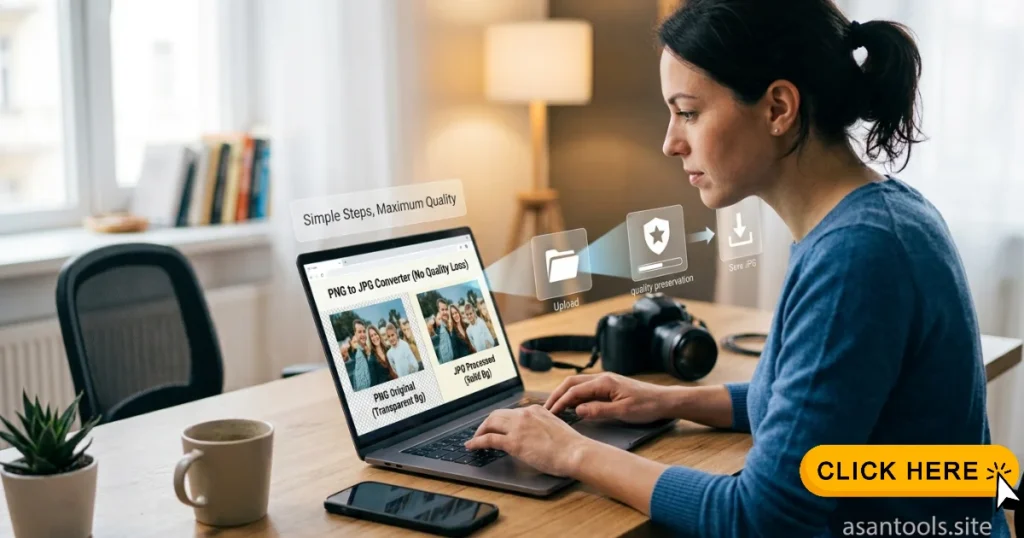
- Check if your PNG has transparency first. If it does and you convert to JPG, transparent areas will automatically become solid white — make sure that’s actually what you want.
- Start from the original PNG, not a copy that’s already been converted and re-saved, to avoid stacking quality loss.
- Convert the file using a proper tool rather than just renaming the file extension, which doesn’t actually compress or restructure the data.
- Compare file sizes before and after. A well-converted PNG-to-JPG usually shrinks by 60-80%, sometimes more, depending on the image content.
- Zoom in and check quality at 100%, especially if the image has fine text or sharp lines, since that’s where JPG compression shows its effects first.
Convert PNG to JPG in Seconds
No editing software required for a clean, fast conversion. AsanTool’s PNG to JPG converter handles it entirely in your browser:
- Upload your PNG file
- The tool converts it to an optimized JPG automatically
- Download the smaller file instantly
- Nothing is stored on our servers — your file is deleted automatically within the hour
It works exactly the same whether you’re converting a screenshot on your phone right before sending it, or batch-shrinking images on a laptop.
Related Post: JPG to PNG: The Only Guide You’ll Need for Transparent Images
Frequently Asked Questions
Will converting PNG to JPG make my image blurry?
Not if done properly. A well-converted JPG looks nearly identical to the original PNG at normal viewing sizes. Visible quality loss usually only shows up with very aggressive compression or repeated re-saving.
What happens to transparent areas when I convert to JPG?
They turn solid white, since JPG doesn’t support transparency at all. If you need to keep transparency, stay with PNG or a similar format instead.
How much smaller will the file actually be?
It varies by image, but photos typically shrink by 60-80% when converted from PNG to JPG, since JPG’s compression is specifically built for photographic detail.
Is it safe to delete the original PNG after converting?
Only if you’re sure you won’t need transparency or lossless quality later. It’s generally safer to keep the original PNG and treat the JPG as a separate, smaller copy for sharing.
Need to shrink a PNG right now? Try the free PNG to JPG converter — no account, no software, and your file is never kept on our servers.