
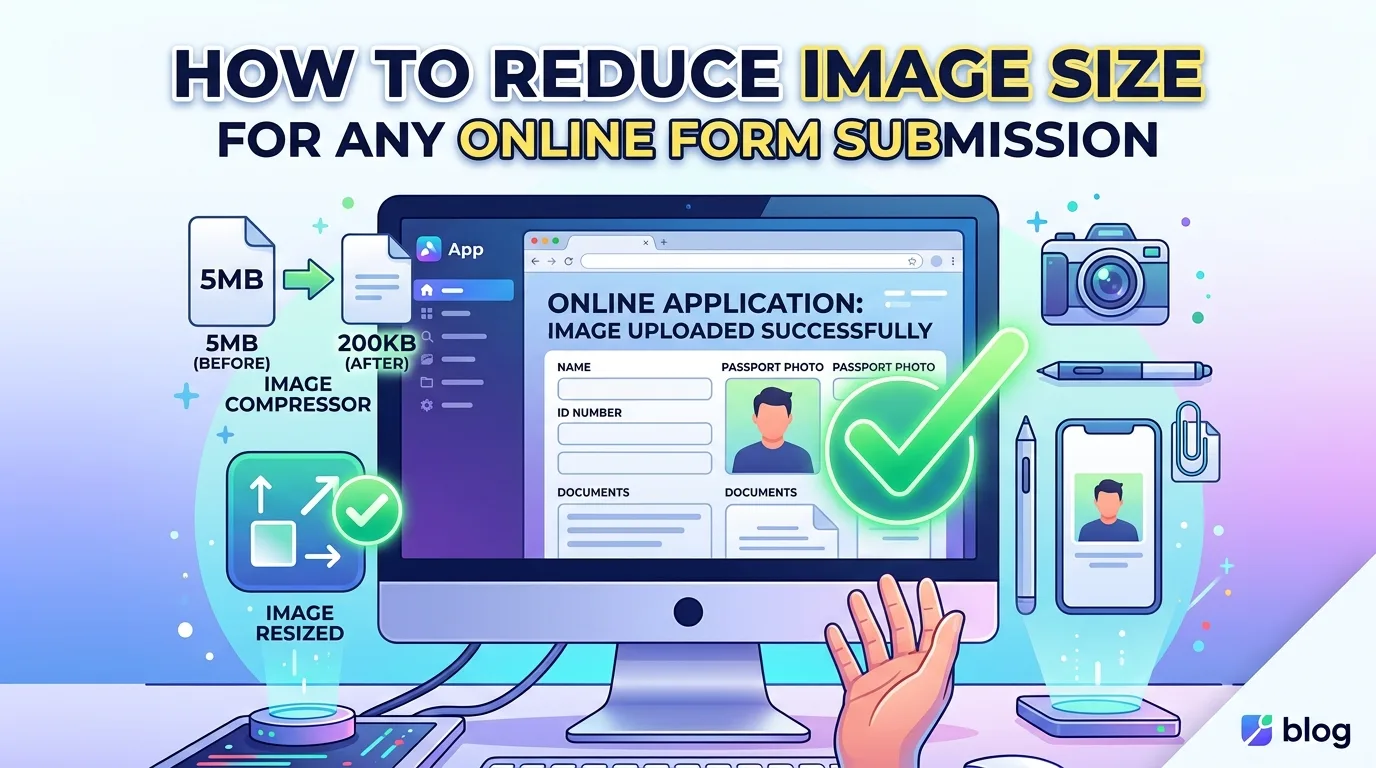
Every online form seems to have its own arbitrary number. One wants your photo under 20 KB, another wants it under 200 KB, a third rejects anything over 100 KB but also rejects anything under 10 KB. None of this is random, and once the pattern makes sense, hitting any of these targets takes the same simple process every time.
Why Every Form Has a Different Number
The size limit isn’t really about your photo; it’s about what the receiving system is built to handle. A signature field on an exam form only needs a tiny amount of visual detail to be readable, so the limit is often as low as 10 to 20 KB. A full passport-style photo needs to show more detail, so it typically allows 50 to 100 KB. A scanned document or certificate carries even more visual information, so those limits often stretch to 200 KB or more.
Understanding what category your upload falls into (signature, photo, or document scan) gives you a rough idea of what size range to expect even before the form tells you explicitly.
The Two Numbers Every Form Actually Cares About
This is where most people get stuck without realizing it. A file size limit and pixel dimensions are two separate things, and a form can enforce either one, or both at once.
File size (KB or MB) is the actual weight of the saved file, controlled by compression quality.
Pixel dimensions (width x height) are the physical size of the image, controlled by resizing.
A photo can be resized to tiny dimensions and still be a relatively large file if it’s saved at high quality, and a photo can keep its original dimensions while being compressed down to a very small file size. When a form specifies both a KB limit and exact pixel dimensions, both need to be handled, not just one.
The Reverse Problem: Too Small
Occasionally a form rejects a file for being under a minimum size, not just over a maximum. This happens because some systems set a floor as well as a ceiling, something like “between 20 KB and 50 KB,” to make sure the image has enough visible detail to be usable. Compressing too aggressively can accidentally push a file below that floor.
If this happens, the fix isn’t to redo the photo. Instead, dial the compression back slightly, targeting somewhere in the upper half of the allowed range rather than the very minimum, so there’s margin on both sides.
Read More: Why Your Image Won’t Upload (And How to Fix Every Common Error)
How to Hit an Exact KB Target Every Time
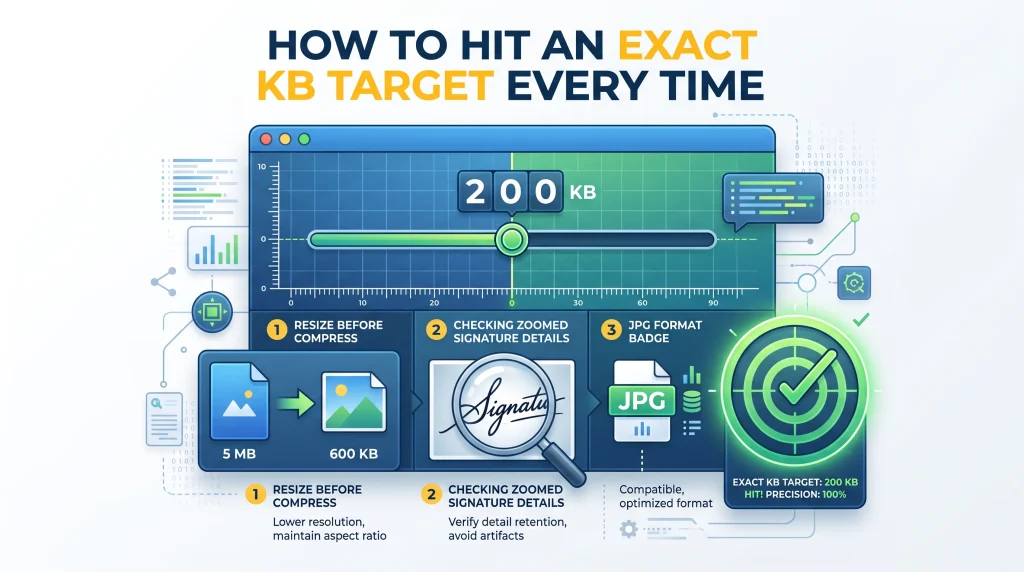
- Read the form’s requirement carefully first, noting whether it specifies a KB limit, pixel dimensions, or both, since this determines what steps you actually need to take.
- Resize before compressing if dimensions are also specified. Reducing pixel dimensions often cuts a large portion of file size on its own before any compression is applied.
- Compress toward the upper portion of the allowed range, not the absolute minimum, to avoid accidentally triggering a “too small” rejection if the form has a floor as well as a ceiling.
- Check the result at full zoom, especially for anything with fine detail like a signature or small text, since aggressive compression affects these first.
- Save as JPG for photos and scans, since it compresses far more efficiently for photographic content than PNG, which tends to stay larger even after compression.
Some Common Limits You’ll Run Into
| Type of Upload | Typical Range |
|---|---|
| Signature | 10 to 20 KB |
| Passport-style photo | 20 to 100 KB |
| Document scan or certificate | 100 to 300 KB |
| General profile photo | 200 KB to a few MB |
These aren’t universal rules; always check the specific form, but they give a reasonable starting point when a portal’s exact requirement isn’t immediately clear.
Compress to Any Exact Size in Seconds
AsanTool’s Image Compressor lets you target a specific file size directly in your browser, rather than guessing with a vague quality slider:
- Upload your photo
- The tool compresses it toward your required size
- Preview the result before downloading to confirm it still looks sharp
- No software or account needed, and your photo is never stored on our servers
Conclusion
Every online form’s size limit exists for a practical reason tied to what that specific upload is used for, not as an arbitrary hurdle. Once you separate file size from pixel dimensions, aim slightly above the minimum rather than right at it, and compress with the right target in mind, hitting any form’s requirement becomes a predictable, repeatable step instead of trial and error.
Need to hit an exact KB target right now? Try the free Image Compressor. No account, no software, and your photo is never kept on our servers.
1 thought on “How to Reduce Image Size for Any Online Form Submission”