
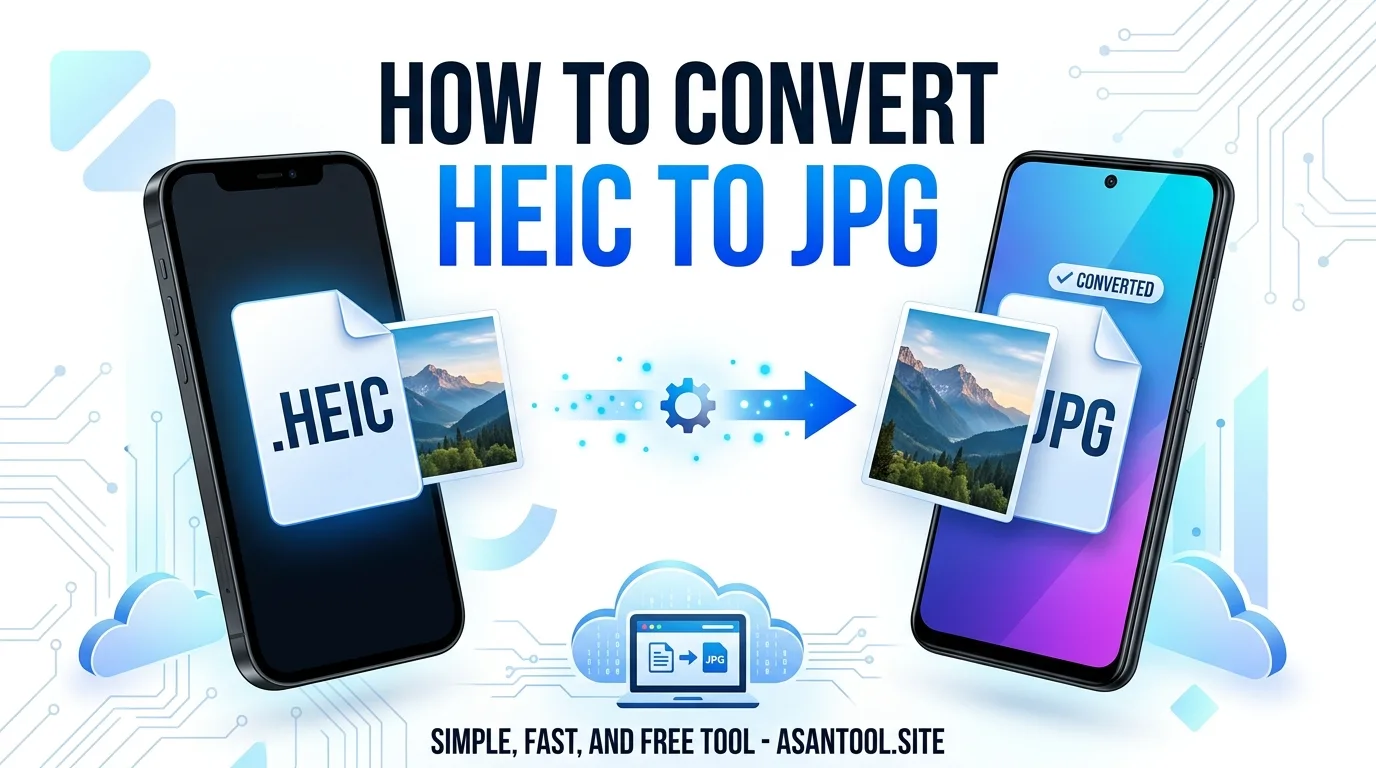
You get sent a photo from an iPhone, and it just won’t open. No preview, no thumbnail, sometimes not even a proper error message — just a file that looks broken on your Android phone or Windows laptop. Nothing is actually wrong with the photo. It’s saved in a format called HEIC, and many non-Apple devices simply don’t know how to read it yet.
What HEIC Actually Is
HEIC (High Efficiency Image Container) is Apple’s default photo format on iPhones running recent versions of iOS. Apple switched to it because it stores photos at roughly half the file size of a JPG with comparable quality — great for saving storage space on the phone, but not so great the moment that photo needs to leave the Apple ecosystem.
- Smaller file size than JPG at similar visual quality — this is the main reason Apple uses it
- Not universally supported — many Android phones, older Windows versions, and various apps and websites can’t open it directly
- Silently causes upload failures — some websites and forms reject HEIC files without a clear explanation, just a generic “invalid file” message
Why This Keeps Happening
Most iPhone users don’t even know their phone is saving photos as HEIC by default — it happens automatically, with no prompt or setting shown during normal use. The problem only surfaces when:
- An iPhone photo is sent to an Android user via email, USB transfer, or certain messaging apps
- A HEIC photo is uploaded to a website or portal that only accepts JPG or PNG
- A photo needs to be opened on an older computer or a program that hasn’t been updated to support the format
- The photo is being used somewhere that explicitly requires JPG, like many job applications and government portals
WhatsApp and most social media apps automatically convert HEIC to JPG when sending, which is why the problem often doesn’t show up until someone tries a different transfer method — AirDrop alternatives, email, USB, or cloud storage links.
How to Fix It
The fix is always the same core idea: convert the HEIC file into JPG, a format virtually every device and platform can open without issue.
- Identify which photos are actually HEIC. They’ll typically have a
.heicfile extension, though some transfer methods rename or convert them automatically without you realizing it. - Convert to JPG before sending or uploading, rather than sending the HEIC file and hoping the receiving device handles it.
- Check the photo after converting to confirm it opens normally and looks the same as it did on the original iPhone.
- If you’re the one receiving the file and can’t open it, ask the sender to convert it to JPG first, or convert it yourself using a browser-based tool if you already have the file.
A Longer-Term Option: Change the iPhone’s Default
If this keeps happening repeatedly, the iPhone can be set to save photos as JPG by default instead of HEIC:
- Go to Settings → Camera → Formats
- Select “Most Compatible” instead of “High Efficiency”
This changes all future photos to save as JPG automatically, avoiding the issue going forward — though it won’t fix photos already saved as HEIC before the setting was changed.
Read More: 12+ Top Free Online Photo Editors To Try in 2026
Convert Existing HEIC Photos Quickly
For photos already saved as HEIC that need to work everywhere right now, converting them individually is the fastest path — no need to change phone settings or wait for a resend. Once converted to JPG, a photo can go through any of the usual next steps without issue: compressing it for a smaller file size, resizing it to exact dimensions for a form, or combining it with other images into a single PDF.
AsanTool’s browser-based tools handle all of those follow-up steps for free, without installing anything — once your photo is in JPG format, Image Compressor, Image Resizer, and Image to PDF are ready to take it from there.
Conclusion
A photo that “won’t open” from an iPhone almost always comes down to one thing — the HEIC format not being recognized by the device trying to open it. Converting to JPG solves it permanently for that photo, and adjusting the iPhone’s camera settings prevents the same headache from repeating with every future photo sent outside the Apple ecosystem.
Already converted your HEIC photo to JPG and need to resize, compress, or combine it? Try AsanTool’s free tools — no account, no software, and your files are never kept on our servers.