

How to Compress an Image Without Losing Quality (Free & Instant): Every photo you take on your phone today is bigger than it needs to be. A single picture from a modern smartphone camera can easily cross 3-5 MB, and that creates problems the moment you try to actually do something with it — upload it to a form, attach it to an email, or send it over WhatsApp without it getting crushed into a blurry mess.
The good news is that compressing an image doesn’t have to mean ruining it. There’s a real difference between shrinking a file carelessly and shrinking it the right way. This guide walks through exactly how that works, and how to do it yourself in seconds.
Why Your Images Are So Large in the First Place
Most people assume a big file size just means a “better quality” photo, but that’s only half true. Camera sensors capture far more color and detail information than your eyes can actually distinguish on a phone or laptop screen. That extra data makes the file heavier without making the image look noticeably sharper to a normal viewer.
A few common reasons your photos end up oversized:
- High megapixel counts — modern phone cameras often shoot at 12MP or higher by default
- Uncompressed formats — some apps save images in formats that skip compression entirely
- Unnecessary metadata — location, camera model, and timestamp data get bundled into the file
- No optimization — most photos are never processed for web or sharing use before you send them
The Difference Between “Losing Quality” and “Losing Size”
This is the part most people get wrong. File size and visual quality are not the same thing, and you can reduce one without touching the other — up to a point
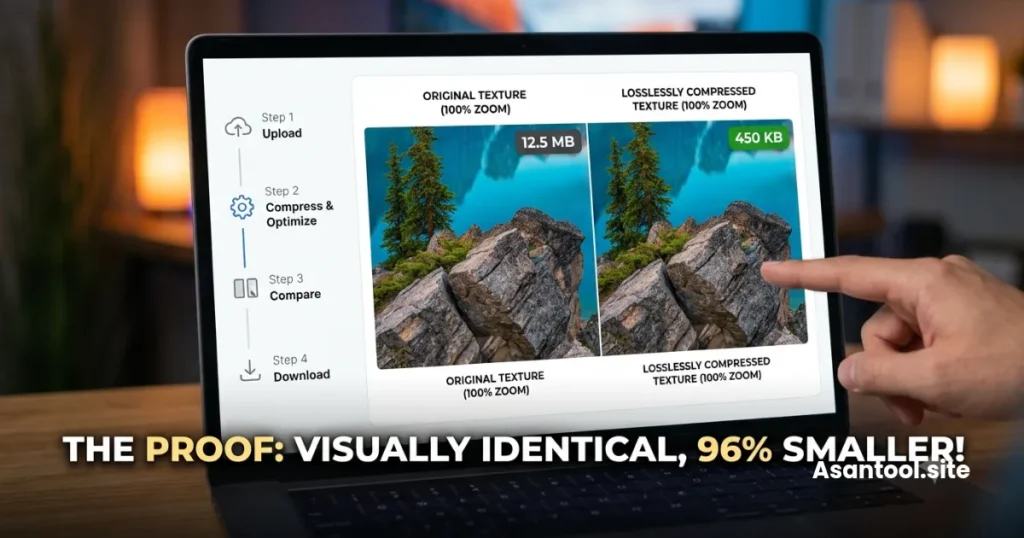
Compression works in two main ways:
- Lossless compression — removes redundant data that doesn’t affect how the image looks. File gets smaller, quality stays identical.
- Lossy compression — reduces file size more aggressively by simplifying some visual detail. Done properly, this loss is invisible to the human eye even though the math says data was removed.
The goal isn’t to avoid compression altogether — it’s to compress smartly, so the reduction happens in places your eyes were never going to notice anyway.
When You Actually Need to Compress an Image
Compression isn’t just a technical exercise — it solves real, everyday problems:
- Website uploads with strict file size limits (job portals, government forms, university applications)
- Email attachments that bounce back because they’re too large
- WhatsApp and social media, which auto-compress big files anyway and often make them look worse than if you’d done it properly yourself
- Faster page loading, if you’re uploading images to your own blog or website
- Saving phone storage when your gallery is full of screenshots and photos you don’t want to delete but also don’t want taking up space
How to Compress an Image the Right Way
Here’s the simplest, most reliable process:
- Choose the right format first. JPG is best for photos; PNG is best for images with transparency or sharp edges like logos and screenshots.
- Compress before you resize, not after — compressing an already-resized image can double up on quality loss.
- Check the result at 100% zoom, not just as a thumbnail. Thumbnails hide compression artifacts that become obvious at full size.
- Avoid compressing the same file repeatedly. Every re-save of a JPG loses a small amount of quality — compress from the original each time, not from an already-compressed copy.
- Use a dedicated compression tool instead of relying on the app you’re sending the file through, since apps like WhatsApp often compress harder than necessary and don’t give you control over the result.
Do It in Seconds — No Software, No Sign-Up
You don’t need Photoshop or a desktop app to do any of this properly. AsanTool’s Image Compressor handles the entire process in your browser:
- Upload your JPG or PNG
- The tool automatically finds the best balance between size and visual quality
- Download the compressed file in seconds
- Nothing is stored — your file is deleted from the server automatically within the hour
It works the same whether you’re on a laptop or compressing a photo straight from your phone, which matters if you’re trying to shrink an image on the go, right before uploading it somewhere with a strict size limit.
Frequently Asked Questions
Does compressing an image reduce its resolution?
No. Compression reduces file size by optimizing how the data is stored, not by changing the image’s dimensions. Resizing (changing width/height) is a separate process.
Will compression make my photo blurry?
Not if it’s done correctly. A well-compressed image looks identical to the original at normal viewing sizes. Blurriness usually comes from over-compression by apps like WhatsApp, not from proper compression tools.
What’s the best format for compressing photos?
JPG for regular photos, since it’s designed for photographic detail. PNG is better only when you need transparency or the image has large flat areas of color, like a logo or a screenshot with text.
Is there a limit to how much I can compress an image?
Yes — there’s always a point where further compression starts noticeably degrading quality. A good tool finds the sweet spot automatically instead of letting the file size drop at the cost of how the image looks.
Need to compress a photo right now? Try the free Image Compressor — no account, no watermark, and your file is never kept on our servers.